
Speedy CSV › Help
Speedy CSV Help
Everything the app’s built-in help says, in one place and in the order you’ll use it.
Help topics
- Typical workflow
- Get a Shopify product CSV
- Headers checked before you save
- Rows that don’t line up
- What the colours mean
- Find problems: the Audit tab
- Grouped rows
- Find text (Ctrl+F)
- Selecting and Clean up
- Selection status for products
- Bulk edit
- Fill empty cells
- Partial rows
- Add column
- Add column in a Shopify CSV
- Add product and variant
- Duplicate product and variant
- Remove product and variant
- Export for Shopify
- Settings
Need more help? Contact our support team and we’ll get back to you.
Help topics
- Typical workflow
- Get a Shopify product CSV
- Headers checked before you save
- Rows that don’t line up
- What the colours mean
- Find problems: the Audit tab
- Grouped rows
- Find text (Ctrl+F)
- Selecting and Clean up
- Selection status for products
- Bulk edit
- Fill empty cells
- Partial rows
- Add column
- Add column in a Shopify CSV
- Add product and variant
- Duplicate product and variant
- Remove product and variant
- Export for Shopify
- Settings
Typical workflow
This is the usual path through Speedy CSV, from opening a file to uploading it. Each step links to the full topic further down the page.
1. Open your file
Click Open (the folder icon, top left) and pick a CSV, or drag the file onto the window. It opens straight away, even a 100,000-row store export. Recent reopens a file you used before, and the + beside your file tabs opens another file alongside the first.
2. See what the app found
As the file opens, Speedy CSV checks the header row and recognises common columns such as Title, Description, Price and SKU. A small badge on a header shows what the app thinks the column holds. If it guessed wrong, right-click the header to change it. Shopify exports are grouped by Handle automatically, so each product’s rows stay together. See Grouped rows and Missing, duplicate, and renamed headers.
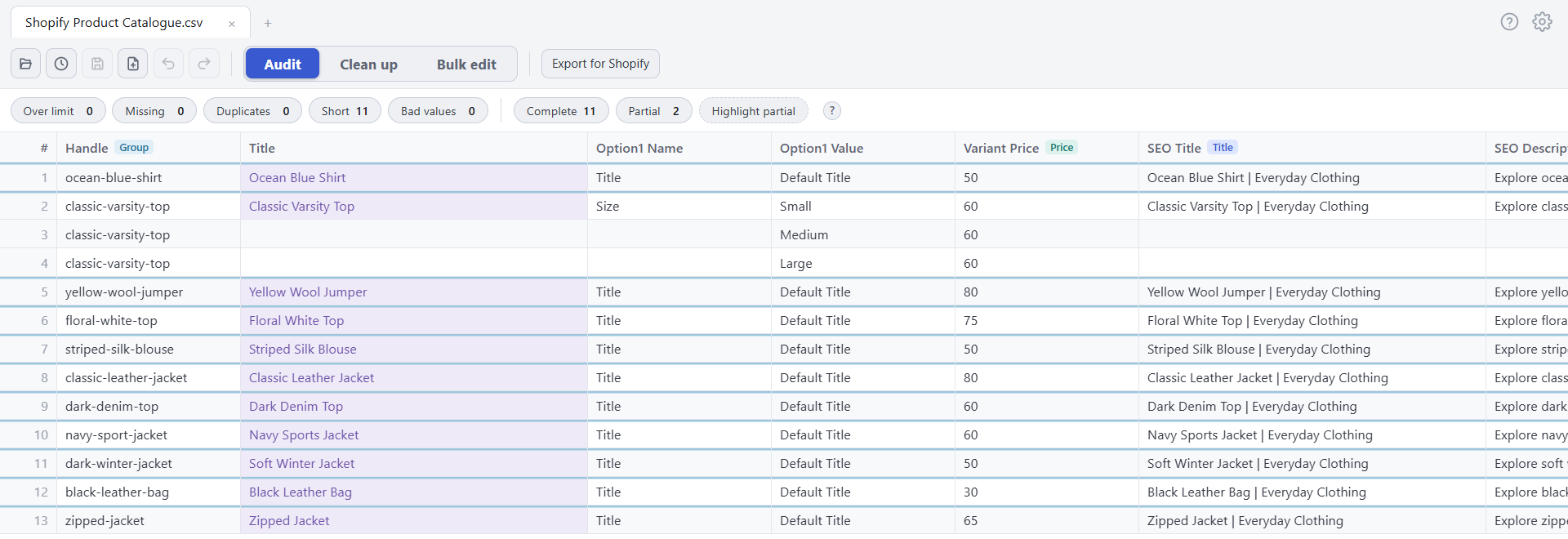
If some rows have more or fewer cells than there are columns, a message tells you which rows and what’s in the extra cells. See Rows that don’t line up.
3. Get to know the window
- Toolbar (top left): Open, Recent, Save, Save as, Undo and Redo. Undo has no limit and keeps a separate history for each file.
- Tabs: Audit finds problems, Clean up fixes messy text, and Bulk edit changes many cells at once. Each tool shows a preview before it changes anything.
- Export for Shopify: checks the file against what Shopify’s import needs, then saves the file you upload.
- The grid: your data. Colours show what needs attention; see What the colours mean.
- The edit box (bottom): shows the selected cell in full, for easy editing.
- Status bar (very bottom): row and group counts, selection details, and messages. Point at any item for an explanation.
- Help (F1) and Settings (Ctrl+,) sit at the top right.
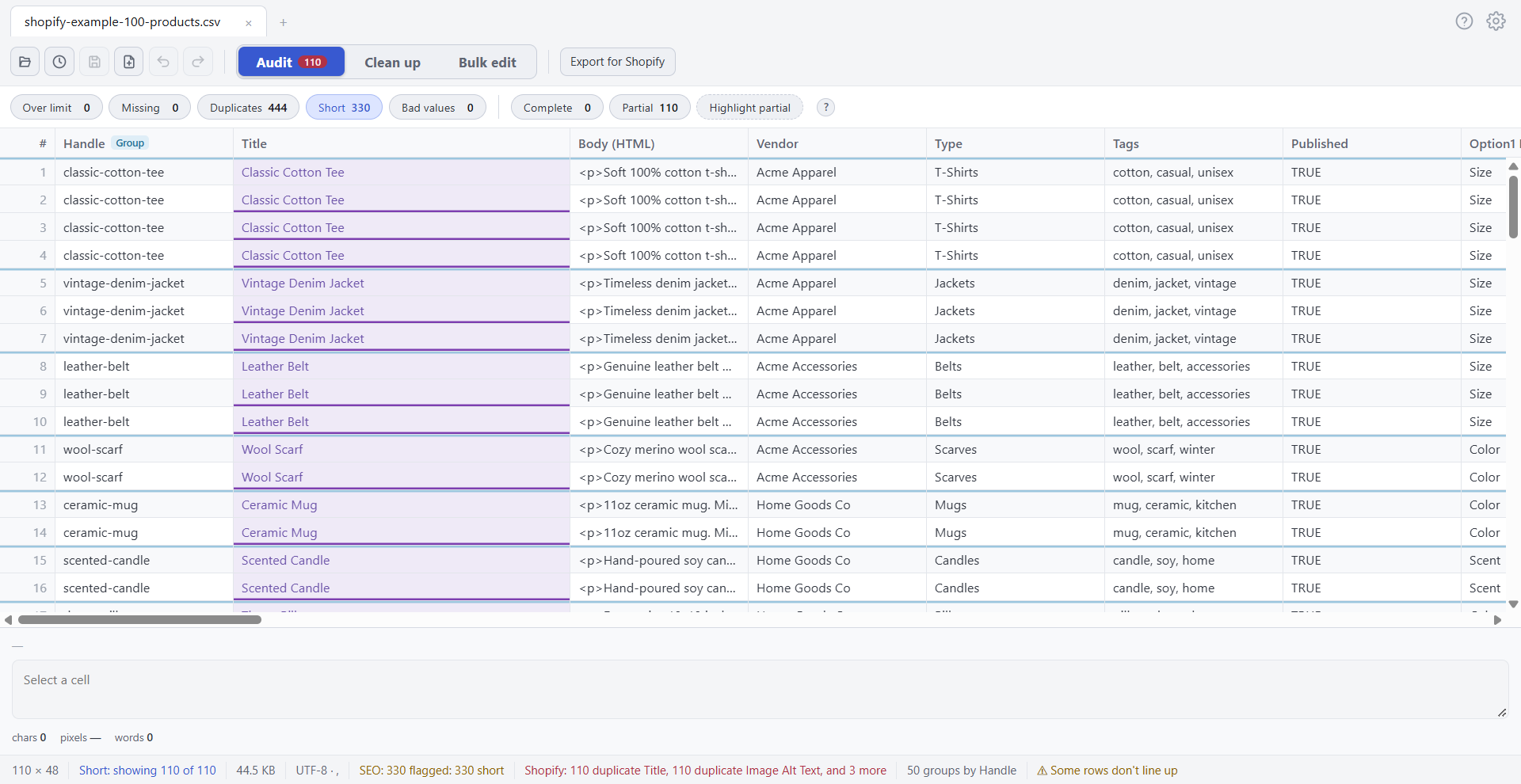
Press F1, or click the ? on a section, to open its help beside your file.
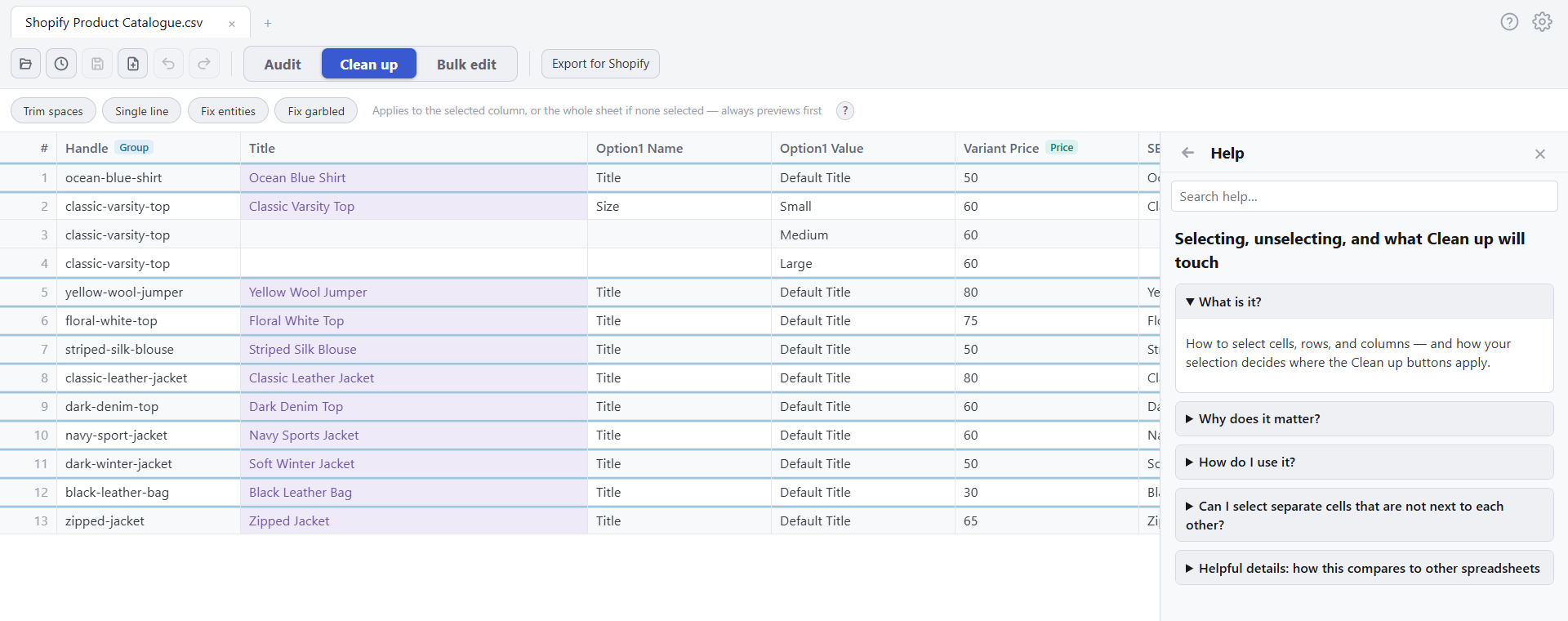
4. Find problems with the Audit tab
Open the Audit tab and click a filter: Over limit, Missing, Duplicates, Short, Bad values, Complete or Partial. The grid shows only the rows with that problem. The number on a filter counts problem cells; the number beside Audit counts rows. See Find problems: the Audit tab.
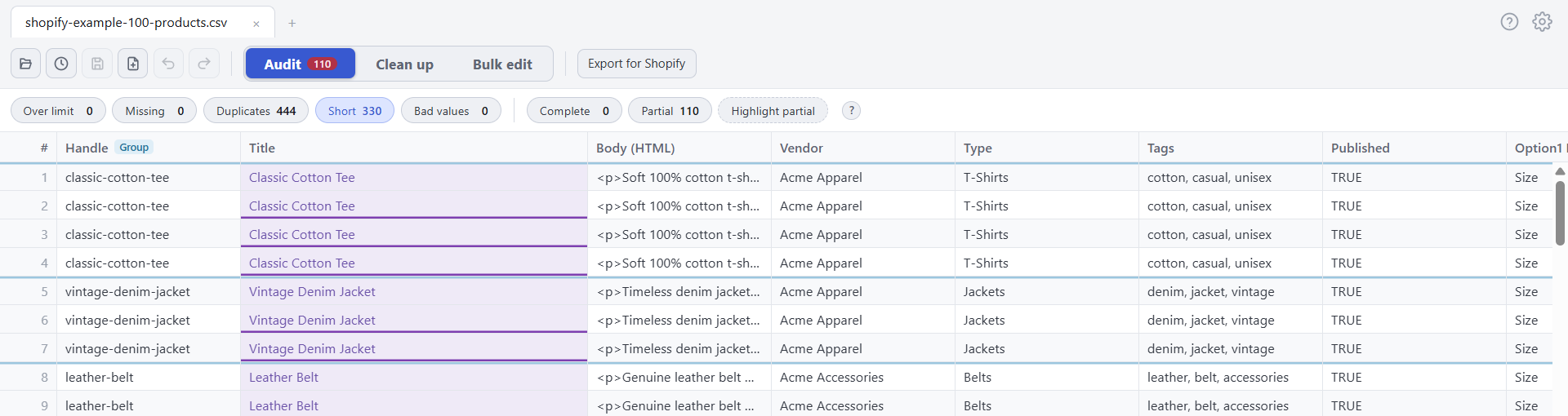
5. Fix a cell
Click a cell and edit it in the box at the bottom, or double-click to edit it in place. Enter saves the edit; Shift+Enter adds a line break. The colour clears as soon as the value is fixed. To jump to a value anywhere in the file, press Ctrl+F. See Find text.
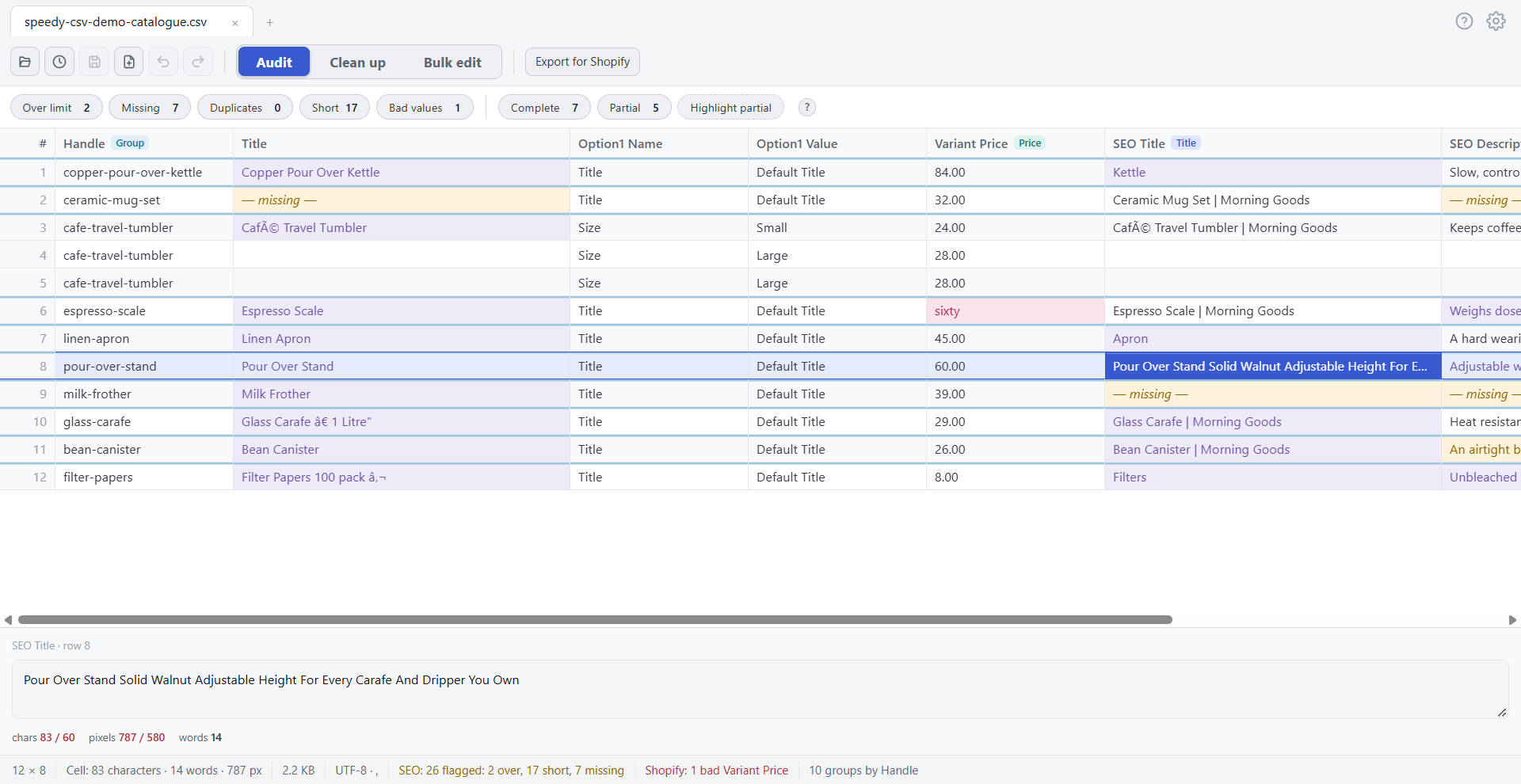
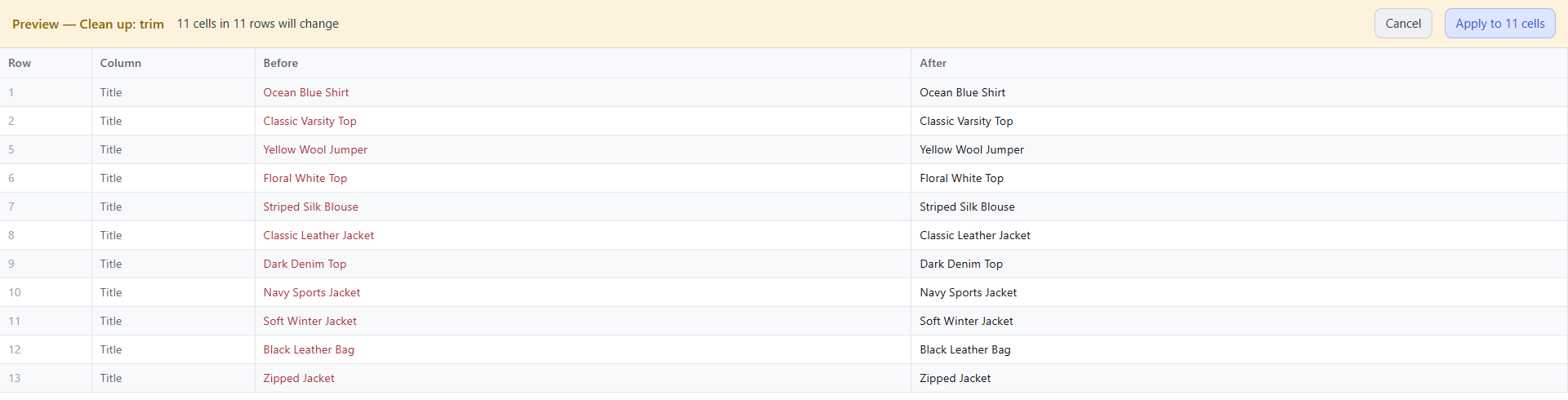
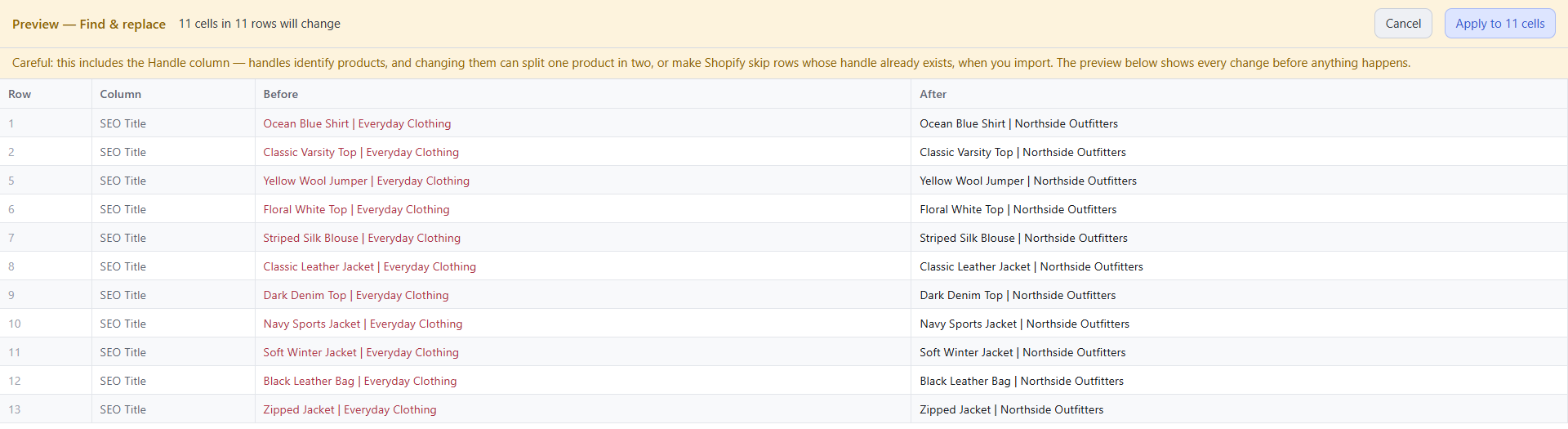
6. Fix many cells at once
- Clean up fixes messy text in one click: Trim spaces, Single line, Fix entities and Fix garbled. Select cells first to limit what it touches. See Selecting, and what Clean up will touch.
- Bulk edit changes many cells at once: Find & replace, Prefix/Suffix, Fill spaces, Case and Number rows. See Bulk edit.
Both show a preview of every change first, and both can be undone.
7. Work with products and variants
Right-click a row to add, duplicate or remove a product or a variant. Speedy CSV keeps the Handle and the product’s rows together for you. See Add product and Add variant, Duplicate product and Duplicate variant and Remove product and variant.
8. Save or export for Shopify
Press Ctrl+S or click Save to write the file back in its original format, with the same encoding, delimiter and line endings. To upload to Shopify, click Export for Shopify. It checks the file first, then saves either the whole sheet or only the products and fields you changed. See Export for Shopify.
Get a Shopify product CSV
- What it is: How to get your products out of Shopify as a CSV file — the file this editor is built to audit — and what that file looks like inside.
- Why it matters: Your whole store’s titles, descriptions, SEO fields, and SKUs live in that one file. Export it, open it here, fix the problems, and import it back. Knowing the file’s shape also explains why the Group rows feature matters: Shopify writes one row per variant or extra image, not one row per product.
- How to use it: Export from your own store (the real thing):
- Log in to your Shopify admin.
- Go to Products.
- Click Export (top of the page).
- Choose which products and pick Plain CSV file.
- Shopify emails you a download link for big stores, or downloads right away for small ones.
- Open the file in this editor.
- No store? Use a free sample file:
- Shopify’s official 2-product template: on the Help Center page “Using CSV files to import and export products” (help.shopify.com), download the sample product CSV. The download works from a normal browser.
- Shopify’s developer sample packs on GitHub (
shopifypartners/product-csvs): apparel, home-and-garden, and jewelery CSVs with about 20 products each. The jewelery file is the best grouping demo — 13 of its 20 products span several rows. - First thing to do after opening one: right-click the Handle column header and choose Group rows by this column. Now the checks understand that rows sharing a Handle are one product.
- What’s inside the file:
- Around 46 columns. The ones this editor flags: Title, SEO Title, SEO Description, Image Alt Text, Variant SKU, Handle.
- One row per variant (each size or color) and one row per extra image.
- Only each product’s FIRST row carries the Title, Body, and SEO fields. The follow-on rows leave them blank on purpose — that’s the format working, not missing data.
- Handle is the product’s ID in this file (it’s also the web address slug). Every row of a product repeats it.
Helpful Tips:
- Without grouping, a Shopify file makes the Missing count look scary — every follow-on row seems to be “missing” a title. Group by Handle first and the count drops to real problems only.
- The GitHub sample files have a blank Variant SKU on every row, so the Unique ID check will report many missing SKUs. That’s the sample data being incomplete, not a bug in your store or this editor.
- Column names can drift as Shopify updates its export. If a column isn’t picked up automatically, right-click its header and assign the role by hand.
Headers checked before you save
What the app checks before you save.
- What it is: A quick check the app runs every time you save: it looks at the header row (the first line of the file, with the column names) and warns you if any column has no name, if two columns share a name, or if a column still has a placeholder name. You can still save — it just asks first.
- Why it matters: The header row is how other software understands your file. Shopify matches every column by its exact name. A column with no name, or a name Shopify doesn’t know, is not imported: what’s in it never reaches your store, and the old values stay as they were. You can put this right while importing — Shopify’s import lets you match your columns to its fields by hand — but nothing prompts you to, so it is easy to miss entirely. Two columns with the same name are worse: Shopify keeps only the last one and drops the first. Spreadsheet programs invent names like “Column1” for blanks, so a problem can hide for weeks. Catching it at save time costs you one glance.
- How to use it:
- Work as normal. If a column has no name, its header shows (no name) in grey so you can see it. An amber note at the bottom (“2 unnamed columns”) counts the problems; click it to jump to the next one.
- Press Save (or Save as). If the header row is fine, the file saves straight away — no message.
- If not, a box lists what it found, describing each column by its neighbours — for example, “an unnamed column between Title and Vendor“, or “two columns named Title“.
- Click Go back to jump to the first problem column. For an unnamed column the name box opens so you can type a name and press Enter. Then save again.
- If the file is meant to be that way, click Save anyway — the file is written exactly as it is.
Helpful Tips:
- Renaming a column in a Shopify file. When you rename a header in a file with a Handle column, the name box shows a warning: Shopify will no longer recognise the field, so it won’t be imported unless you match the column up during the import. Press Enter if that’s what you want, or Esc to keep the old name. Renaming the Handle column asks you to confirm, because Handle is what tells Shopify which product each row belongs to — without it Shopify won’t recognise your products at all until you match that column up during the import.
- You can rename a header, but not blank it. If a column already has a name and you clear the box and press Enter, the app says “A column needs a name” and keeps the old one until you type a new name or press Esc. Only a column you have just added can sit unnamed, and the save check reminds you about it.
- Placeholder names. A duplicated column is called “Title (copy)” until you rename it; the check reminds you if one is still there at save time.
- The check never changes your file. It only asks. “Save anyway” writes the same bytes an unchecked save would.
- Undo works on names too. Ctrl+Z reverts a rename; on a column you just added, the first Ctrl+Z clears the name and the second removes the column.
Rows that don’t line up
Extra cells and missing cells.
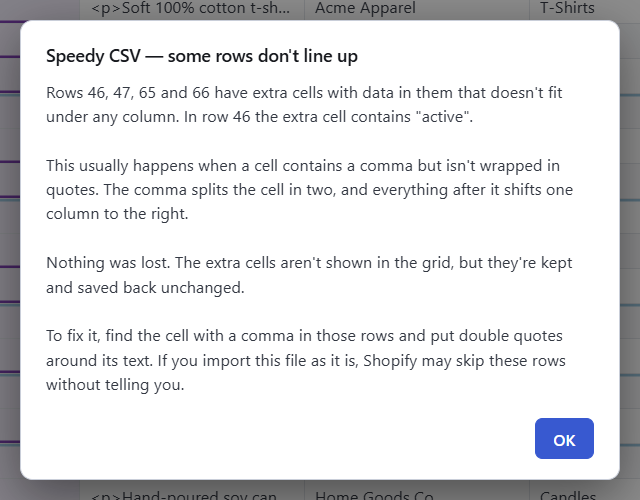
- What it is: A message that some rows in your file have more cells, or fewer cells, than the file has columns.
- Why it matters: The first row of a CSV file names the columns. If it names Handle, Title, Price, every row below it should have three cells.
- When a row has more cells than that, the extra cells don’t fit under any column. When it has fewer, its last columns are empty. Either way, other programs can read the row wrongly, and Shopify can leave the product out of an import without telling you.
- Speedy CSV still opens the file. It does not repair, remove or move anything. Extra cells aren’t shown in the grid, but they are kept and saved back unchanged.
- How to use it:
- Open the file as usual.
- If a message titled some rows don’t line up appears, note the row numbers it lists. They are the same numbers shown down the left edge of the grid.
- If you close the message, point at the amber note at the bottom of the window to read it again.
- Fix the rows it names. For extra cells with data, find the cell that contains a comma and put double quotes around its text.
- Import the file into Shopify only after those rows are fixed.
Helpful Tips:
Extra cells with data in them
Example:
Handle,Title,Type
tote,Canvas Tote,Bags, Wallets
The Type should be one cell, Bags, Wallets. Without quotes, the comma splits it in two, so Wallets spills past the last column. The fix is "Bags, Wallets".
The message reads:
Row 1 has an extra cell with data in it that doesn’t fit under any column. The extra cell contains “Wallets”.
In a Shopify test import on 09/24/2026, Shopify reported “Products imported” but left a row like this out.
Empty extra cells
Example:
Handle,Title,Type
tote,Canvas Tote,Bags,
The comma at the end of the line starts one more cell with nothing in it. No data is out of place. This doesn’t open a message; a short note appears at the bottom of the window instead. In the same Shopify test, a row like this imported normally.
Too few cells
Example:
Handle,Title,Type
tote,Canvas Tote
The row stops before the Type column, so that cell shows as blank. The missing cell doesn’t exist in the file, so it can’t be edited in the grid. This usually means the row was cut short or a quote mark is missing. We haven’t tested what Shopify does with these rows.
Files that are rejected instead
Speedy CSV refuses files that are clearly not CSV or TSV text, such as images, PDF files, ZIP or Office documents, programs, databases and JSON files. Save those as CSV first.
What the colours mean
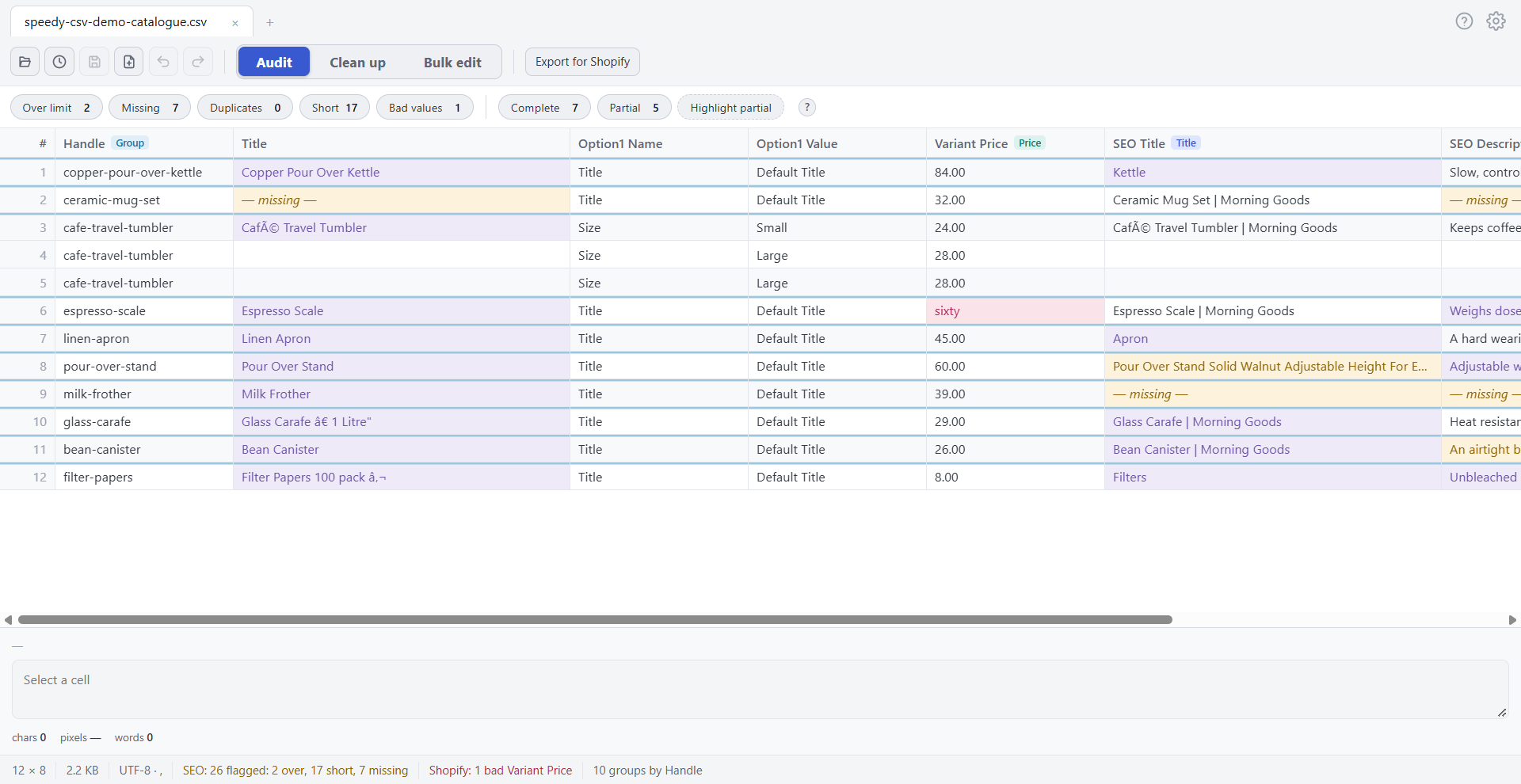
- What it is: Speedy CSV colours cells and messages so you can see what needs attention without reading every box.
- Why it matters: There are only two levels, and telling them apart saves you time:
- Amber means improve this. Your file is fine. Shopify will import it exactly as it is. Google would just prefer something better.
- Red means something is wrong. This will break your import, or it will cost you money in your store.
- Everything below is one of those two, plus a few marks that aren’t problems at all.
- How to use it: Look at the colour, then decide. Amber can wait until you have time. Red should be fixed before you upload the file to Shopify.
- Cell colours:
- Empty cells are always in italics, whichever colour they are. That’s how you tell “this box is empty” from “this box has something short in it”.
- Length limits are yours to change, and so is whether blank product codes are flagged at all: Settings → Audit Checks.
| Colour | What it means | What to do |
|---|---|---|
| Amber | The title or description is too long, nearly too long, an SEO field is empty, or a product code you asked to be told about is empty | Improve it when you have time. Nothing breaks. |
| Purple | The title or description is too short | Add detail. You’re wasting space in Google. |
| Red, in italics | A Handle or price is empty | Fix before importing. An empty Handle stops the product importing. |
| Pink | A number can’t be right — a price of zero, a sale price below the real price, or negative stock | Fix before importing. This costs you money. |
- Outlines, bars and underlines: These are marks on a cell rather than a colour in it.
- Amber outline — this cell matches what you typed in Find. Press Enter to jump to the next one.
- Purple underline — this value appears somewhere else in the same column. Two products can’t share a Handle, and two variants can’t share a SKU, so a repeated one is usually a mistake.
- Amber bar down the row number — this row is partly filled. You only see this when Highlight partial is switched on.
- Blue line across the top of a row — a new product starts here. You only see this when rows are grouped into products.
- Links:
- Web addresses show in blue, and underline when you point at them.
- Ctrl+click opens one in your browser. A plain click just selects the cell, so you can edit it without the page opening every time.
- Any cell starting with
http://orhttps://becomes a link, even in a column that isn’t named for links.
- Message colours at the bottom: The strip along the bottom uses the same two levels.
- One exception on purpose: the red number on the Audit tab shows whenever a filter is on, wherever you are in the app. It’s red to stop you forgetting you’re only seeing part of your file.
- The SEO message counts things Google cares about. The Shopify message counts things your store cares about, and it names the column so you know what to fix. On a plain CSV that same message is called Data, because a file with no products has no Handle to lose.
- The Shopify message can be amber instead of red. There is only one of them, and it takes the colour of the worst thing in it. If the only thing it has to report is a blank product code you asked to be told about, it is amber. The moment something is genuinely broken — a missing Handle, a price of zero — the whole message turns red.
- That means a blank SKU cell can be amber while the message beside it is red, if the file also has a real problem somewhere. Both are telling the truth: the cell is worth a look, and the file has something wrong in it. We chose this on purpose over adding a second message, because the bottom strip is already crowded and a summary line should lead with the worst news.
| Colour | Where you see it | What it means |
|---|---|---|
| Amber | SEO: 4 flagged…, “unsaved”, hidden columns, column-name notes | Improve this, or just so you know |
| Red | Shopify: 2 missing Handle (won't import) (or Data: on a plain file) | Something is wrong — fix before importing |
| Green | “Saved” | It worked |
| Blue | “showing 500 of 20,000”, the filter button you clicked, a selected column | Switched on right now — not a problem |
Helpful Tips:
- Nothing coloured is ever changed for you. Colours are just marks on screen. Your file only changes when you edit it, and only saves when you save.
- Colours adjust to your theme. The same meanings apply in light and dark; the shades differ so they stay readable.
- Don’t panic at a lot of amber. A big product export usually has plenty of short titles. That’s a list of chances to improve, not a list of faults.
Find problems: the Audit tab
The Audit tab.
The Audit tab is where you find what’s wrong in a file — too-long titles, empty fields, duplicates, broken prices — without scrolling through thousands of rows.
- What the Audit tab does: It holds a row of filter pills. Click one and the grid hides everything except the rows that have that problem. Click it again to show all rows. Only one filter runs at a time.
- The filter pills, one by one:
- Over limit — titles or descriptions too long. Google cuts these off in search results.
- Missing — empty cells in a column you’re checking.
- Duplicates — the same value in more than one row.
- Short — shorter than the suggested minimum. A guideline, not a Google rule (Google sets no minimum length).
- Bad values — store-data bugs: $0 or empty prices, sale prices set below the real price, negative stock.
- Complete and Partial — rows with every field filled, versus rows filled in only some columns.
- Highlight partial — marks partial rows in place without hiding the rest.
- Rows vs. cells: what the numbers mean: This is the one thing that trips people up. Some numbers count rows. Some count cells. A cell is one field in one row.
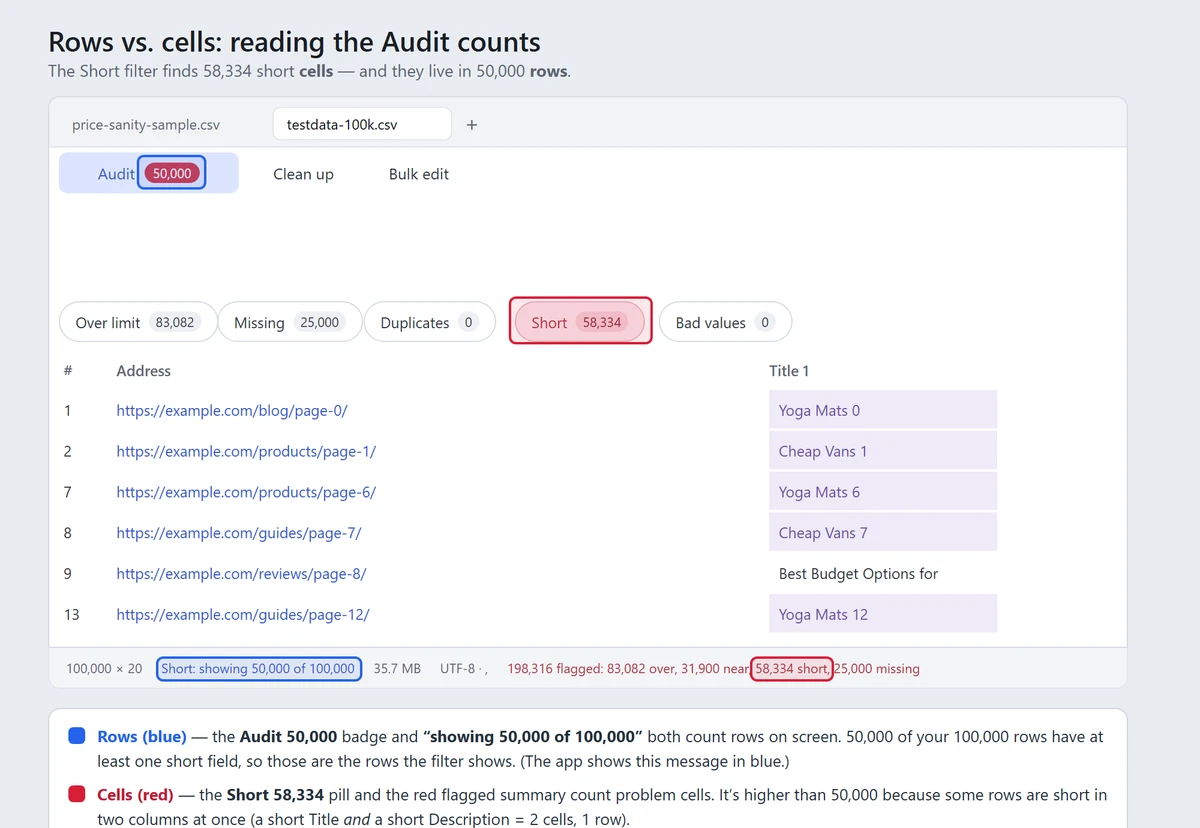
- In the picture the Short filter is on. The Audit 50,000 badge (blue) and the status line’s “showing 50,000 of 100,000” (blue) both count rows — 50,000 of the 100,000 rows have at least one short field. The Short 58,334 pill and the “58,334 short” in the
SEO:summary count cells — individual short fields. - Short titles are shown in amber, not red: they import perfectly and are only advice about how your listing reads in Google. See What the colours mean.
- They differ because one row can be short in more than one column. A row with a short Title and a short Description is 2 cells but 1 row. So 58,334 short cells live in 50,000 rows.
- The flagged summary always counts cells, and it adds up: 83,082 over + 31,900 near + 58,334 short + 25,000 missing = 198,316 flagged cells.
- In the picture the Short filter is on. The Audit 50,000 badge (blue) and the status line’s “showing 50,000 of 100,000” (blue) both count rows — 50,000 of the 100,000 rows have at least one short field. The Short 58,334 pill and the “58,334 short” in the
- The quick rule:
- Flag pills (Over limit, Missing, Duplicates, Short, Bad values) and the flagged summary count problem cells.
- The Audit badge and the Complete / Partial pills count whole rows.
- You don’t have to memorise it. Hover any pill and the tooltip says which it is.
- Related:
- Partial rows: the filter and the highlight
- Grouped rows — stops false “missing” flags on Shopify exports.
Helpful Tips:
- A filter never changes your file — only what you see. Turn it off and every row returns.
- The Audit badge turns red whenever a filter is on, a reminder that you’re looking at a filtered view.
- Want problems flagged without hiding anything? Use Highlight partial, or read the totals in the flagged summary at the bottom.
Grouped rows
Make the editor understand one-product-many-rows files.
- What it is: A mode that treats a run of rows sharing the same value in one column — like Shopify’s Handle column — as a single product, so the checks stop flagging rows that are empty on purpose.
- Does it change my file? No. Grouping and ungrouping only change how the file is shown to you. They are visual organisation, nothing more.
- Your data is never touched. No row, column or cell changes when you group or ungroup.
- Nothing is written to your file. Grouping isn’t saved into your CSV, and saving your file never changes it.
- Ctrl+Z does not undo grouping — and that is correct, because nothing was edited. Undo is only for changes to your data.
- To switch back, use the same menu. Right-click the column header and choose whichever option is showing: Ungroup rows or Group rows by this column.
- Ungrouping is safe to try. The only thing that changes is which cells get flagged, because the checks go back to reading every row on its own.
- Why it matters: Some exports use several rows for one product. A Shopify product export, for example, has one row per variant (each size or color) and per extra image. Only the first row of each product carries the title, description, and SEO fields — the rest are left blank by design.
- A normal checker doesn’t know that. It sees every blank variant row and shouts “missing title!” hundreds of times. You can’t find the real problems in that noise. Grouping removes the false alarms while keeping the real ones.
- How to use it: Shopify exports do this for you. If your file has a Handle column, the app groups it the moment you open it. You’ll see a blue Group badge on that header, a thin line above each product’s first row, and a group count in the status bar (for example, “1,204 groups by Handle”). Point at the badge or the group count to read what grouping means, or click either one to open this topic.
- To turn it off, right-click the Handle header and click Ungroup rows.
- Any other file: you can group on any column yourself.
- Open your file.
- Right-click the header of the column that repeats per product.
- Click Group rows by this column.
- To turn it off, right-click the same header and click Ungroup rows.
- "Some handles appear in more than one place": If the message that appears when you open the file says this, your file’s rows have been shuffled — the rows for one product aren’t sitting together any more. That usually happens when a file has been sorted by another column, or edited by hand, after it left Shopify.
- Because grouping only joins rows that are next to each other, each separate block counts as its own product, and those Handle cells get flagged as duplicates.
- If you sorted or edited the file: sort it by Handle again so each product’s rows are back together, then reopen it.
- If the file came straight from Shopify and you haven’t touched it: a repeated handle usually means a real problem in the export. Worth a look.
- What changes when grouping is on:
- Missing checks get smarter. A blank title, description, or alt text on a follow-on row is no longer flagged — those fields belong to the product’s first row. A blank on a first row still flags, because that’s a real gap.
- ID columns are still checked everywhere. A variant row missing its SKU or Handle is a real problem on every row, so those still flag.
- Duplicates on the group column get smarter too. A handle repeating across its own variant rows is normal and not flagged. The same handle showing up again later in the file, after other products, IS flagged — that usually means a broken export or a copy-paste mistake.
- Duplicates on other columns don’t change. Two rows with the same SKU still flag, even in different products — SKUs must be unique per variant.
Helpful Tips:
- Grouping only joins rows that sit next to each other. That matches how Shopify writes its exports.
- The Complete / Partial filters still look at single rows, so follow-on rows count as “partial” even when grouped. That’s expected.
- A follow-on image row with a blank alt text is currently not flagged. If alt text matters for your store, check the image rows by eye for now.
- Grouping lasts for as long as the file is open. Reopen the file and it groups itself again if it has a Handle column. See Does it change my file? above.
Find text (Ctrl+F)
Jump to any value in your sheet.
- What it is: A small search box that finds every cell containing the text you type and jumps you between them, one match at a time.
- Why it matters: In a file with thousands of rows, scrolling to find one product, SKU, or phrase wastes minutes every time. Find takes you straight there, tells you how many matches exist (“3 of 41 matches”), and outlines every match you can currently see on screen.
- How to use it:
- Open a file and press Ctrl+F. The search box appears at the top right of the grid.
- Type what you’re looking for. The count appears as you type, and the first match is selected for you.
- Press Enter for the next match, Shift+Enter for the previous one. The ↑ and ↓ buttons do the same. When you pass the last match, the search wraps around to the first.
- Press Esc to close the box. Your place in the sheet is kept — the last match stays selected.
- F3 also steps to the next match (and Shift+F3 back) even while you’re clicking around the grid, so you can edit a cell and keep searching without re-opening the box.
Helpful Tips:
- Capital letters don’t matter unless you say so. Searching
nikefindsNike,NIKE, andnike. Click the Aa button to match the exact capitalization you typed — it turns blue while it’s on. - Find searches what you can see. If a filter is on (for example “Missing”), only the rows the filter shows are searched, and the count says so: “2 of 5 matches in filtered rows”. Hidden columns aren’t searched either. Clear the filter or show the column to search everything.
- It matches part of a cell. Searching
shirtfinds “T-shirt (red)”. You don’t need the whole value. - Find never changes your data. It only moves the selection. To change what it finds, use Bulk edit → Find & replace, which shows a preview before anything is applied.
Selecting and Clean up
- What it is: How to select cells, rows, and columns — and how your selection decides where the Clean up buttons apply.
- Why it matters: The Clean up buttons follow your selection. If a column is selected, they clean only that column. Knowing how to clear a selection means you’re never surprised by what gets changed.
- How to use it: Selecting:
- Click a cell — selects it (and makes its row easy to see).
- Shift+click another cell — selects the block between them.
- Click a column header — selects the whole column.
- Click a row number — selects the whole row. Shift+click another row number for a block of rows.
- Unselecting:
- Press Escape. That clears any selection — cell, row, column, or block.
- If you’re typing in the cell editor at the bottom, the first Escape just leaves that box. Press Escape again to clear the selection.
- What Clean up touches:
- No selection → the whole sheet.
- Any selection → the column(s) of the selected cells. Even a single clicked cell counts — Trim spaces with one cell active in “post_status” cleans the whole “post_status” column.
- Your safety nets (always):
- Every operation shows a preview first — the header says exactly how many cells in how many rows will change. Nothing is applied until you click Apply.
- If nothing would change, the message tells you where it looked (for example, “…in the ‘post_status’ column”) — a quick way to catch a scope you didn’t intend.
- Undo reverses any applied operation.
- Can I select separate cells that are not next to each other? No. Speedy CSV uses one continuous selection at a time. Holding Ctrl and clicking several separate cells, as you might in desktop Excel, does not build a multi-part selection. On URL cells, Ctrl+click opens the link instead.
- For Shopify CSV work, a continuous selection is usually clearer and safer. Most jobs involve one column, a block of variant rows sharing a Handle, filtered problem rows, or complete products. A scattered selection would make calculations, copying, and bulk-edit scope harder to predict.
- Use these approaches instead:
- Filter the sheet to show the problem rows you need.
- Select the useful cells in one column, such as Inventory, Price, SKU, or SEO Title.
- When a product has several variants, group by Handle and select its adjacent variant rows as one block.
- Check the preview before applying any cleanup or bulk edit.
- Separate-cell selection is not required by Shopify. It may be reconsidered later if users need it often. A future version should keep separate selections within one column so calculations and bulk actions stay understandable.
Helpful Tips (how this compares to other spreadsheets):
This works a little differently from Excel and friends:
- Excel has no “nothing selected” state — there’s always an active cell, and Escape only cancels editing or a copy, never the selection. A single active cell means “whole sheet” for operations like Find & Replace; scope only narrows when you select a multi-cell range.
- Google Sheets makes you choose scope from a dropdown every time (this sheet / all sheets / a specific range).
- LibreOffice has a “current selection only” checkbox that ticks itself when a range is selected.
In this app: Escape gives a true clean slate, and a single active cell scopes to its column. That’s more precise than Excel’s convention, and it’s safe because nothing here ever changes without showing you a preview first — Excel replaces instantly, this app never does.
Selection status for products
- What it is: The bottom message area explains how many product groups, variant rows, cells, and number cells are in your selection.
- Why it matters: A Shopify product can use several CSV rows. Each physical row may be a variant, such as a different size or colour. Counting only rows can therefore make four variants look like four separate products.
- When you group the file by Handle, the message area shows product groups and variant rows separately. It does not merge or change the rows in your CSV.
- How to use it:
- Open a Shopify product CSV.
- To see product counts, right-click the Handle column and choose Group rows by this column.
- Select part of one or more rows to see rows in selection.
- Click row numbers in the left gutter to select complete rows and see rows selected.
- Read the bottom message area. It shows product groups, variant rows, selected cells, and numeric cells when they apply.
- Hover over the selection message for an explanation of which cells are included in calculations.
Helpful Tips:
- A product group is a distinct Shopify Handle in the selected rows.
- A variant row is a physical data row in the CSV. The editor keeps every variant row separate and editable.
- Text and blank cells do not take part in Sum, Average, Minimum, or Maximum calculations.
- A selection across several columns shows the numeric-cell count but hides calculations. This avoids adding unrelated values such as prices, inventory, and IDs.
- A single Inventory column shows Sum, Average, Minimum, and Maximum. Sum can help estimate total stock across the selected variants.
- A single Price or Compare-at price column shows Average, Minimum, and Maximum. Sum is hidden because adding variant prices is not normally useful.
- Other single numeric columns show Sum, Average, Minimum, and Maximum.
- These calculations describe the selected physical rows. They do not calculate one new product-level price.
Bulk edit
Change many cells at once.
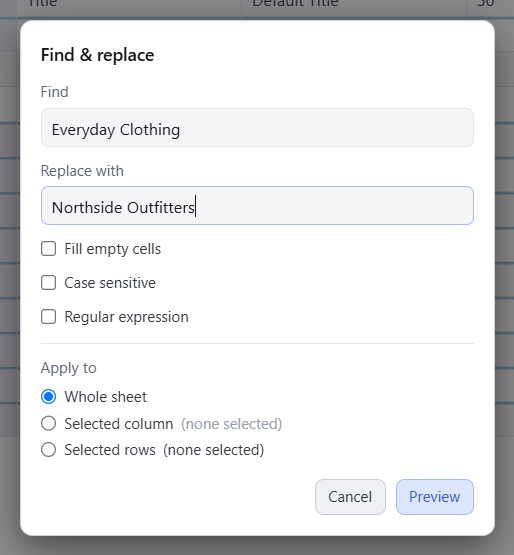
- What it is: The Bulk edit tab makes the same change to lots of cells in one go — find and replace text, add a word to every title, fix capitals, or number your rows.
- Why it matters: Editing five hundred product titles by hand is a lost afternoon. This does it in a few seconds, and shows you every change before anything happens, so a mistake costs you a click rather than a re-import.
- How to use it:
- Click the Bulk edit tab.
- Pick what you want to do — the five buttons are described below.
- Fill in the boxes that appear.
- Choose where it should apply: Whole sheet, Selected column, or Selected rows.
- Click Preview. You get a list of every cell that would change, with its before and after.
- Click Apply if it looks right, or Cancel if it doesn’t. Nothing changes until you click Apply.
- Changed your mind afterwards? Undo puts it all back in one step.
- What each button does:
- Inside Find & replace there are three extra switches:
- Fill empty cells — ignores the Find box and puts your text into empty cells instead. See “Fill empty cells” for what it skips and why.
- Case sensitive — “Blue” stops matching “blue”.
- Regular expression — for pattern matching, if you know the syntax.
| Button | What it does | Example |
|---|---|---|
| Find & replace | Swaps one piece of text for another | Change “T-Shirt” to “Tee” everywhere |
| Prefix/Suffix | Adds words to the start or end | Add ” | Acme” to the end of every title |
| Fill spaces | Replaces spaces with hyphens or underscores | Turn “blue shirt” into “blue-shirt” |
| Case | Fixes capital letters — Title Case, lower case, or UPPER CASE | Turn “BLUE COTTON SHIRT” into “Blue Cotton Shirt” |
| Number rows | Puts numbers in a column, counting down the rows | Fill a Position column with 1, 2, 3… |
- Things it will not do to you:
- Empty cells are left alone. Prefix, Case, Find & replace and the rest all skip blank cells. On a Shopify file this matters: the blanks on a product’s extra rows are part of the format, and filling them would break the product. The one exception is Fill empty cells, which exists to write into blanks.
- Nothing happens without a preview. Every button shows the full list of changes first.
- One Undo covers the whole thing, however many cells changed.
- Nothing is written to your file until you save.
Helpful Tips:
- Watch for the amber warning. If your change would touch the Handle or Image Src column on a Shopify file, an amber line appears above the preview. Handles identify your products, and image links are where Shopify fetches pictures from — changing either has consequences in your store.
- “Selected column” means the column you clicked. Click a column header first, then open Bulk edit, and the scope is ready for you.
- Bulk edit changes what your text says. Clean up fixes how it’s written — stray spaces, line breaks, garbled characters. Different tab, same preview-first safety.
Fill empty cells
Why some blanks stay blank.
- What it is: A checkbox in Find & replace that puts your replacement text into every empty cell in the selection.
- Why it matters: On a Shopify file, some blank cells are supposed to be blank — filling them would break the file. This topic explains which ones the app skips.
- How to use it:
- Open Find & replace, tick Fill empty cells, and type the value in the Replace box.
- Check the preview, then click Apply.
Helpful Tips:
- Some blanks are skipped on purpose. In a Shopify file, fields like Title and Vendor are written only on each product’s first row. The blanks on the rows below mean “same product” — they are not missing data, so the fill writes those columns once per product and leaves the rest blank. The preview names these columns.
- Cells that only look empty are filled too. A cell holding just a space counts as empty. The preview tells you how many of those it found.
- Want every blank filled anyway? Turn grouping off first (right-click the Handle header → Ungroup rows). With no products to protect, every empty cell gets the value.
- Undoable, and nothing is written to disk until you save.
Partial rows
The filter and the highlight.
- What it is: Two tools for finding rows that are missing some data. A “partial” row has data in some columns but not all of them.
- Why it matters: Incomplete rows are usually the ones that need work — a product with no description, a page with no title. These tools point straight at them.
- How to use it: Partial (filter): Click it to hide everything except partial rows. The bottom bar shows “Rows partially complete: showing N of M.” Click it again to bring all rows back.
- Only one filter can be active at a time. Clicking Partial replaces any other filter (like Over limit).
- Highlight partial (toggle): Click it to mark partial rows where they sit — an amber bar and tinted number in the row-number column — without hiding anything. It stays on until you turn it off, even when you change filters.
- Using both at once: Nothing breaks, but it’s redundant — when the Partial filter is on, every visible row is partial, so they’ll all carry the marker.
- The useful combination: Turn on Highlight partial, then use a different filter. Example: filter to Over limit with Highlight partial on. Now you see all the too-long titles, and the amber markers show which of those rows are also incomplete — two problems cross-referenced at a glance.
Add column
Put an empty column into a plain CSV.
- What it is: A right-click command on a column header that adds an empty column just to the right of it and lets you name it straight away.
- Why it matters: Plain SEO exports often need a working column — a “New title” beside the old one, a notes column, a second URL. Adding it in the app keeps you in the same grid instead of a round trip through a spreadsheet.
- How to use it:
- Open a plain CSV (one without a Shopify Handle column).
- Right-click the header you want the new column to sit after.
- Click Add column. An empty, unnamed column appears to the right — its header reads (no name) — with its name box already open and “New column” shown as a hint.
- Type the name you want and press Enter. (Esc leaves it unnamed; the header keeps saying (no name) and the app reminds you before you save.)
- Changed your mind? Undo first clears the name you typed, then a second Undo removes the column; Redo walks back the same way.
Helpful Tips:
- On a Shopify file the command is not shown. Shopify matches columns by their exact header name and doesn’t import any header it doesn’t recognise, so a hand-typed column won’t reach your store — and a mistyped Shopify header loses that field the same way. You can match columns up by hand during the import, but nothing prompts you to, so it is easy to miss. If you really need a custom column in a Shopify file: right-click the Handle header → Ungroup rows, add the column, then right-click Handle again → Group rows by this column. A proper “Add Shopify field” picker is planned for after V1.
- Unnamed or duplicated headers are caught at save time. If you leave a column unnamed, or two columns share a name, the app asks before saving and can jump you to the column. See the “Missing, duplicate, and renamed headers” topic.
- Nothing is written to disk until you save.
Add column in a Shopify CSV
- What it is: The way to add a column to a Shopify product file, where the normal Add column command is deliberately not shown.
- Why it matters: Shopify reads a CSV by the exact names of its column headers and doesn’t import any header it doesn’t know. A column you type by hand won’t reach your store, and a Shopify header typed with the wrong capitalisation loses that field the same way. Shopify’s import does let you match columns up by hand, but nothing prompts you to, so it is easy to miss. On a grouped Shopify file the app therefore keeps Add column out of the menu. When you genuinely need a column — a note to yourself, or a standard Shopify field the file is missing — here is the safe route.
- How to use it:
- Right-click the Handle column header and click Ungroup rows. The file is now treated as a plain CSV (the blue Group badge disappears).
- Right-click the header you want the new column to sit after and click Add column. An empty column appears to its right with its name box open.
- Type the name and press Enter. If it is a real Shopify field, type the header exactly as Shopify spells it — for example
SEO Title, notSeo title. - Right-click the Handle header again and click Group rows by this column. Your products are grouped again and the Shopify-aware commands return.
Helpful Tips:
- Ungrouping is a view setting, not a change to your file. Nothing is written to disk until you save, and grouping turns back on the same way.
- Shopify ignores columns it doesn’t recognise — an extra note-to-self column does no harm on import; it is simply dropped.
- Coming after V1: a picker that adds a recognised Shopify field with the header spelled for you, and a guided way to add a metafield column. Until then this is the route.
Add product and variant
New rows in a Shopify CSV.
- What it is: Two right-click commands for Shopify files: Add product starts a new product after the one you clicked, and Add variant adds an empty variant row inside it.
- Why it matters: In a Shopify CSV one product is several rows tied together by the Handle column, and a plain blank row would break that: it has no Handle, so it splits the product it lands in. These two commands always create rows that already belong somewhere.
- How to use it:
- Open a Shopify CSV (the app groups it by Handle automatically).
- Right-click a row number inside a product.
- Click Add product. One new row appears right after that product, with a temporary Handle such as
new-product-1— the app jumps to it so you can type the real handle straight away. Everything else is empty. - Or click Add variant. One empty row appears directly below the row you clicked, already carrying the product’s Handle — so it stays part of the product. Fill in its option values and price.
- Changed your mind? Undo removes the new row.
Helpful Tips:
- Add product with nothing selected puts the new product at the end of the file.
- The temporary handle is meant to be replaced. Shopify uses the Handle as the product’s identity, so rename
new-product-1before you import. - On a plain CSV (no Handle column) you get Add row instead, which adds one empty row at the end of the file. One kind of file, one set of commands — never both.
- Insert rows above/below is only for plain files. On a Shopify file a blank row would split a product, so those commands are replaced by Add product and Add variant.
- Nothing is written to disk until you save.
Duplicate product and variant
Copy safely in a Shopify CSV.
- What it is: Two right-click commands for Shopify files: Duplicate product copies a whole product (every row, images included), and Duplicate variant copies one variant row inside its product.
- Why it matters: A plain row copy is dangerous in a Shopify CSV. Two variants with the same option values inside one product are an import error. And a Handle can only name one product: rows sitting together with the same Handle are read as one product’s variants, but if that Handle appears again later in the file, Shopify skips those lines with an error (“handle already exists”) instead of importing them. These commands make copies that don’t repeat the original’s identity — the copy is a separate thing from the moment it appears.
- How to use it:
- Open a Shopify CSV.
- Right-click a row inside the product you want to copy.
- Click Duplicate product. The whole product appears again right after the original, renamed
your-handle-copy. Its SKU and Barcode boxes are left empty (those must be unique, so you fill in your own); everything else — titles, prices, options, image links — is copied exactly. - Or click Duplicate variant. The row is copied directly below itself, inside the same product. Its option values (like Size and Color), SKU, and Barcode are left empty for you to fill in — a copy never silently repeats the original’s option combination; the price and other variant settings are copied. Fill the blanks in before you import: two rows with the same options in one product (blank ones included) clash with each other.
- Undo removes the whole copy in one step — even a multi-row product.
Helpful Tips:
- Select rows from several products and Duplicate product copies each one, right after its own original, still as one Undo.
- The
-copyhandle is meant to be replaced, just likenew-product-1. - Image links are copied unchanged. The link is where Shopify fetches the picture from during import; changing it would break the download.
- Duplicating a product’s first row with Duplicate variant does not copy the title or other product fields — those live on the first row only, and copying them would turn the copy into a second product.
- On a plain CSV you get Duplicate row instead, an exact copy below the selection — nothing is cleared there because plain files have no rules about colliding rows.
- Nothing is written to disk until you save.
Remove product and variant
- What it is: Two right-click commands for Shopify files: Remove product from file takes a whole product out of this CSV, and Remove variant takes out single variant rows.
- Why it matters: The name says the important part: removing something from a CSV file does not delete it from your store. Shopify’s own documentation says CSV files can’t be used to delete products — an import adds and updates, and a product missing from the file is left alone. So removing products is how you make a smaller, safer import: keep only the products you changed, build a file for another store, or set a broken product aside.
- Variants are the exception, and it is a real one. Taking a single variant row out of a product that stays in the file does delete that variant from your store when you import with overwrite turned on. Removing a whole product is safe; removing one of its variants is not. See below.
- How to use it:
- Open a Shopify CSV.
- Right-click a row of the product you want out of the file.
- Click Remove product from file. The whole product — every row, images included — is removed after one confirmation. Select rows in several products and each is removed whole, still one confirmation and one Undo.
- Or select one or more variant rows and click Remove variant. Each selected row leaves its product.
- Undo brings everything back exactly as it was.
Helpful Tips:
- Remove variant is not offered on a product’s first row. That row carries the product’s title, description, and other details — removing it alone would leave the other rows with no product. Use Remove product from file, or move the product data to another row first.
- The variant warning is worth reading — it is not a hedge. A product that stays in the file is a special case. When you import with “overwrite existing products” turned on, Shopify reads the rows in your file as that product’s complete list of variants, so a variant you removed from the file is removed from the store. We tested this on a real store on 08/28/2026: a shirt with 27 variants, one variant row deleted from the export, re-imported with overwrite on. The shirt came back with 26 variants, the deleted one gone, and the product’s total stock down by exactly that variant’s 3 units. Shopify does not document this anywhere, which is why we tested it ourselves rather than quoting them.
- The Delete key does the same safe thing. On a Shopify file, pressing Delete on selected rows removes variants — or whole products when a product’s first row is in the selection — always with a confirmation that says exactly what will happen.
- On a plain CSV you get Delete row instead, as before.
- Hiding is different from removing. A hidden column or row is still in the file and still saved. See “Hide” topics.
- Nothing is written to disk until you save.
Export for Shopify
The check, and the two files.
- What it is: One button that checks your file against what Shopify’s import needs, then lets you save the file you upload — either your whole sheet, or a small file holding only what you changed.
- Why it matters: Shopify doesn’t compare your file to your store. It writes whatever columns are in your file over what the store has — and a column that is present but empty writes empty. So the safest upload is often the smallest one: just the products and columns you touched. This screen tells you whether the file will go in cleanly, and then builds that smaller file for you.
- How to use it:
- Open a Shopify file and click Export for Shopify in the toolbar. (It’s greyed out on ordinary CSVs — they have no Handle column, so there’s nothing Shopify-shaped to check.)
- Read the verdict at the top:
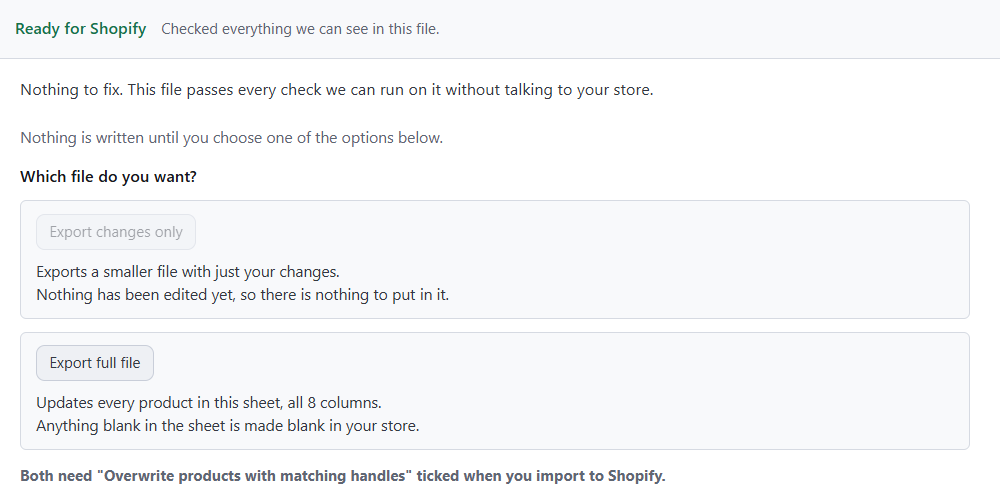
- Ready for Shopify — nothing found.
- Ready — 2 things worth checking — nothing here stops the import; have a look before you upload.
- 2 things to fix first — Shopify will get these wrong. No file is offered until they’re fixed; each finding has a link that jumps you to the problem.
- Pick a file:
- Export changes only — the products you edited, the columns you edited, and nothing else. Everything you didn’t touch stays exactly as it is in your store.
- Export full file — the whole sheet. Remember: any empty cell in it empties that value in your store.
- Choose where to save it, then upload that file in your Shopify admin (Products → Import).
- Tick “Overwrite products with matching handles” when you import. Without it, Shopify skips every product it already has, and your update does nothing.
- Nothing is written until you pick one of the two files, and neither file touches the one you’re editing — if your own edits aren’t saved yet, the app offers to save them right there.
Helpful Tips:
- “Ready” means the file passed everything we can check without talking to your store. It’s not a promise the import will succeed — Shopify knows things about your store that a file can’t show.
- The changes-only file always carries a few extra columns, even if you didn’t touch them: Handle (so Shopify knows which product each row belongs to), Title (Shopify refuses a file without a Title column — we tested it), and the Option name/value columns (without them, Shopify replaces a product’s real variants with one blank default).
- A changed product is exported with all of its rows, not just the row you edited. With overwrite on, Shopify treats the rows you send as the product’s complete list of variants — send one row of a three-variant product and the other two are deleted. We proved this on a test store before building the export.
- Products you add in this app won’t be in the changes-only file. The app finds changes by comparing against what the file held when it was opened, and a brand-new product has nothing to compare to. Use Export full file when you’ve added products.
- If a column’s name isn’t one Shopify knows, Shopify won’t import it — but during the import you can match it up by hand (“change the order of column headings” on the preview screen). There’s no prompt pointing you there; you have to go looking.
- Exports are saved under a new name (
-shopifyor-shopify-updateis added). If you deliberately choose your open file’s own name instead, the app asks before replacing it.
Settings
Audit checks, theme, tooltips, and where they are saved.
- What it is: A panel, opened with the gear icon at the top right (or Ctrl+,), where you change how the app looks and how strict its checks are — and where it tells you exactly where each setting is saved.
- Why it matters: Two reasons. First, the Title and Description checks use limits (in pixels and characters) that Google changes from time to time; if you work to a different rule than the built-in one, you can set your own. Second, if the app ever forgets a preference, the Storage section shows you the real folder, so nothing is a mystery.
- How to use it:
- Click the gear icon at the top right, or press Ctrl+,. Opening Settings closes Help (and the other way round — one side panel at a time).
- Appearance — choose Light or Dark (this is the only place the theme is switched), and tick or untick Show tooltips. Tooltips are the hover hints on buttons, menus, and cells; turning them off hides every one at once.
- Audit Checks — everything the Audit tab looks for. These settings feed more than that tab: the same checks colour cells in the grid and the counts in the bar along the bottom, so a change here shows up in all three places. The section has two parts.
- Flag as missing (first) — tick a box to be told when a product code is blank. They all start unticked, and here is why: Shopify accepts a product with no SKU, so a blank one is only a problem if you use SKUs. The app cannot tell from your file which kind of store you run, so it asks instead of guessing. Tick SKU and blank SKU cells turn amber, with a count in the bottom bar. Untick it and they say nothing. Barcode works the same way. Each box covers both of Shopify’s spellings — “SKU” and “Variant SKU” are the same column to the app, so you never have to know which one your download used. GTIN, UPC and EAN are not Shopify columns. They turn up in product feeds and files from other shopping platforms. Image rows are left alone. When a product has more pictures than variants, Shopify writes extra rows holding nothing but the handle and a picture link — those are supposed to have no SKU, so they are never flagged. Two things the boxes do not change. A repeated SKU is always flagged, in red — two products sharing one is wrong however you work. And a column you marked as an identifier yourself, by right-clicking its heading, is always checked: marking it was you saying you care about it.
- SEO limits (last) — Title, Description, Alt text and “near the limit” are about how your pages read in Google search results. Nothing in this part can stop a Shopify import. Change any limit, then click Save checks; every open file is re-checked straight away. The built-in value sits beside each field (“default 60”), so you can always see what it was. Reset checks to defaults puts every limit back and unticks the Flag as missing boxes.
- Behavior — Group Shopify files automatically is on to start with: a file with a Handle column opens grouped into products. Turning it off applies only after you reopen the file; files already open keep their grouping. Show dismissed messages again brings back any tips and messages you’ve hidden or already seen.
- Storage shows the two places your settings live, and Reset display settings puts theme, tooltips, and dismissed messages back to how they started. Your recent-files list is kept.
- Press Esc or click × to close.
Helpful Tips:
- A limit you type is checked before it is saved. A minimum at or above its maximum, a zero, or a blank is refused with a sentence saying which field — nothing is saved until it makes sense.
- “Near the limit — warn from” is a fraction of the maximum. 0.95 means a title is marked amber once it reaches 95% of the limit.
- Two homes. Audit checks and behavior live in a small text file,
settings.json, in the app’s config folder. Theme, tooltips, dismissed messages, and the recent-files list live in the app’s browser store (theEBWebViewfolder). The panel prints both paths. - The Shopify product guards do not depend on this switch. Even with automatic grouping off, the app still recognises the Handle column when it protects a product from a partial delete.