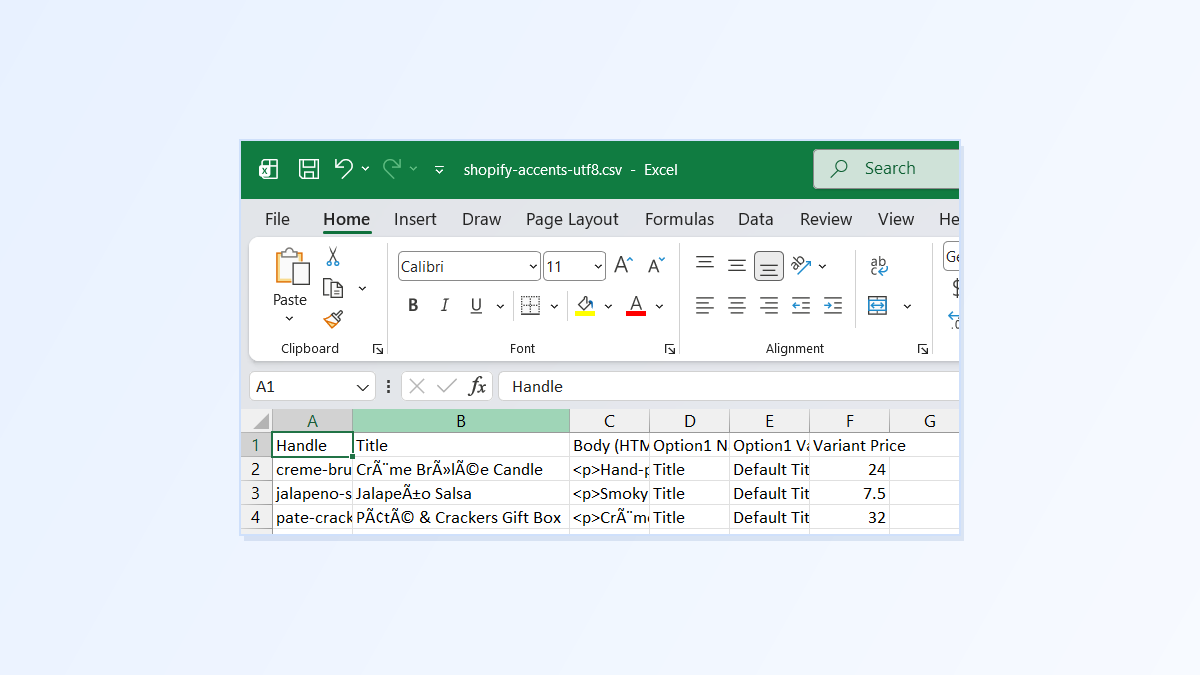
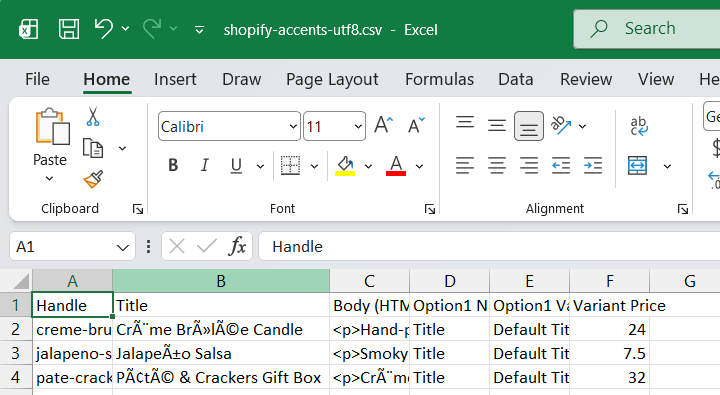
You open your Shopify product export and the text looks broken. Crème Brûlée has become Crème Brûlée. Jalapeño has become Jalapeño. Apostrophes and dashes have turned into strings like ’ and –.
Your products aren’t broken, not yet anyway. The file was simply read the wrong way.
Why does this happen?
Text files store each letter as a code. There’s more than one system of codes, and letters like é, ñ and û are written differently in each one.
Shopify uses the modern system, called UTF-8, which covers every language. When you double-click a CSV file, Excel often assumes an older Windows system instead. It reads each accented letter as two separate, wrong characters. That’s where é (instead of é) and ’ (instead of ’) come from.
Why it matters
- Saving makes it permanent. If you save the file in Excel, the garbled text is written into the file as if it were real.
- Importing spreads it to your store. Upload that file to Shopify and your product titles and descriptions will show the garbled text to customers.
- It’s easy to miss. One odd character in a long description is hard to spot until a customer points it out.
How to open a Shopify CSV in Excel without garbling it
- Open a blank workbook in Excel. Don’t double-click the CSV file.
- Go to Data → From Text/CSV and pick your file.
- In the preview window, check File Origin is set to 65001: Unicode (UTF-8). The preview should now show your accents correctly.
- Click Load.
- When you’re done, save with File → Save As → CSV UTF-8 (Comma delimited). The ordinary “CSV” option can damage accents again.
What if the file is already garbled?
If you haven’t imported it into Shopify yet, the simplest fix is to throw the damaged file away and export a fresh copy from Shopify.
If that’s not possible, for example because you’ve already made lots of edits, you can repair it by hand with Find and Replace, one broken character at a time. These are the most common pairs:
| You see | It should be |
|---|---|
| é | é |
| è | è |
| ñ | ñ |
| â | â |
| ’ | ’ |
| – | – |
| — | — |
It works, but it’s slow, and it’s easy to miss one.
The easier way: Speedy CSV
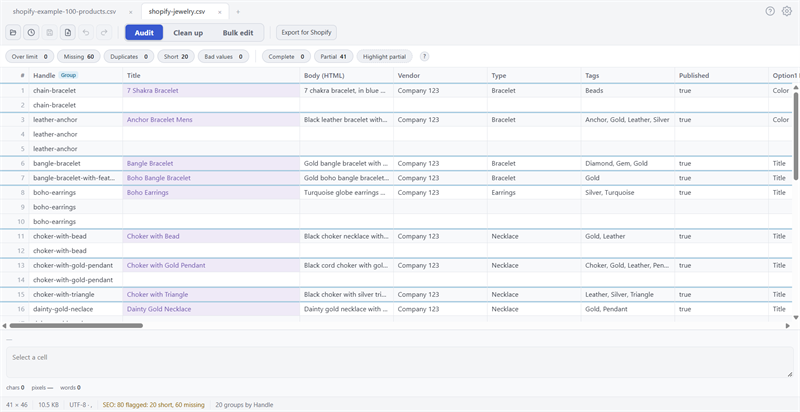
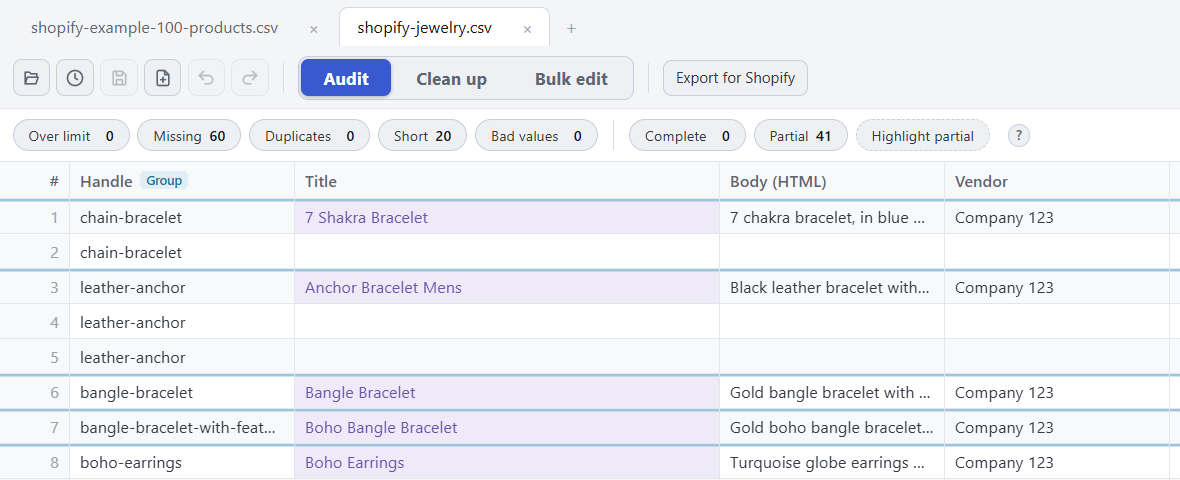
Speedy CSV is a Windows editor made for Shopify product files. Its Export for Shopify check tells you if a file isn’t in UTF-8, the format Shopify needs, and it has a one-click repair for text that’s already been garbled.
Open the damaged file, go to Clean up, and click Fix garbled. Speedy CSV shows you every cell it will repair, with the before and after side by side. Nothing changes until you click Apply.


Changed your mind? Undo puts everything back.
FREE VERSION · FOR WINDOWS
Fix your Shopify CSV in minutes, not hours
- Save time. One-click fixes for common problems, like stray spaces and garbled text.
- No monthly fee. Pay once, manage unlimited products.
- Catch import errors first. 24 checks run before you export.
- Re-import only what changed. No more splitting big files.
- Easy to use. Built-in help, tooltips and a status bar that explains what it sees.
Free for up to 25 products or 500 rows, with no time limit. No credit card needed.