You add a column to your product CSV for extra details, like care instructions or material. You import it, but the new details are nowhere to be found in your store.
The usual cause is the column heading. Shopify only reads metafield columns whose heading follows one exact pattern.
What a metafield is
A metafield is an extra field you add to your products in Shopify, beyond the built-in ones like title and price. Material, care instructions and size charts are common examples. You create one in Shopify under Settings → Metafields and metaobjects. Shopify calls that a metafield definition.
The heading Shopify needs
Once a metafield is defined, Shopify includes it in your product CSV exports, with a heading like this:
Material (product.metafields.custom.material)
- Material is the name you gave it.
- product.metafields says it belongs to products.
- custom.material is its namespace and key, as shown in the metafield’s settings.
The bracketed part is what Shopify matches on. A column called just Care instructions means nothing to Shopify, even if you have a metafield with that name.
Why metafields don’t import
- The heading is missing the bracketed part, so Shopify can’t tell which metafield it’s for.
- The namespace or key has a typo, so it points at a metafield that doesn’t exist.
- The metafield was never defined in Shopify. Define it first. Then export one product to see the exact heading Shopify expects.
- A product reference points at a product that isn’t in the store yet. Shopify’s error is “Value must be a valid product reference”. Import the products first, then import the references in a second pass.
How to get it right by hand
- In Shopify, define the metafield under Settings → Metafields and metaobjects.
- Export a product CSV. The new column appears with its full heading.
- Copy that heading into your own file, character for character, and fill in the values.
- Save as CSV UTF-8 and import.
The easier way: Speedy CSV
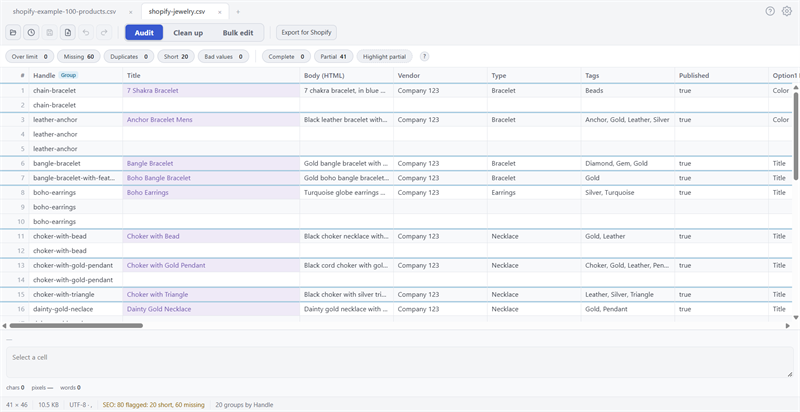
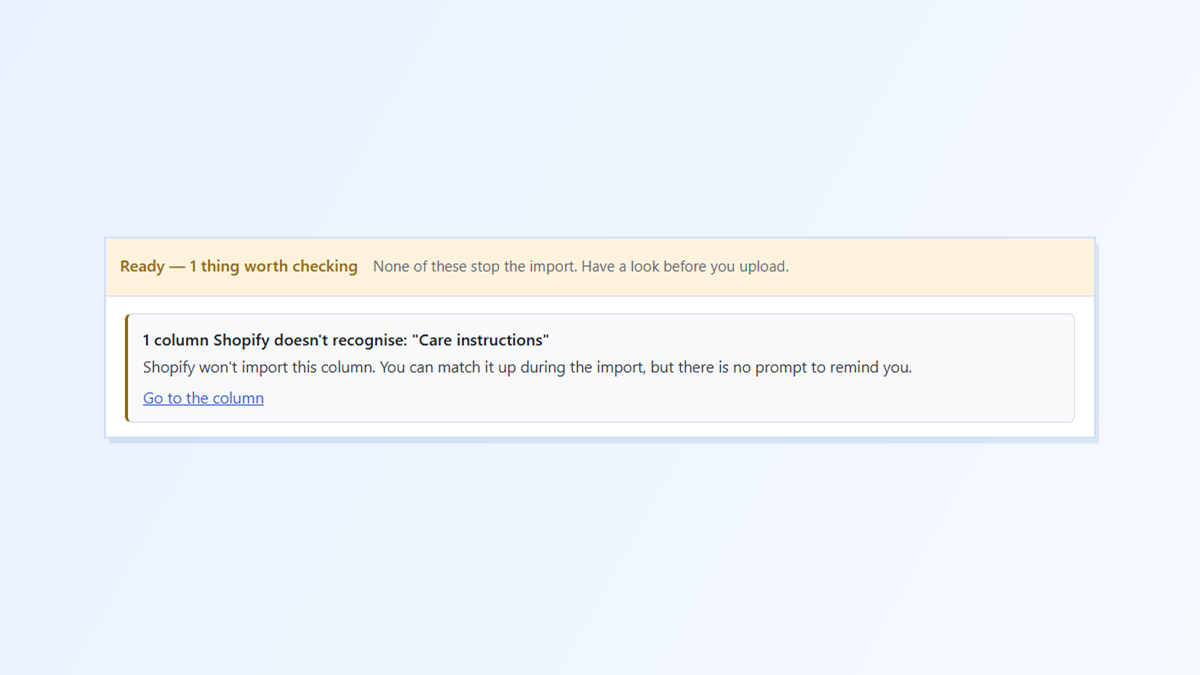
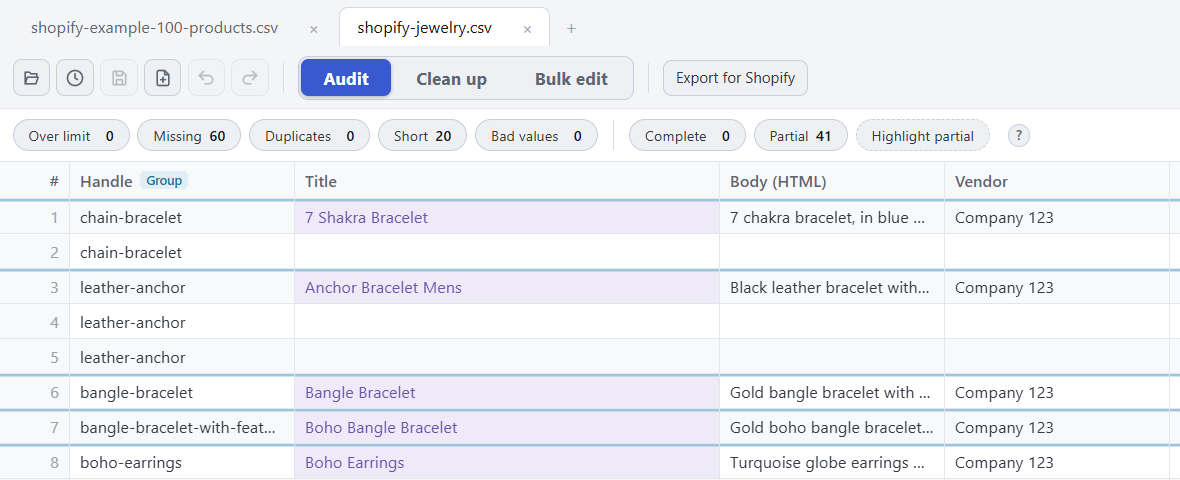
Speedy CSV is a Windows editor made for Shopify product files. Its Export for Shopify check knows Shopify’s standard columns and the metafield heading pattern. A column that matches neither is flagged by name:
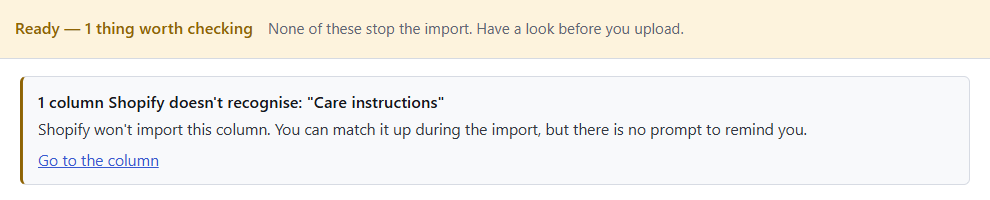
It’s a warning rather than a hard stop, because the rest of the file still imports. Rename the column to the full metafield heading, and the warning goes away.
What Speedy CSV doesn’t do: it can’t see your store, so it doesn’t know which metafields you’ve defined, and it doesn’t check that a namespace and key are spelled the way your store has them. It also doesn’t check metafield values, like whether a product reference exists. The export-one-product step above is still the surest way to get the heading exactly right.
FREE VERSION · FOR WINDOWS
Fix your Shopify CSV in minutes, not hours
- Save time. One-click fixes for common problems, like stray spaces and garbled text.
- No monthly fee. Pay once, manage unlimited products.
- Catch import errors first. 24 checks run before you export.
- Re-import only what changed. No more splitting big files.
- Easy to use. Built-in help, tooltips and a status bar that explains what it sees.
Free for up to 25 products or 500 rows, with no time limit. No credit card needed.