A product CSV lets you change hundreds of Shopify products at once, or add a batch of new ones, instead of editing them one by one. The round trip has three parts: export, edit, import. Each has a setting or two that decides whether it goes smoothly.
Step 1: Export your products from Shopify
- In your Shopify admin, go to Products and click Export.
- Choose what to export:
- Current page of products
- All products
- Selected products (tick them in the list first)
- Products matching your search and filters
- Choose the format: CSV for Excel, Numbers, or other spreadsheet programs, or Plain CSV file.
- Click Export products.
If every product has fewer than 100 variants, the file downloads straight away. If any product has more, Shopify emails you the file instead.
Export only what you plan to change. A smaller file is quicker to check and safer to import.
Step 2: Edit the file
Each variant is its own row, and all the rows of one product share the same Handle. The first row of a product holds its details (Title, Description, Vendor, Tags); the rows below it hold only the variant details, like size, SKU and price. See the template guide for what every column means.
Three things to avoid while editing:
- Don’t sort the sheet. Shopify’s own help warns that sorting “can cause product variants or image URLs to become disassociated”. Here’s what goes wrong.
- Don’t double-click the file to open it in Excel. Excel can turn barcodes into 1.23E+11 and drop leading zeros.
- Save as CSV UTF-8, or accented letters come out garbled.
Step 3: Add new products in bulk (optional)
To upload new products, add rows to the same file:
- A product with no variants is one row: Handle, Title, price and the rest.
- A product with variants is one row per variant. The first row has the product details; every row repeats the same Handle and has its own option value, like Small, Medium, Large.
- Give each new product a Handle no other product uses. If it matches an existing product, Shopify treats the row as that product.
The quickest way to add a product is to copy a similar one and change it. In a spreadsheet, copy all of its rows, then change the Handle on every copied row, the Title, and each SKU and barcode.
Step 4: Import the file into Shopify
- In your Shopify admin, go to Products and click Import.
- Click Add file and choose your CSV.
- Decide on Publish new products to all sales channels. Untick it if new products should appear only in your online store.
- Tick Overwrite products with matching handles if your file changes products you already have. Without it, Shopify skips them.
- Click Upload and continue, check the preview, then click Import products.
Shopify emails you when the import is done. Two things to know first: an import can’t be cancelled once it starts, and Shopify keeps no history of past imports. The file can be at most 15 MB; split a bigger one.
With overwrite ticked, a blank cell makes that detail blank in your store. If you only changed a few things, send only those. See how to update only what you changed.
If the import fails
The most common errors each have their own guide:
- Variants missing or “already exists”
- Handle already exists
- “Price can’t be blank” or “did not contain product data”
- “Illegal quoting”
- Invalid CSV header: missing headers Title
The easier way: Speedy CSV
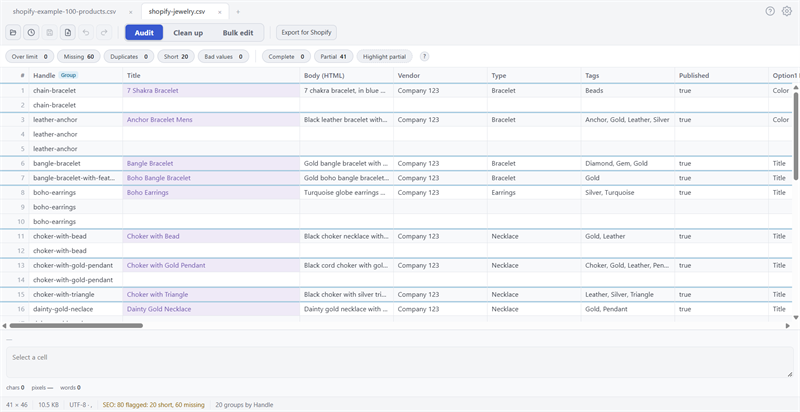
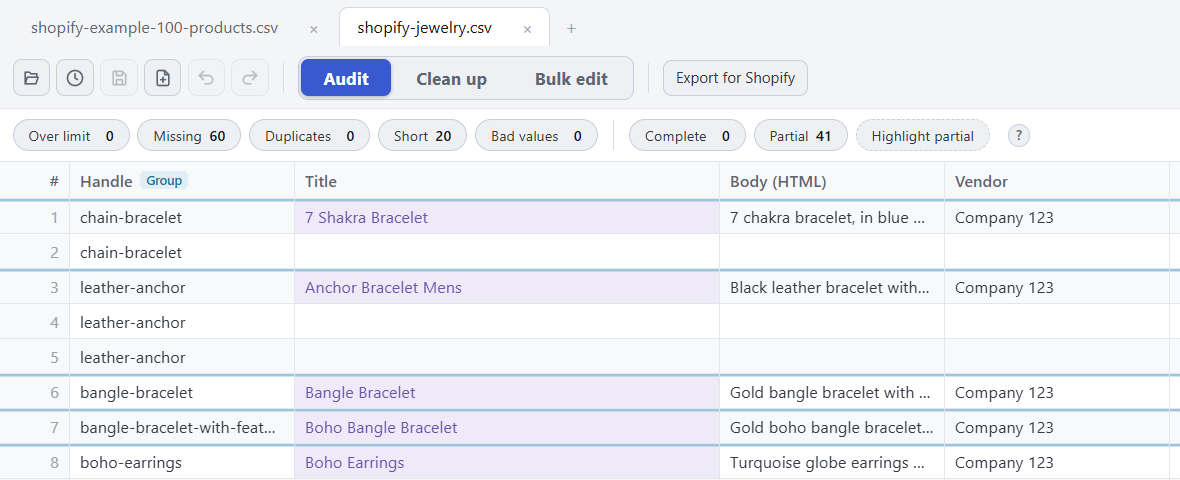
Speedy CSV is a Windows editor made for Shopify product files. It opens your export grouped into products, so you can see which rows belong together, and it never changes barcodes, SKUs or accented letters.
To add a product, right-click a similar one and choose Duplicate product. Every row of the product is copied in one go. The copy gets its own Handle (ending in -copy), keeps the title, options and prices, and leaves the SKUs empty so you can fill in new ones. Until you change the title, the status bar flags it as a duplicate.

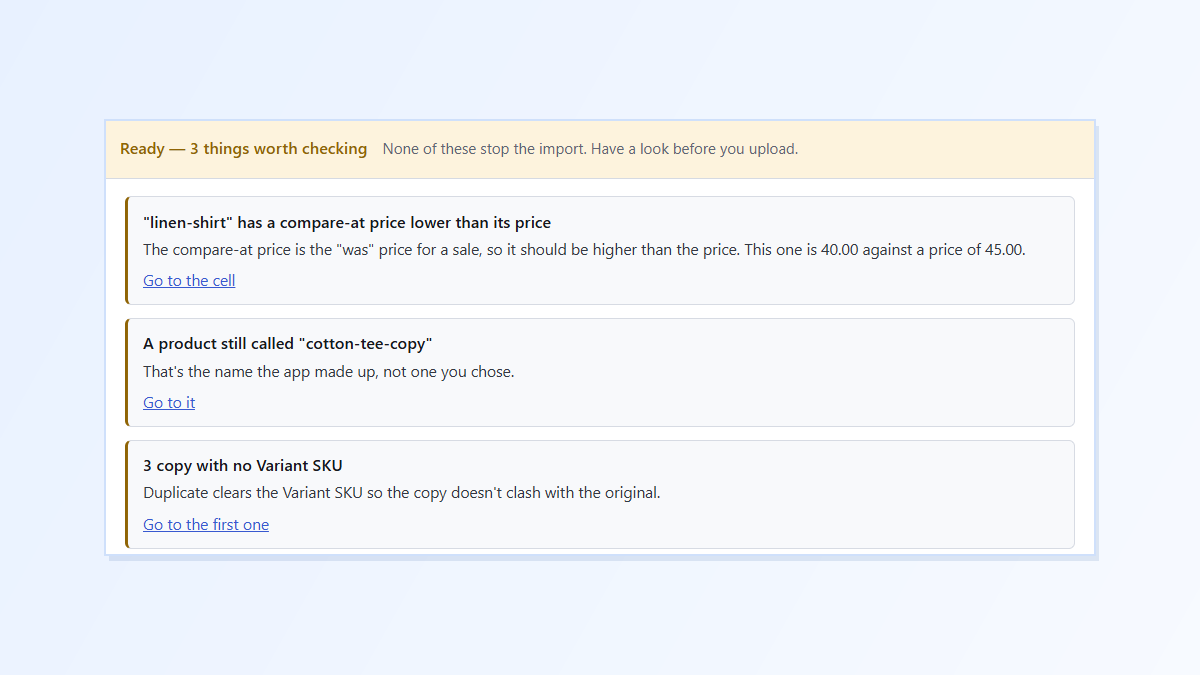
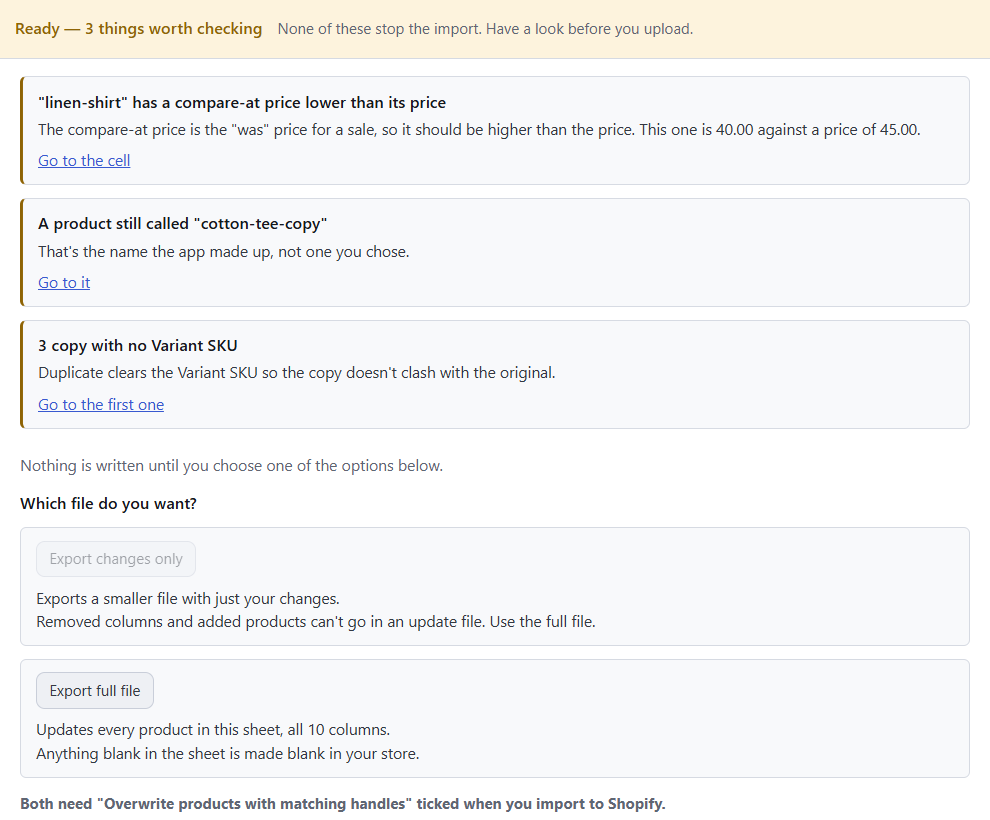
When you’re done, Export for Shopify checks the file before you upload. It reminds you of anything you still need to change, like a handle still ending in -copy or empty SKUs, then offers two files:
- Export changes only: just the products and columns you edited. Best for updates.
- Export full file: everything in the sheet. Use this when you’ve added new products, because the changes-only file can’t include them.
Speedy CSV edits the file. It doesn’t connect to your store, so the import itself is still done in Shopify.
FREE VERSION · FOR WINDOWS
Fix your Shopify CSV in minutes, not hours
- Save time. One-click fixes for common problems, like stray spaces and garbled text.
- No monthly fee. Pay once, manage unlimited products.
- Catch import errors first. 24 checks run before you export.
- Re-import only what changed. No more splitting big files.
- Easy to use. Built-in help, tooltips and a status bar that explains what it sees.
Free for up to 25 products or 500 rows, with no time limit. No credit card needed.