You go to import your products into Shopify, and it stops with this message:
Invalid CSV Header: Missing headers: Title
Your file clearly has product titles in it, so what is Shopify talking about?
What the message means
The first row of a CSV file holds the column names, also called headers: Handle, Title, Vendor and so on. Shopify reads that row to work out what each column contains. It matches the names exactly, letter for letter.
“Missing headers: Title” means Shopify read your first row and couldn’t find a column called exactly Title. Shopify needs that column to import products, so it refuses the whole file.
The four common causes
1. The column was renamed
Someone changed Title to Product Title, Name or title (lowercase). To a person they all mean the same thing. To Shopify, only Title counts. An extra space, like “Title ” with a space at the end, also breaks the match.
Fix: rename the column to exactly Title: capital T, no spaces before or after.
2. The file uses semicolons instead of commas
CSV stands for “comma-separated values”, and Shopify expects commas between columns. In many countries, though, Excel saves CSV files with semicolons instead, because commas are used for decimal prices like 12,99. Shopify then reads your entire first row as one long column name, so it can’t find “Title” or anything else.
How to check: right-click the file, choose Open with → Notepad, and look at the first line. If you see Handle;Title;Body (HTML) with semicolons, this is your problem.
Fix: change the separator Windows uses. Open the Control Panel → Region → Additional settings, set List separator to a comma (,), then save the file from Excel again. Prices must also use a dot for decimals (12.99, not 12,99).
3. The file is an Excel workbook, not a CSV
If you pressed Save in Excel, the file may have been saved as an Excel workbook (.xlsx), even if it still has “csv” somewhere in its name. Shopify can’t read workbooks.
Fix: use File → Save As and choose CSV UTF-8 (Comma delimited).
4. There’s something above the header row
A title line, a blank row or a note at the very top pushes the real column names down to row 2. Shopify only looks at row 1.
Fix: delete everything above the row that starts with Handle.
The quick check
Open the file in Notepad. The first line should start exactly like this:
Handle,Title,Body (HTML),VendorCommas between names, Title spelled exactly, and nothing above it. If yours looks like that, the header row is fine.
The easier way: Speedy CSV
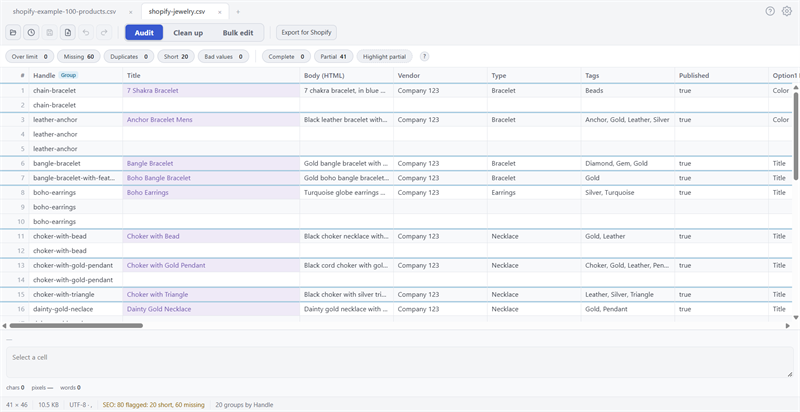
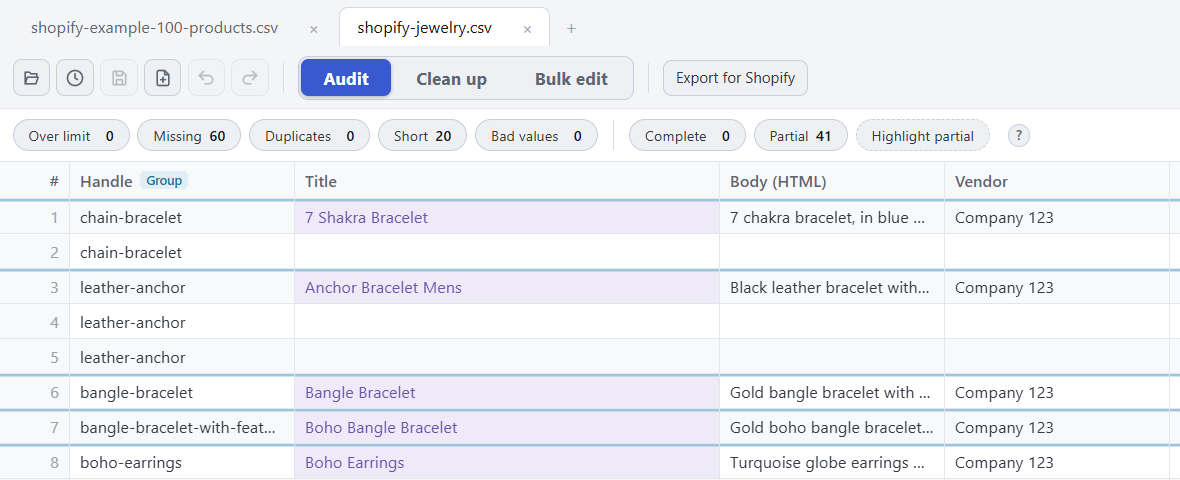
Speedy CSV is a Windows editor made for Shopify product files. Its Export for Shopify check catches three of these four causes before Shopify ever sees the file:
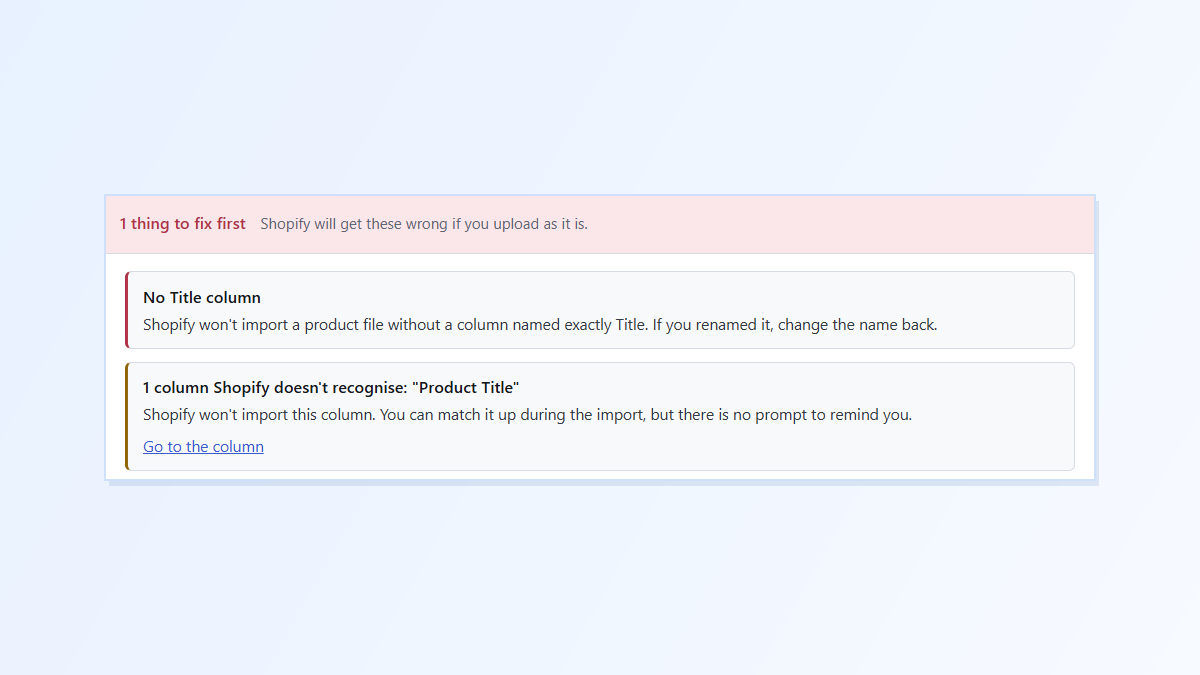
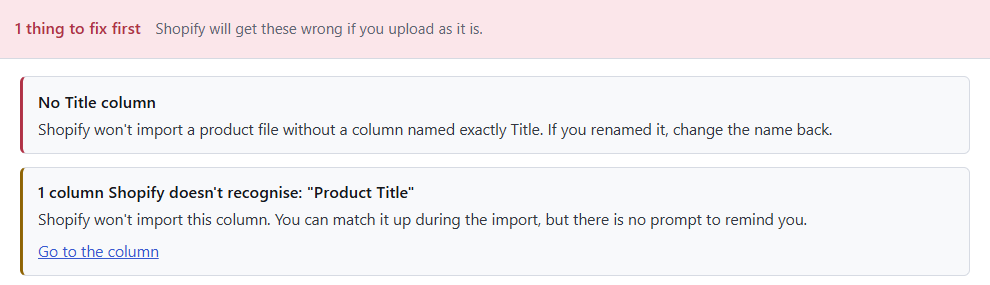
- No Title column? It tells you the file must be fixed before you upload, and it lists any column Shopify won’t recognise, like “Product Title”, with a link that takes you straight to it so you can rename it.
- Semicolons? The file it exports always uses commas, the way Shopify needs. Your own copy is left as it was.
- Prices like 12,99? It warns you that Shopify expects a dot, like 12.99.

FREE VERSION · FOR WINDOWS
Fix your Shopify CSV in minutes, not hours
- Save time. One-click fixes for common problems, like stray spaces and garbled text.
- No monthly fee. Pay once, manage unlimited products.
- Catch import errors first. 24 checks run before you export.
- Re-import only what changed. No more splitting big files.
- Easy to use. Built-in help, tooltips and a status bar that explains what it sees.
Free for up to 25 products or 500 rows, with no time limit. No credit card needed.