A product CSV is the fastest way to change hundreds of Shopify products at once: you export them, change the file and import it again. But a product with sizes or colours takes several rows in that file, and a few ordinary spreadsheet habits can pull those rows apart.
Here are the four bulk edits that break variants, and how to make each one safely.
How a product sits in the CSV
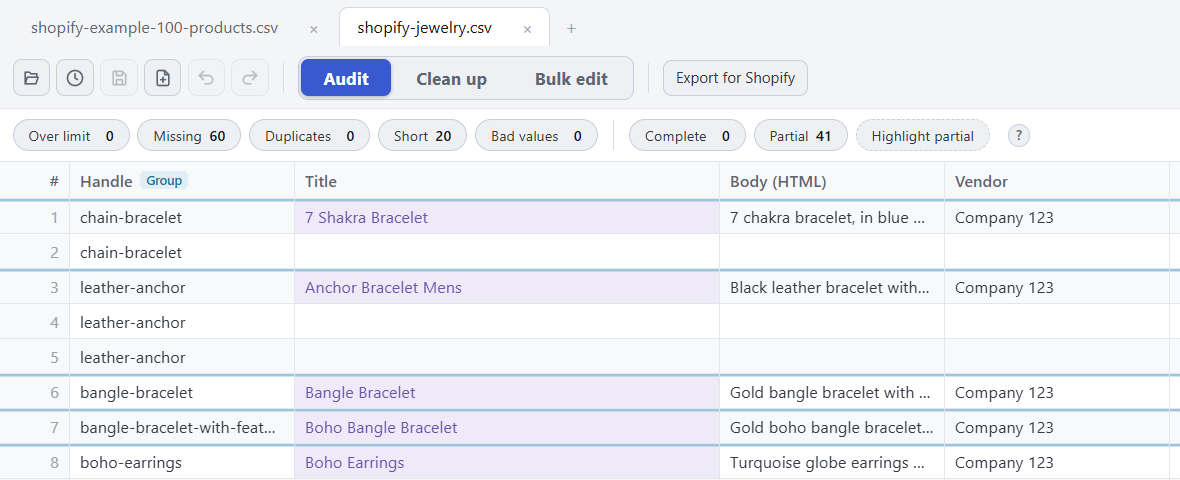
Each variant is its own row. The rows of one product share the same Handle (the product’s web address name, like cotton-tee) and sit together, one after another.
- The first row carries the product details: Title, Vendor, Tags and so on, plus the first variant.
- The rows below it carry only variant details: the size or colour, SKU, price and stock. The product columns are blank on purpose.

For more on how variant rows work, see Shopify CSV variants missing or “already exists”.
1. Sorting the sheet
Sorting by price, size or SKU is the most common way variants get broken. A sort moves each row on its own, so a product’s rows end up scattered through the file, and some variant rows land above their own product’s first row.

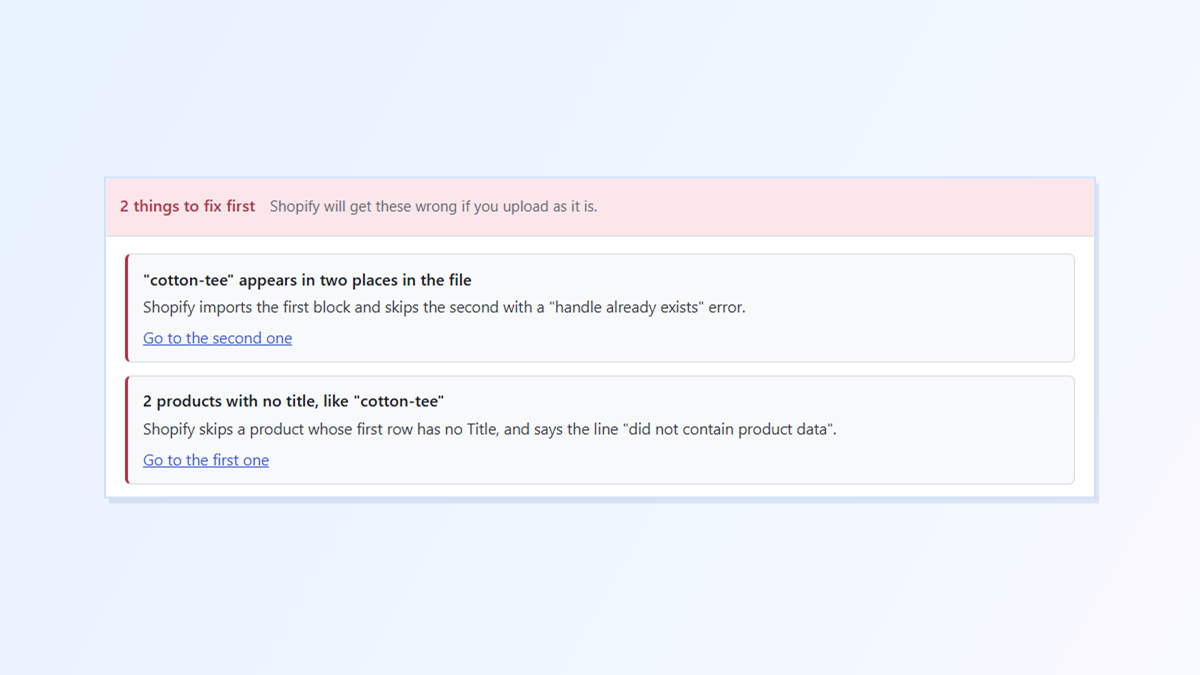
Shopify reads the file top to bottom. When the same handle shows up again after another product, it imports the first block and skips the second with a “handle already exists” error. A block whose first row has no Title is skipped too, with a “did not contain product data” message.
Fix: don’t sort a Shopify file by anything except Handle. If it’s already sorted, sort it by Handle again so each product’s rows are back together, then check that each product’s first row is the one with the Title.
2. Deleting rows
There are two different kinds of row delete, and they do different things.
Deleting a product’s first row takes the product details with it. The variant rows left behind have no Title, so Shopify skips them. If you want a product out of the file, delete all of its rows.
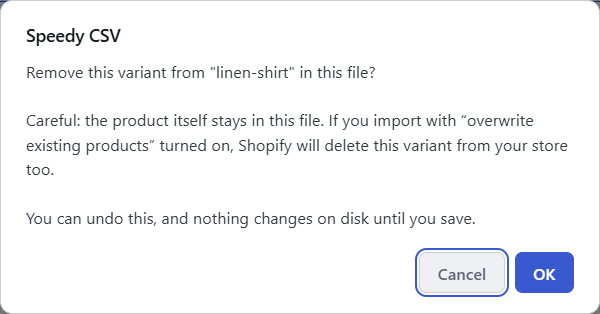
Deleting one variant row is the one that surprises people. Taking a whole product out of a CSV leaves it untouched in your store. But if the product stays in the file and you delete one of its variant rows, then import with Overwrite products with matching handles ticked, Shopify deletes that variant from your store. We tested this on a real store: a shirt with 27 variants, one variant row deleted, came back with 26.

3. Changing handles
A find and replace that touches the Handle column is risky. The handle is how Shopify matches a row to a product.
- Change it on some rows of a product and you’ve split one product in two.
- Change it on every row and the new handle no longer matches the product in your store, so the import doesn’t update the product you meant to change.
Fix: leave the Handle column out of bulk changes. If you really need new handles, change every row of the product and expect Shopify to treat it as a different product.

4. Changing prices
Price lives on every variant row, not just the first one. To put a T-shirt on sale, every size’s Variant Price has to change. A change made only on the first row changes only the first size.

Watch the Variant Compare At Price too. That’s the “was” price for a sale, and it should be higher than the price. After a bulk price change it’s easy to end up with a compare-at price that’s lower.
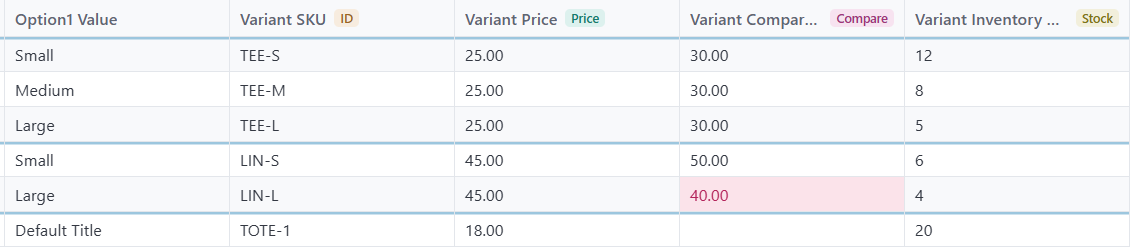
Speedy CSV marks that cell, but its Export for Shopify check doesn’t stop the export for it yet, so look at the status bar before you export.
Doing it in a spreadsheet
You can make all of these edits in a spreadsheet if you’re careful:
- Export from Products → Export in Shopify.
- Don’t sort the sheet. If you need to find things, use a filter and clear it before you save.
- Select the one column you’re changing before you use find and replace.
- Leave the blank product cells on the variant rows blank.
- Save as CSV UTF-8, and import with Overwrite products with matching handles ticked.
Opening the file in Excel by double-clicking it can also turn barcodes into 1.23E+11 and strip leading zeros from SKUs, and those changes are saved along with your edits.
The easier way: Speedy CSV
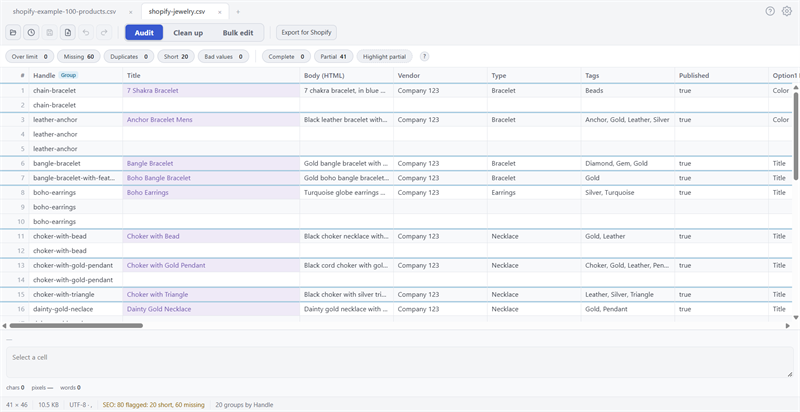
Speedy CSV is a Windows editor made for Shopify product files. It groups each product’s rows by Handle as soon as the file opens, and tells you if a handle shows up in more than one place. Its Bulk edit tab shows every cell that will change before anything happens, skips the blank cells on variant rows, and one Undo reverses the whole change. Deleting rows always says whether you’re removing a product or a variant.
Best of all, there’s no monthly fee. Pay once, manage unlimited products.
To change tags or titles across many products, see how to bulk edit tags and titles.
Speedy CSV can’t raise or lower prices by a percentage. Bulk edit changes text, so a price change works by replacing one price with another.
FREE VERSION · FOR WINDOWS
Fix your Shopify CSV in minutes, not hours
- Save time. One-click fixes for common problems, like stray spaces and garbled text.
- No monthly fee. Pay once, manage unlimited products.
- Catch import errors first. 24 checks run before you export.
- Re-import only what changed. No more splitting big files.
- Easy to use. Built-in help, tooltips and a status bar that explains what it sees.
Free for up to 25 products or 500 rows, with no time limit. No credit card needed.