
Rename a tag on 200 products. Add your brand name to the end of every title. Fix product names typed in ALL CAPS. Clicking through products one by one could take all afternoon.
A product CSV lets you make the change in one place and import it once. Here’s how to do it without breaking anything.
Before you start: two things to know about tags and titles
- Tags live in one cell, separated by commas: cotton, summer, gift. When you import, Shopify replaces the product’s tags with exactly what’s in that cell. Leave a tag out and it’s removed.
- Only the first row of each product has a Title and Tags. The rows below it are variants (sizes, colours), and those cells are meant to be blank. If a bulk change fills them in, the file gets harder to read and can confuse the import.
Option 1: Shopify’s bulk editor
For a handful of products, Shopify’s own bulk editor in your admin works well: select products in the Products list and choose Bulk edit. It’s fine for a few changes. For a find-and-replace across hundreds of products, a CSV is faster.
Option 2: A spreadsheet
- In Shopify, go to Products → Export and export the products you want to change.
- Open the file in a spreadsheet and use Find and replace on the Tags or Title column only. Select the column first, so the change doesn’t touch other columns.
- Save as CSV UTF-8 (Comma delimited).
- Import it under Products → Import, with Overwrite products with matching handles ticked.
Be careful with Excel. Opening a Shopify CSV by double-clicking it can quietly strip leading zeros from SKUs and turn barcodes into 1.23E+11, and it can garble accented letters. Those changes are saved along with your tag edits. Also, a find-and-replace in a spreadsheet changes everything at once, with no list of what it’s about to change.
The easier way: Speedy CSV
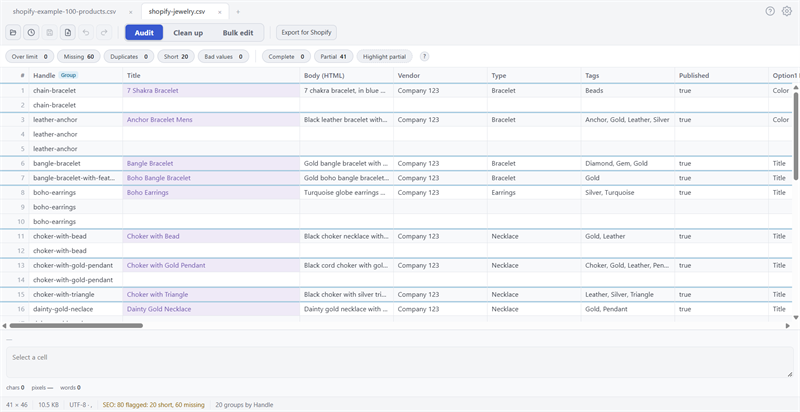
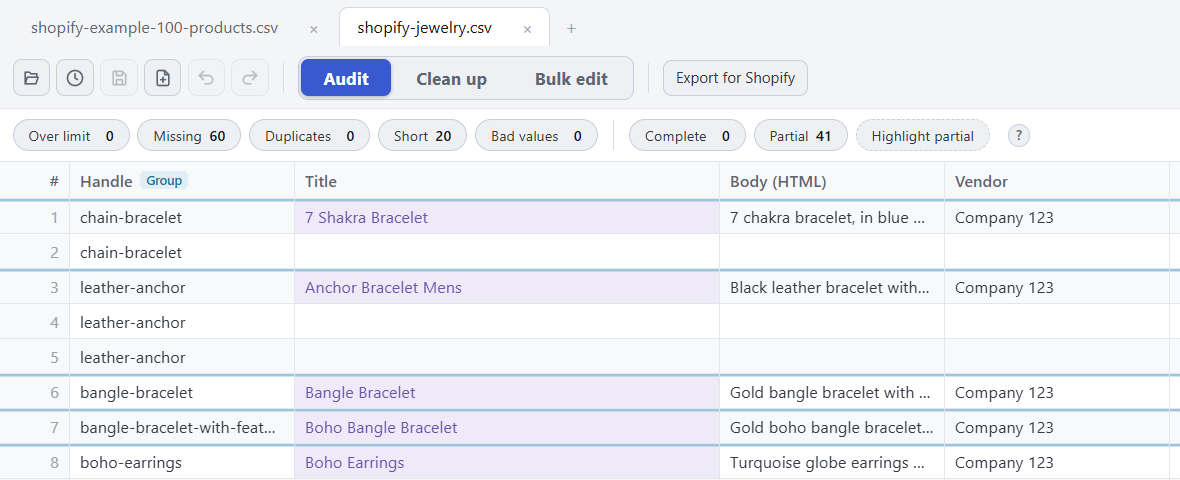
Speedy CSV is a Windows editor made for Shopify product files. Its Bulk edit tab does find and replace, adds words to the start or end of cells, fixes capital letters and numbers rows. Every change shows you a preview of each cell before anything happens.
Click the column you want to change, then choose where the change applies: the whole sheet, just that column, or the rows you’ve selected.
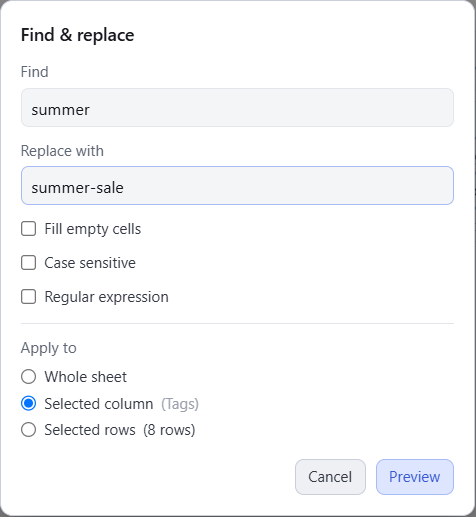

Adding your brand to every title works the same way. Blank cells on the variant rows are left alone, so only the product rows change:

Barcodes, SKUs and accented letters stay exactly as they are, and one Undo reverses the whole change. When you’re done, Export for Shopify can give you a file with only the products and columns you changed. See how to update only what you changed.
Bulk edit changes text. It can’t raise prices by a percentage.
FREE VERSION · FOR WINDOWS
Fix your Shopify CSV in minutes, not hours
- Save time. One-click fixes for common problems, like stray spaces and garbled text.
- No monthly fee. Pay once, manage unlimited products.
- Catch import errors first. 24 checks run before you export.
- Re-import only what changed. No more splitting big files.
- Easy to use. Built-in help, tooltips and a status bar that explains what it sees.
Free for up to 25 products or 500 rows, with no time limit. No credit card needed.