You wanted to change one thing, maybe a few tags or a price, so you exported your products, made the edit, and imported the file again. Now other details in your store have changed too: descriptions gone, values blank, things you never touched.
Shopify didn’t make a mistake. It did exactly what the file told it to. The trick is knowing what the file is telling it.
What “Overwrite products with matching handles” really does
When you import with Overwrite products with matching handles ticked, Shopify finds each product by its Handle and replaces its details with what’s in your file. Shopify’s help spells out the rules:
- A column in your file with a blank cell makes that value blank in your store. Blank doesn’t mean “leave it alone”. It means “make it empty”.
- A column that isn’t in your file at all is left alone. The store keeps its current value.
- If the Option1 Name and Option1 Value columns are missing, Shopify creates one default variant and deletes the product’s existing variants.
So the risk isn’t the overwrite itself. It’s sending a whole file full of cells that weren’t meant to be sent.
How the damage usually happens
- An old export. You edited a file you exported last month. Since then someone changed prices in the store. Your import puts last month’s prices back.
- Cells that went blank. A column got cleared by accident, a formula didn’t copy down, or a spreadsheet dropped some values. Every blank is sent as “make this empty”.
- Rows removed from a product. If you send only some of a product’s variant rows, the product ends up with only those variants.
How to update only what you changed
- Export fresh. Always start from a new export, not an old file.
- Delete the columns you didn’t change. Keep only what Shopify needs to find the product plus your edits: Handle, Title, Option1 Name and Option1 Value, and the columns you actually edited.
- Keep every row of each product you send. Don’t send one variant row of a three-variant product.
- Delete the products you didn’t touch. Fewer rows means fewer chances for surprises.
- Import with “Overwrite products with matching handles” ticked. Without it, Shopify skips products it already has.
It works, but trimming a file by hand is fiddly, and it’s easy to delete a column you needed or keep one you didn’t.
The easier way: Speedy CSV
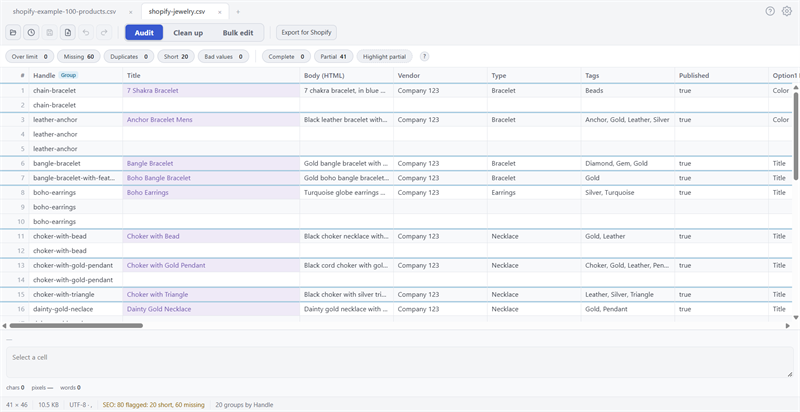
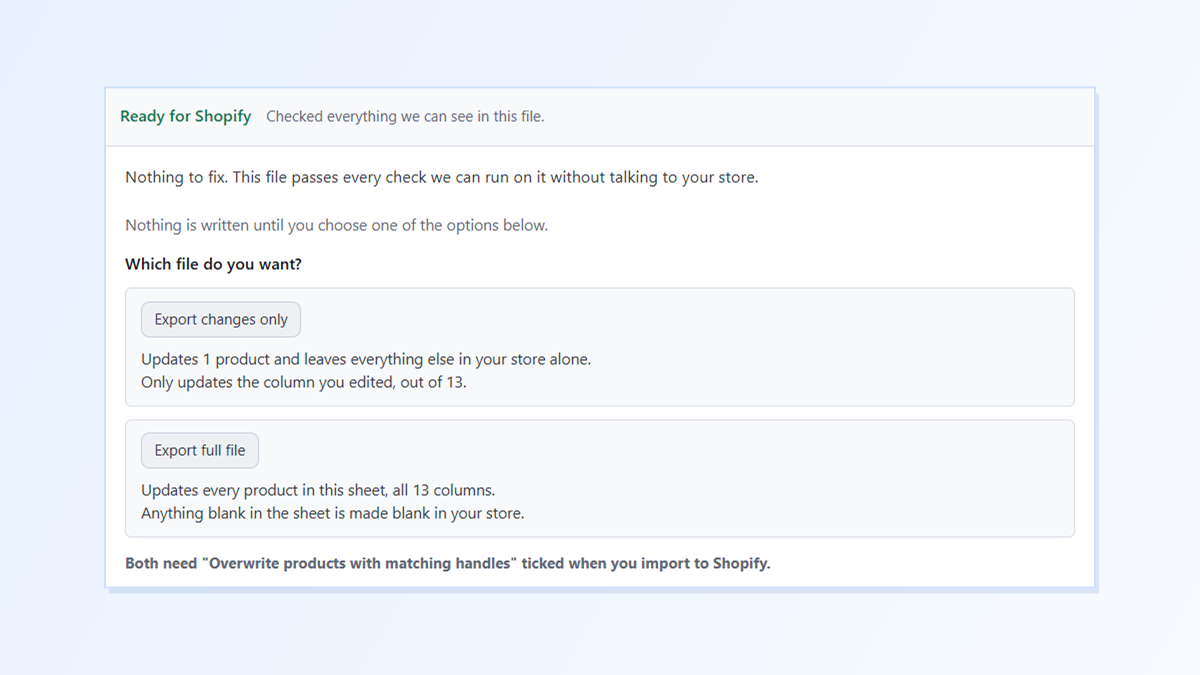
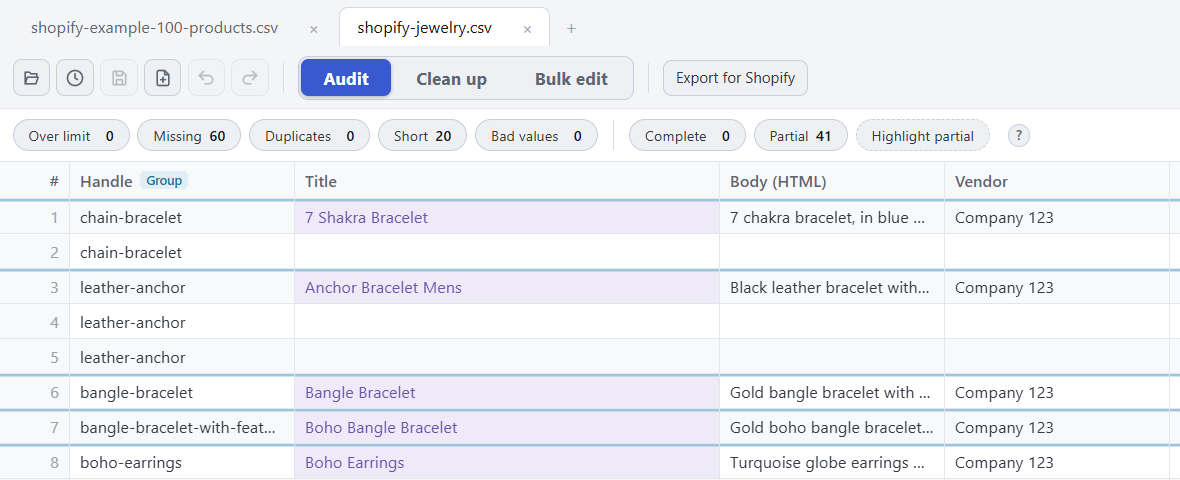
Speedy CSV is a Windows editor made for Shopify product files. Its Export for Shopify button offers an Export changes only file: just the products you edited and just the columns you edited, plus the few columns Shopify needs to find each product and keep its variants.
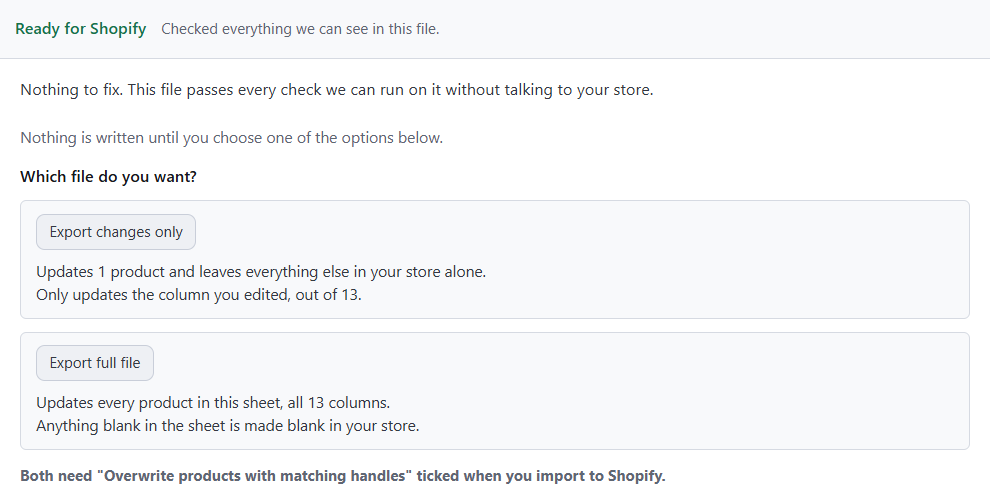
In this example, adding a “sale” tag to one product in a 13-column file produced this:
Handle,Title,Tags,Option1 Name,Option1 Value
travel-mug,Travel Mug,"mug, gift, sale",Title,Default Title
One product, and only the columns Shopify needs. Everything else in your store stays exactly as it is.
FREE VERSION · FOR WINDOWS
Fix your Shopify CSV in minutes, not hours
- Save time. One-click fixes for common problems, like stray spaces and garbled text.
- No monthly fee. Pay once, manage unlimited products.
- Catch import errors first. 24 checks run before you export.
- Re-import only what changed. No more splitting big files.
- Easy to use. Built-in help, tooltips and a status bar that explains what it sees.
Free for up to 25 products or 500 rows, with no time limit. No credit card needed.