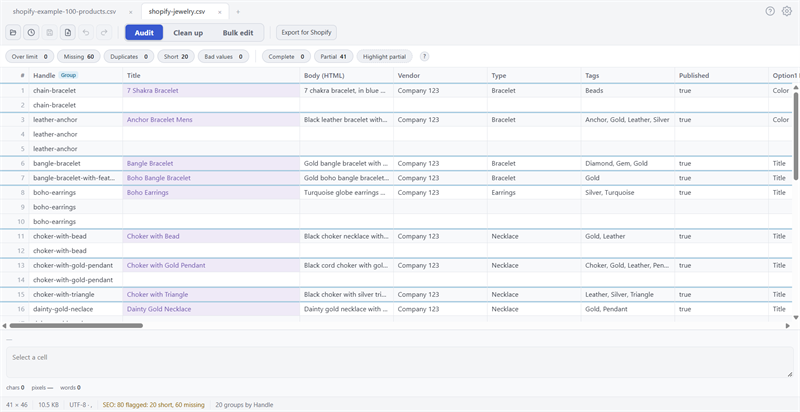
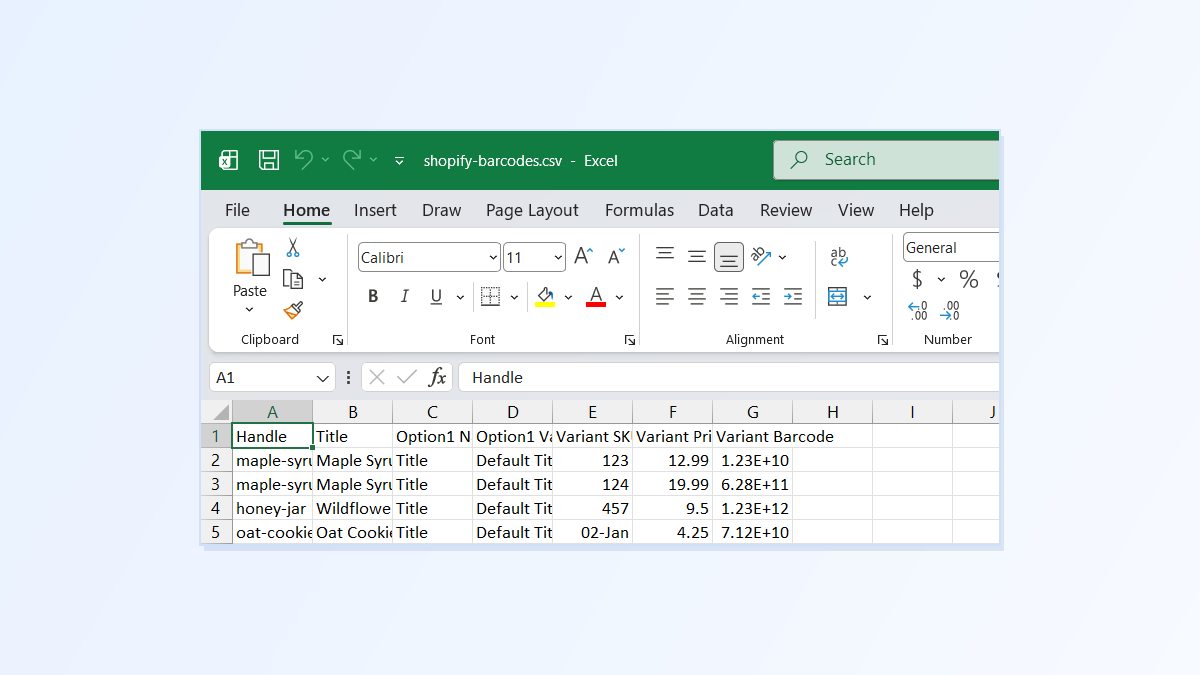
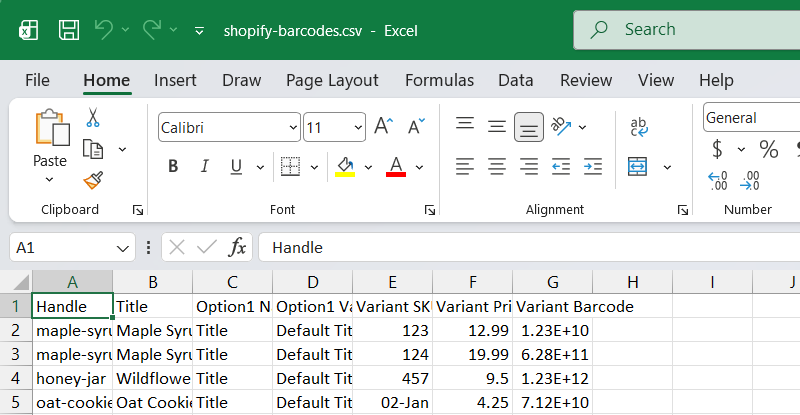
You export your products from Shopify, open the file in Excel to make a few changes, and something strange happens. Your barcodes now look like 1.23E+11. A SKU that was 00123 is now 123. And a SKU like 1-2 has turned into a date: 02-Jan.
You didn’t type any of that. Excel did it the moment it opened the file.
Why does Excel do this?
Excel tries to be helpful. When a cell contains only digits, Excel decides it must be a number, and numbers don’t need zeros at the front, so it removes them. When a number is very long, like a 12- or 13-digit barcode, Excel shortens how it’s shown to “scientific notation” (1.23E+11 means “1.23 followed by 11 more digits”). And when something looks like a date, such as 1-2, Excel turns it into one.
That’s fine for a budget spreadsheet. For product codes, it’s a disaster: a barcode or SKU is a name, not an amount. Every digit matters, including the zeros at the front.
Why it matters for your store
- Barcodes stop matching. Scanners, marketplaces and Google Shopping look for the exact barcode. A missing zero or a rounded number means the product can’t be found.
- SKUs stop matching your stock system. If your warehouse or point of sale knows the item as 00123, it won’t recognise 123.
- The damage is permanent once you save. When you save the file in Excel, the lost zeros and rounded digits are written into the file. They aren’t hidden, they’re gone. Importing that file puts the wrong codes into Shopify.
If you’ve already saved the file in Excel: don’t import it. Go back to Shopify, export your products again, and start from the fresh file.
How to open a Shopify CSV in Excel without losing leading zeros
The fix is to tell Excel, before it opens the file, that your SKU and barcode columns are text, not numbers.
In Excel for Microsoft 365:
- Open a blank workbook. Don’t double-click the CSV file.
- Go to Data → From Text/CSV and pick your file.
- In the preview window, find Data Type Detection and change it to Do not detect data types.
- Click Load. Every cell comes in as plain text, so the zeros and full barcodes stay as they are.
- When you’re done, save with File → Save As → CSV UTF-8 (Comma delimited).
Newer versions of Excel also have a setting that stops this for good: File → Options → Data → Automatic data conversion. Untick the options for removing leading zeros and for converting long numbers to scientific notation. If you don’t see this section, your version of Excel doesn’t have it yet. Use the steps above instead.
In Google Sheets: use File → Import, and untick Convert text to numbers, dates, and formulas before you import.
These methods work, but you have to remember them every time, and it only takes one quick double-click on a CSV file to undo all your care.
The easier way: Speedy CSV
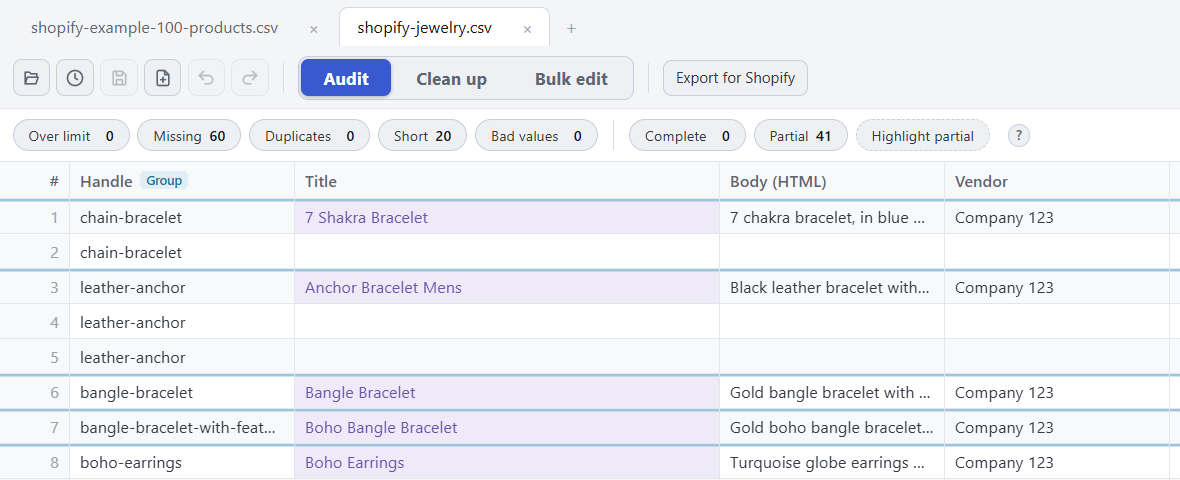
Speedy CSV is a Windows editor made for Shopify product files. It never guesses what your data means: every cell stays exactly as you typed it. Leading zeros, 13-digit barcodes, and codes like 1-2 all open and save untouched. There are no import steps to remember.

When you save, Speedy CSV writes the file back in the same format it came in, so it goes straight back into Shopify.
FREE VERSION · FOR WINDOWS
Fix your Shopify CSV in minutes, not hours
- Save time. One-click fixes for common problems, like stray spaces and garbled text.
- No monthly fee. Pay once, manage unlimited products.
- Catch import errors first. 24 checks run before you export.
- Re-import only what changed. No more splitting big files.
- Easy to use. Built-in help, tooltips and a status bar that explains what it sees.
Free for up to 25 products or 500 rows, with no time limit. No credit card needed.