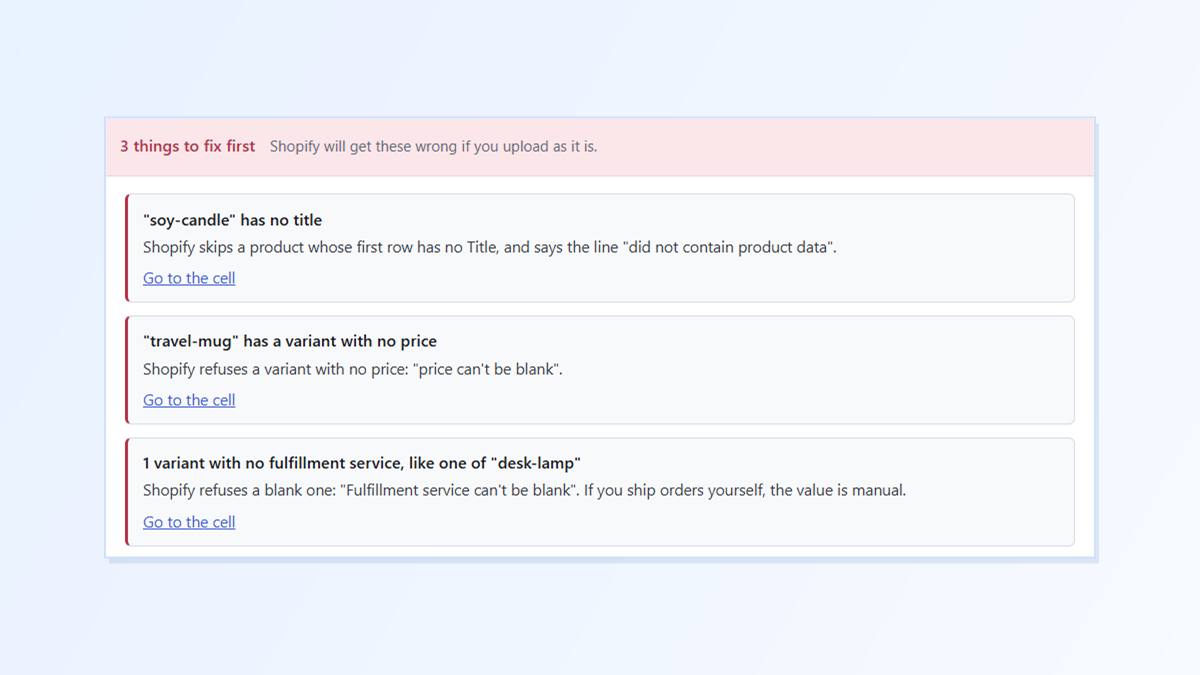
You import a product CSV and Shopify’s report lists errors like these:
Ignored line 3 because it did not contain product data Validation failed: price can’t be blank Fulfillment service can’t be blank
All three have the same cause: a cell Shopify needs is empty. The tricky part is that a product CSV is full of empty cells that are perfectly fine, so the one that matters is easy to miss.
Which blanks are normal, and which aren’t
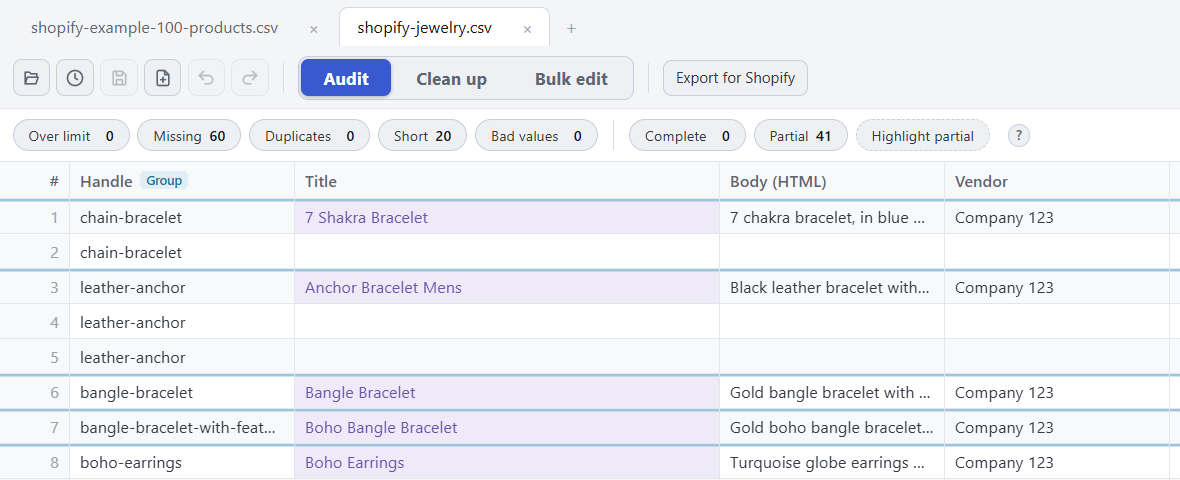
A product with three sizes takes three rows. Only the first row carries the product details: the title, description, vendor and tags. The rows below it hold just the size, SKU and price, and leave the product details empty. That’s how Shopify’s own exports look.
These blanks are the ones Shopify refuses:
| Where the cell is empty | What Shopify says | The fix |
|---|---|---|
| Title on a product’s first row | “Ignored line … because it did not contain product data” (the whole product is skipped) | Add the product’s title |
| Price (or Variant Price) on any variant row | “Validation failed: price can’t be blank” | Add the price |
| Fulfillment service (or Variant Fulfillment Service) on a variant row, when that column is in the file | “Fulfillment service can’t be blank” | Add the service’s name, or manual if you ship orders yourself |
These messages and fixes come from Shopify’s help page “Solutions to common product CSV import problems”. Shopify accepts both the current column names and the older ones in brackets.
How these blanks happen
- A new product added by hand to the sheet, with a cell forgotten.
- Rows copied from another product, then only half filled in.
- A formula or fill-down in a spreadsheet that didn’t reach the last rows.
- A column cleared by accident, like deleting the prices for a few products while editing something else.
How to find them by hand
- Sort your file by Handle so each product’s rows sit together.
- For each product, check the first row has a Title.
- Check every variant row has a price, and a fulfillment service if that column is in your file. Rows that only hold an extra image can stay empty.
- Fill in what’s missing, save as CSV UTF-8, and import again.
On a few products that’s quick. On a few hundred, one missed cell costs another round of importing and reading the error report.
The easier way: Speedy CSV
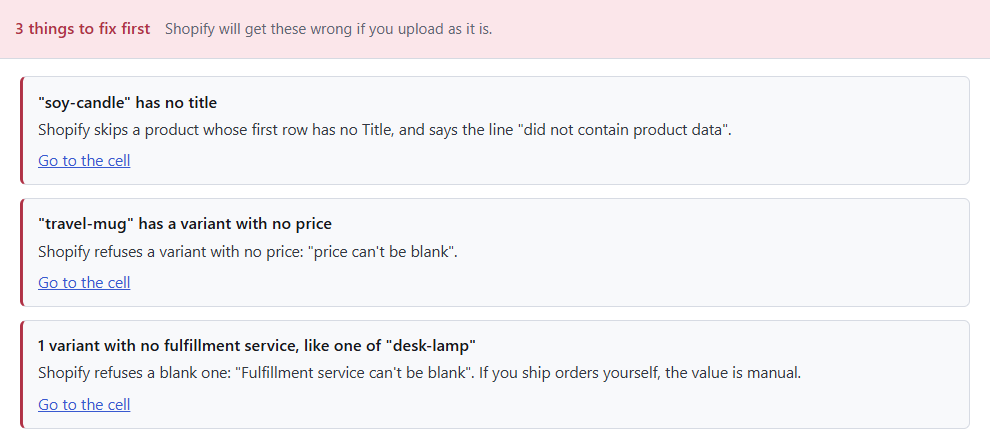
Speedy CSV is a Windows editor made for Shopify product files. Its Export for Shopify check looks for exactly these blanks, and only where Shopify needs a value, so the normal empty cells on variant and image rows are never flagged. Each one is a “fix first” item that names the product and quotes Shopify’s own error:
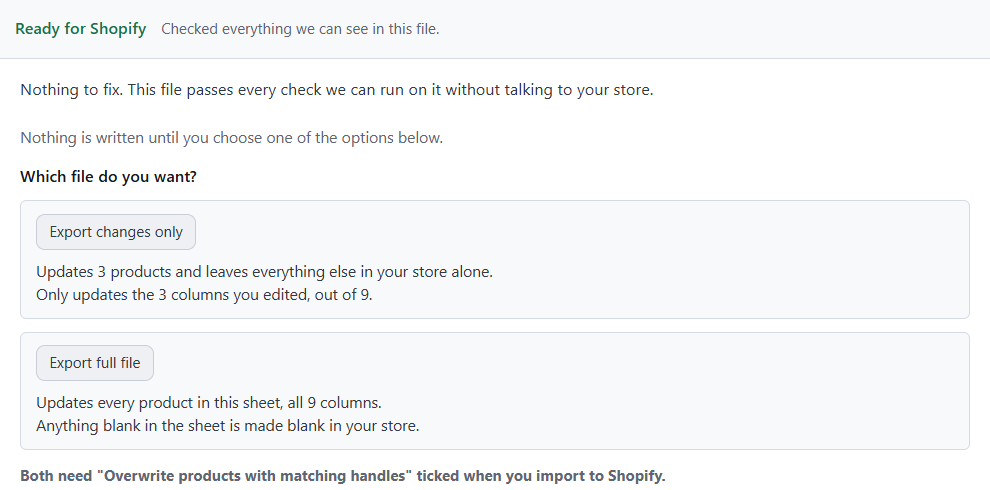
Click Go to the cell under each one, type the missing value, and run the check again:
FREE VERSION · FOR WINDOWS
Fix your Shopify CSV in minutes, not hours
- Save time. One-click fixes for common problems, like stray spaces and garbled text.
- No monthly fee. Pay once, manage unlimited products.
- Catch import errors first. 24 checks run before you export.
- Re-import only what changed. No more splitting big files.
- Easy to use. Built-in help, tooltips and a status bar that explains what it sees.
Free for up to 25 products or 500 rows, with no time limit. No credit card needed.