Your catalogue has grown, and now the product import fails, or the upload just sits there until it times out. The file is simply too big for Shopify’s importer.
Shopify’s limit
Shopify’s help is direct about it: a product CSV can’t be larger than 15 MB. If the upload fails or times out, its advice is to split the file into smaller files and import them one after another.
Big files usually come from long product descriptions (every line of HTML counts), many variants, or a lot of image rows.
Option 1: Split the file safely
Splitting sounds easy, but a careless cut breaks products. The rows of one product must stay together in the same file, or Shopify sees half a product in each.
- Keep the first row, the column names, at the top of every part.
- Cut only between products: where the Handle changes, never in the middle of a product’s rows.
- Keep each part under 15 MB. For example, 23 MB of products becomes two files of about 12 MB.
- Save each part as CSV UTF-8 and import them one at a time.
Watch out for a spreadsheet when you do this. Opening a big product file in Excel can strip leading zeros from SKUs and turn barcodes into 1.23E+11 before you’ve even started.
Option 2: Don’t send the whole catalogue
Most of the time you haven’t changed 20,000 products. You changed a few prices, some tags, a handful of titles. Sending the whole catalogue back to Shopify to update those is what makes the file too big, and every other cell in it is a chance to overwrite something by accident (see why a re-import can overwrite your products).
The fix is a file with only the products and columns you changed. You can build one by hand: copy the column names, the Handle, Title and Option columns, the columns you edited, and just the rows of the products you touched. On a big catalogue, that’s slow and easy to get wrong.
The easier way: Speedy CSV
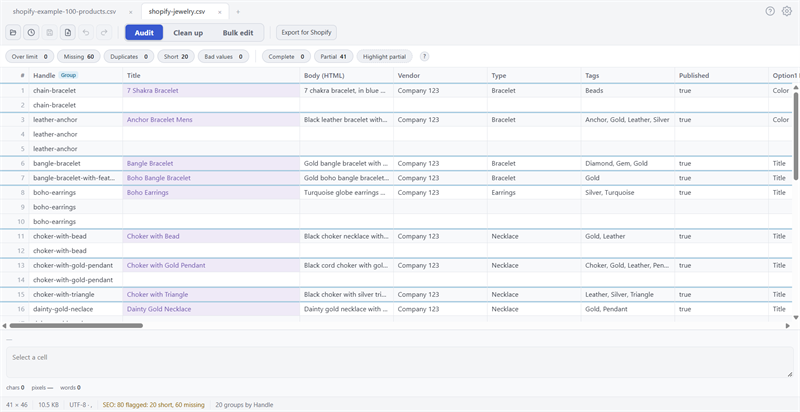
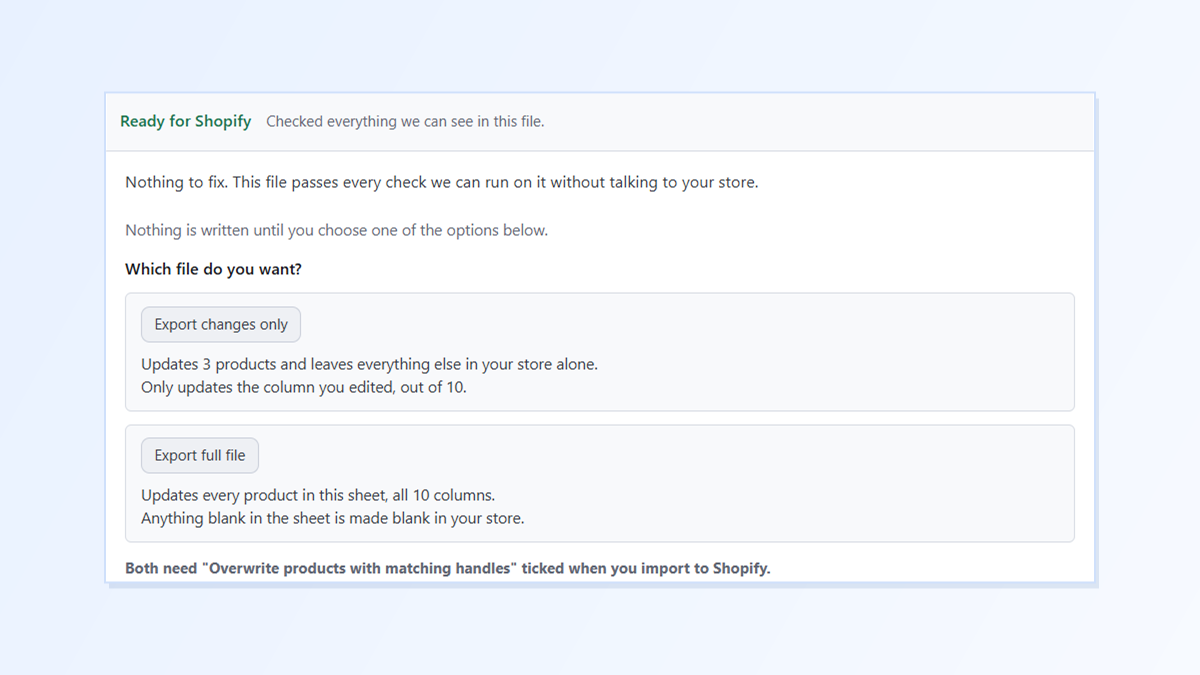
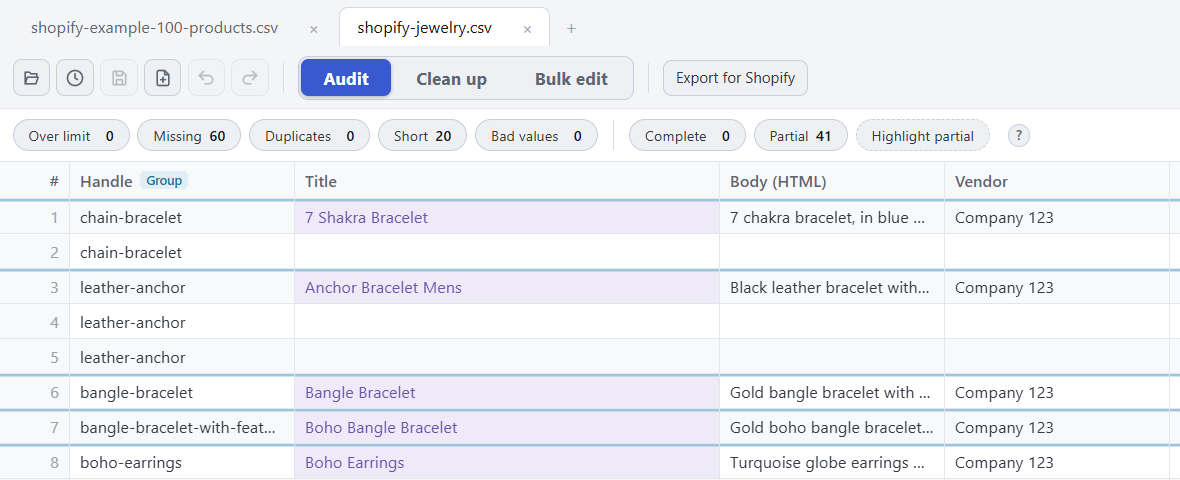
Speedy CSV is a Windows editor made for Shopify product files. It opens very large catalogues quickly, and its Export for Shopify button offers Export changes only: just the products and columns you edited, plus the few columns Shopify needs to find each product and keep its variants.
To test it, we opened a 23.5 MB file with 20,000 products and added a “sale” tag to three of them:
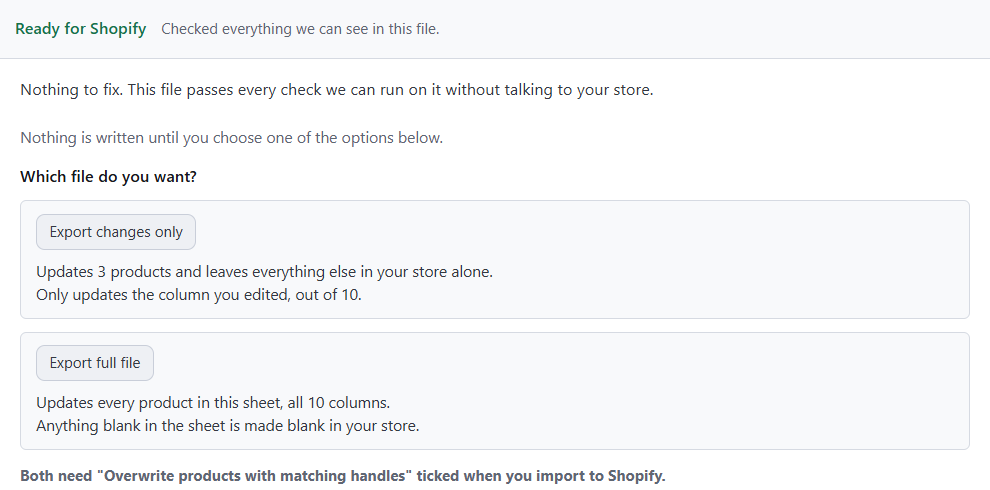
The file it saved was 234 bytes:
Handle,Title,Tags,Option1 Name,Option1 Value
product-2,Product 2,"cotton, summer, sale",Title,Default Title
product-5,Product 5,"cotton, summer, sale",Title,Default Title
product-9,Product 9,"cotton, summer, sale",Title,Default Title
That’s well under Shopify’s limit, and nothing else in your store is touched. Import it with Overwrite products with matching handles ticked.
Speedy CSV doesn’t split files for you. If you really do need to send every product, for example to move a whole catalogue into a new store, use the splitting steps above.
FREE VERSION · FOR WINDOWS
Fix your Shopify CSV in minutes, not hours
- Save time. One-click fixes for common problems, like stray spaces and garbled text.
- No monthly fee. Pay once, manage unlimited products.
- Catch import errors first. 24 checks run before you export.
- Re-import only what changed. No more splitting big files.
- Easy to use. Built-in help, tooltips and a status bar that explains what it sees.
Free for up to 25 products or 500 rows, with no time limit. No credit card needed.