You import a product file with sizes or colours, and something goes wrong. Either the import fails with a message that a variant already exists, or it goes through but your product has fewer variants than you expected, or only one.
Both come from the same place: how variant rows are laid out in the file.
How variants work in a Shopify CSV
Every variant is its own row. The rows for one product are tied together by the Handle, the product’s web address name, like cotton-tee.
- The first row holds the product details: Title, description, vendor, tags and so on, plus the first variant.
- Each row after it repeats the same Handle and fills in only the variant details: the option value (Small, Medium, Large), SKU, price and stock. The product columns stay blank on these rows. That’s normal.
- The Option columns say what the variants are. Option1 Name is the kind of option, like Size, and Option1 Value is this row’s choice, like Medium.
- A product with no variants still has one variant row. Shopify writes it as Option1 Name Title and Option1 Value Default Title.

The four mistakes that break variants
1. Two rows with the same option value
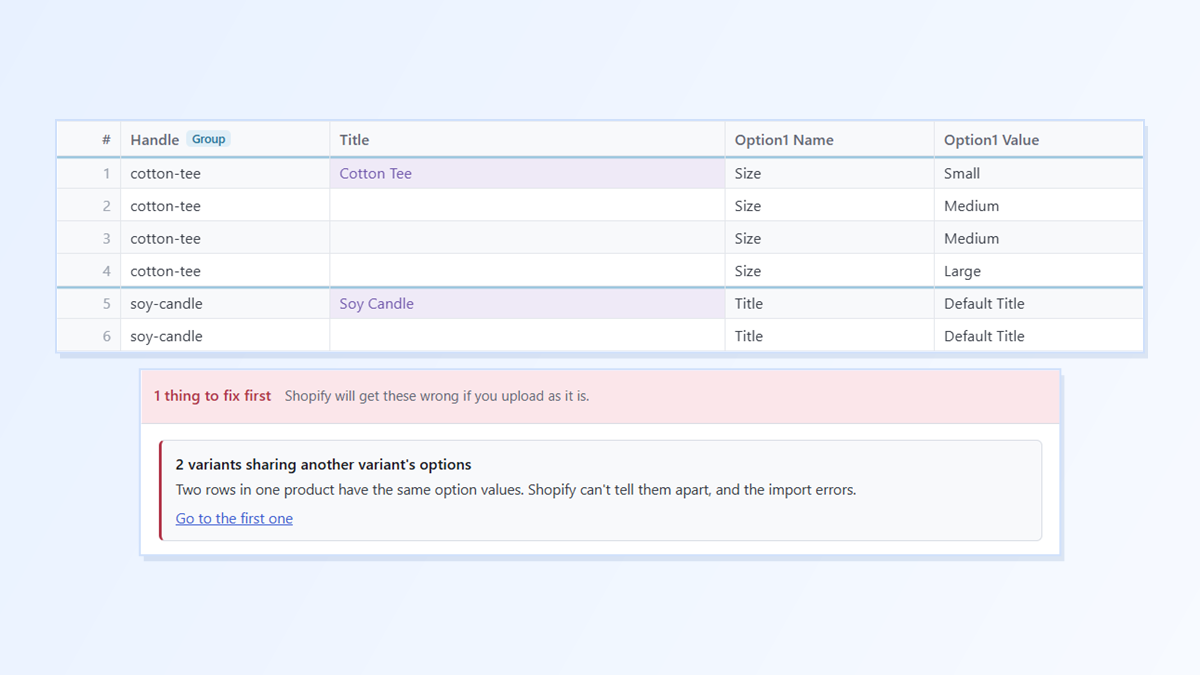
Every variant of a product needs its own combination of option values. If two rows of cotton-tee both say Medium, Shopify can’t tell them apart, and the import errors saying the variant already exists.
The same happens with Default Title. A product with no options can only have one variant, so a second Default Title row under the same Handle is a duplicate. This often happens when rows are copied to make “another variant” without changing the option value.
Fix: give each row its own value (Medium and Large, not Medium twice), or delete the extra row.
2. A Handle that doesn’t quite match
The rows only belong together if the Handle is the same on every row. A typo on one row, like coton-tee instead of cotton-tee, makes it a different handle, so that variant can end up as a separate product of its own.
Fix: make sure every row of a product has the identical Handle.
3. Missing Option columns
Shopify’s help is clear about this one: if your file doesn’t include the Option1 Name and Option1 Value columns, Shopify creates a new default variant and deletes the product’s existing variants. People often hit this when they cut a file down to “just the columns I changed”.
Fix: always keep Handle, Title and the Option name and value columns in the file, even for a small update.
4. “Overwrite products with matching handles” not ticked
If the products already exist in your store and you don’t tick Overwrite products with matching handles when you import, Shopify skips them. Your new variants never arrive.
Fix: tick the box when you’re updating products you already have.
How to check before you import
Sort or scan your file by Handle and read down each product’s rows. Each row should have the same Handle and a different option value. It’s quick for five products and slow for five hundred.
The easier way: Speedy CSV
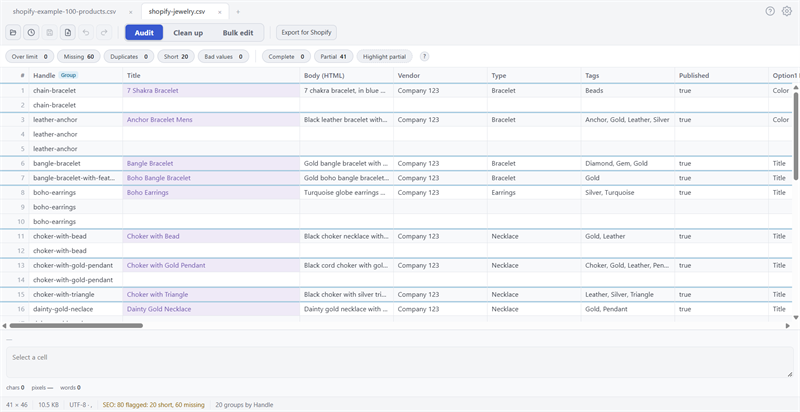
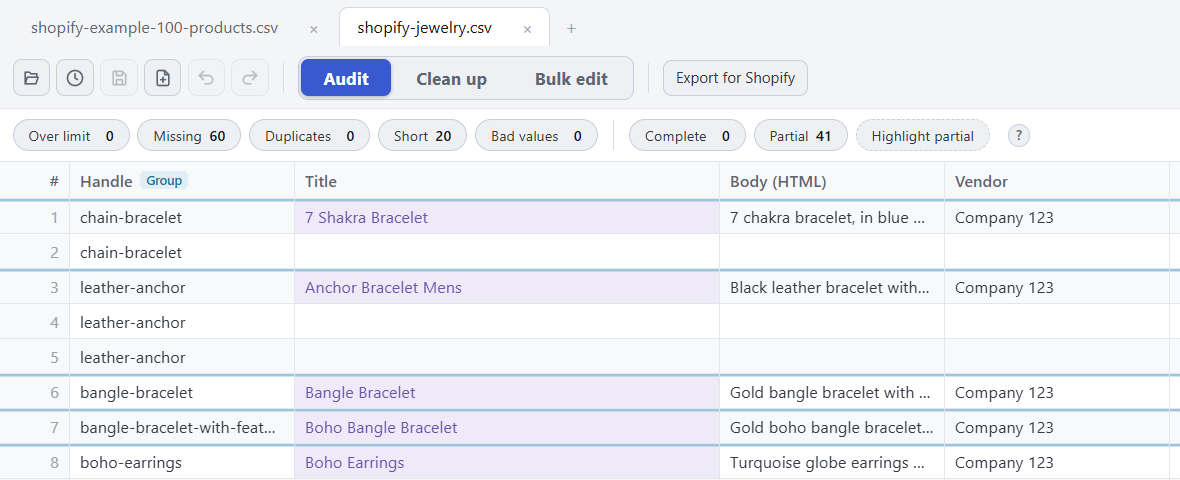
Speedy CSV is a Windows editor made for Shopify product files. It groups each product’s rows by Handle, so you can see at a glance which rows belong together. Its Export for Shopify check catches repeated option values before Shopify does, and won’t hand you a file to upload until they’re fixed.
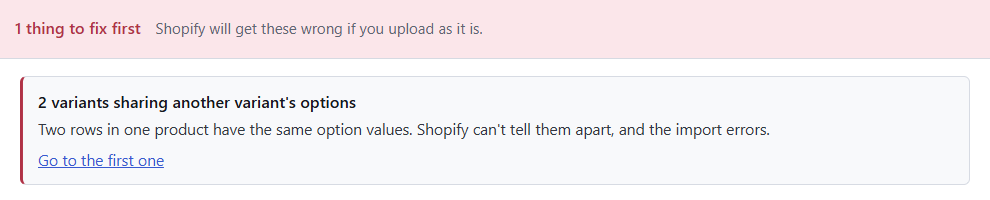
It also warns you when a file has no Option columns, before Shopify deletes your variants.
FREE VERSION · FOR WINDOWS
Fix your Shopify CSV in minutes, not hours
- Save time. One-click fixes for common problems, like stray spaces and garbled text.
- No monthly fee. Pay once, manage unlimited products.
- Catch import errors first. 24 checks run before you export.
- Re-import only what changed. No more splitting big files.
- Easy to use. Built-in help, tooltips and a status bar that explains what it sees.
Free for up to 25 products or 500 rows, with no time limit. No credit card needed.