Your product import finishes, but some products are missing, and Shopify’s report says something like:
Ignored line 5 because handle ‘blue-shirt’ already exists
Shopify didn’t lose anything. It skipped that product on purpose, because another product in the same file already uses that handle.
What a handle is
The handle is the name Shopify uses for a product in its web address. For snackytools.com/products/blue-shirt, the handle is blue-shirt. Every product in a store needs its own.
In a product CSV, the handle does a second job: it ties rows together. A product with three sizes takes three rows, all with the same handle, one after another. So when the same handle turns up again further down the file, for what’s clearly a different product, Shopify can’t tell what you meant. Its help describes the fix simply: make sure each product has a unique handle.
How it happens
- Two files pasted together, each with its own “blue-shirt”.
- A product was copied to make a new one, and the handle wasn’t changed.
- The file was sorted by another column, like price or title. A product’s rows then get scattered, and its handle appears in two or more places.
How to fix it by hand
- Sort the file by the Handle (or URL handle) column so repeated handles sit together.
- Read each group of rows with the same handle.
- Rows of one product (same title, different sizes or colours): leave them together. That’s how variants are meant to look.
- Two different products (different titles): give the second one its own handle, like blue-linen-shirt. Use lowercase letters, numbers and hyphens.
- Save and import again.
On a file with hundreds of products, it’s easy to miss one.
The easier way: Speedy CSV
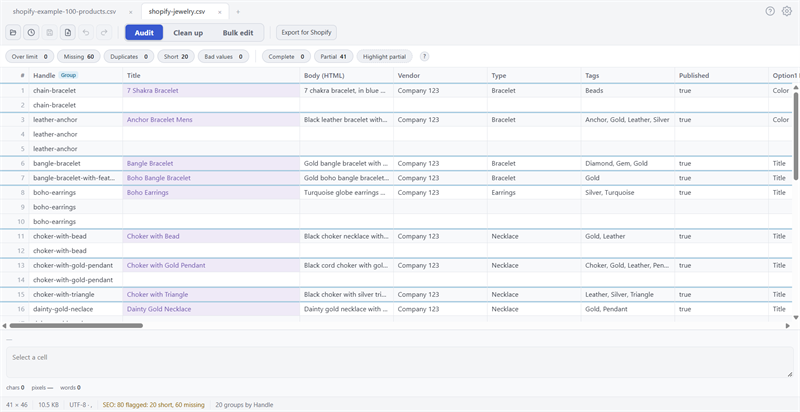
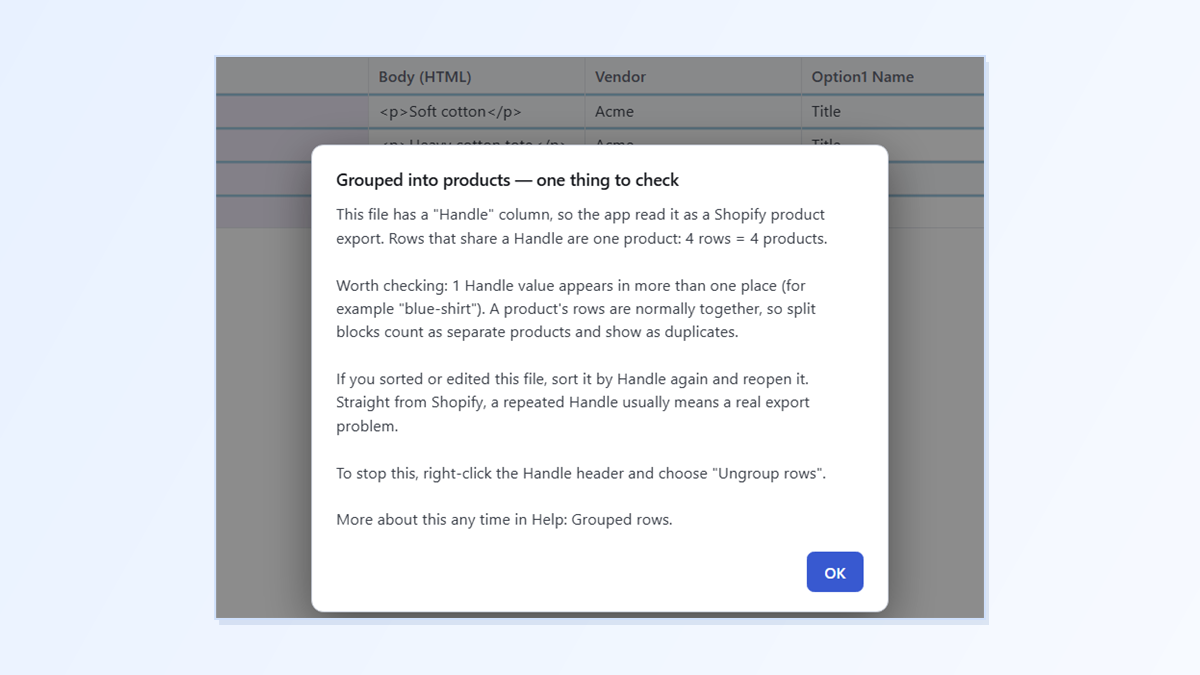
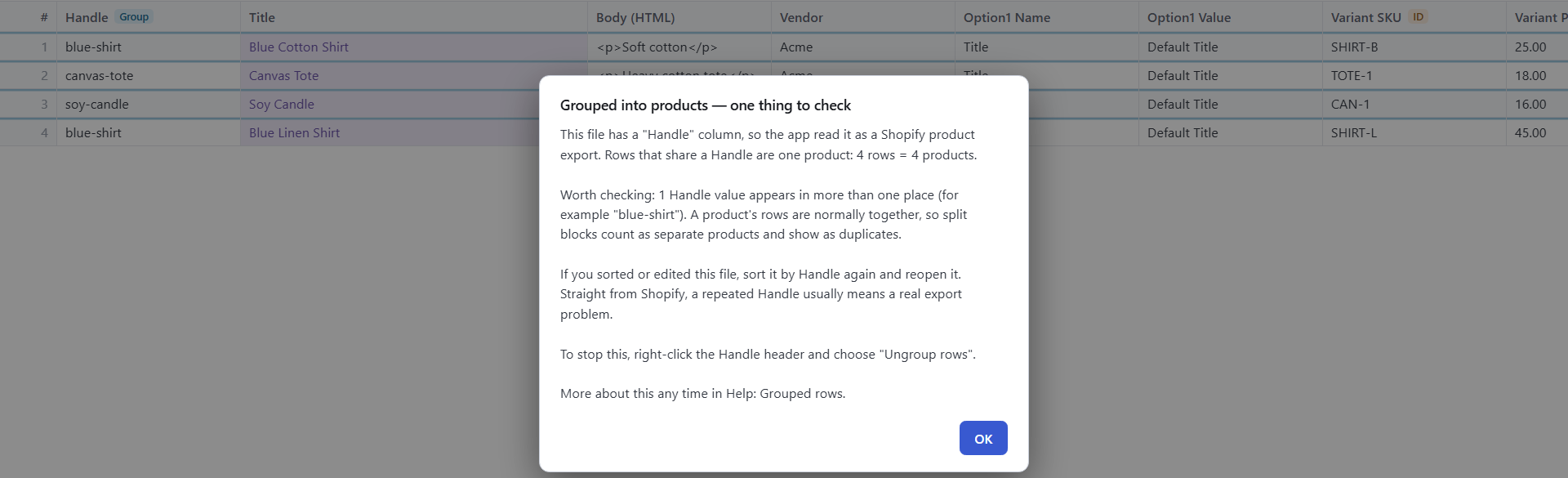
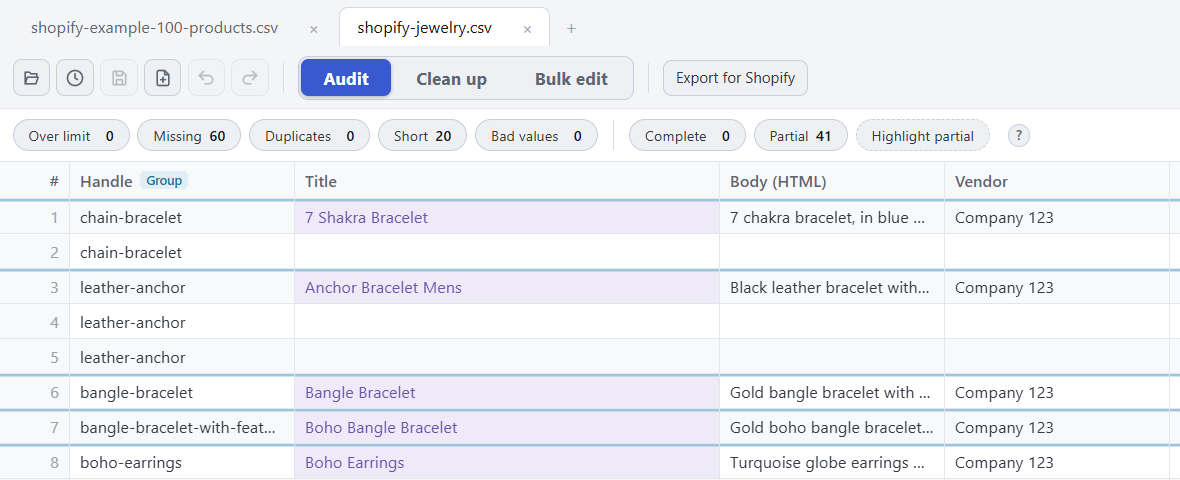
Speedy CSV is a Windows editor made for Shopify product files. It groups rows by handle as soon as you open a file, and tells you when a handle turns up in more than one place:
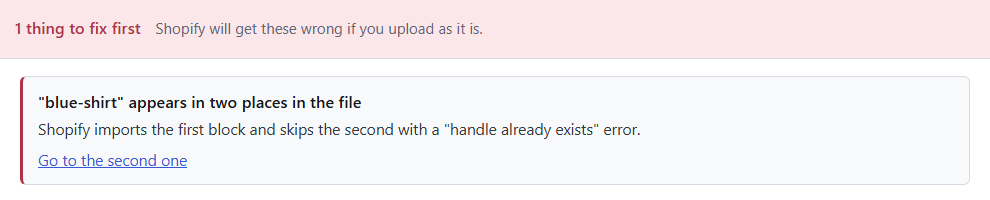
Before you upload, Export for Shopify marks it as something to fix first, in the same words as Shopify’s error, with a link to the second product:
FREE VERSION · FOR WINDOWS
Fix your Shopify CSV in minutes, not hours
- Save time. One-click fixes for common problems, like stray spaces and garbled text.
- No monthly fee. Pay once, manage unlimited products.
- Catch import errors first. 24 checks run before you export.
- Re-import only what changed. No more splitting big files.
- Easy to use. Built-in help, tooltips and a status bar that explains what it sees.
Free for up to 25 products or 500 rows, with no time limit. No credit card needed.