You import a product CSV. The products arrive, but some have no pictures, and Shopify’s import report says something like this:
Validation failed: An error occurred while trying to download the image Validation failed: getaddrinfo: nodename nor servname provided, or not known
The cause is almost always the Image Src column (called Product image URL in newer files). It doesn’t hold a picture. It holds a link to one.
How Shopify imports images
Shopify’s help says it “downloads the images during the import and re-uploads them in your store.” So for every image link in your file, Shopify goes out to that address on the internet and fetches the picture.
That only works if the link is a full web address that anyone can open. Shopify asks for links that start with https://, point straight at the image, and aren’t behind a password.
Why image links fail
- A file name instead of a link.
tote-front.jpgis the name of a file on your computer. Shopify can’t reach your computer, so there’s nothing to fetch. - A link with no https:// at the start.
www.example.com/images/candle.jpglooks like a web address to a person, but not to Shopify. This is the “getaddrinfo” error, and Shopify’s fix is to put the protocol in front of the link. - A link that’s gone. If you deleted a product or image from your store after exporting, the old image links in that export may no longer work. Shopify warns that importing them can make the import fail.
- A private link. Links from a shared drive or a site that needs a login open fine for you, but not for Shopify.
- An image that’s too big. Shopify accepts images up to 5000 × 5000 pixels (25 megapixels). Anything larger fails with “exceeds the 20 megapixel limit”.
How to fix them by hand
- Upload the pictures somewhere public first. Shopify’s own Content → Files page works, and gives you an https:// link for each file.
- In your CSV, replace each file name or broken link with the full link, starting with https://.
- Open a few links in a private browser window. If the picture shows, Shopify can fetch it.
- Save as CSV UTF-8 and import again.
The hard part is step 2 on a big file: spotting the few bad links among hundreds of good ones.
The easier way: Speedy CSV
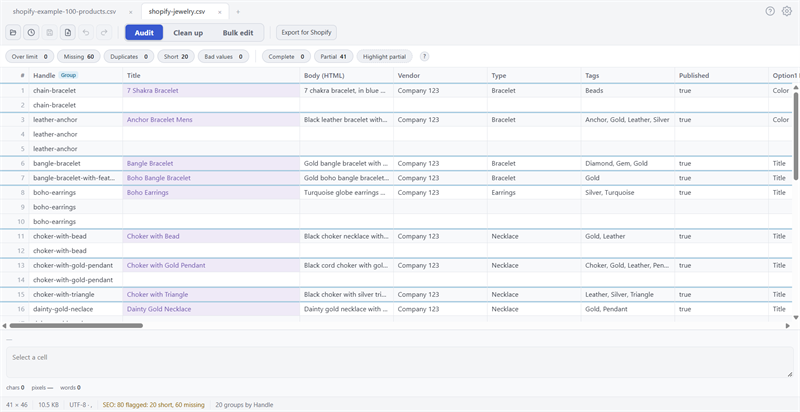
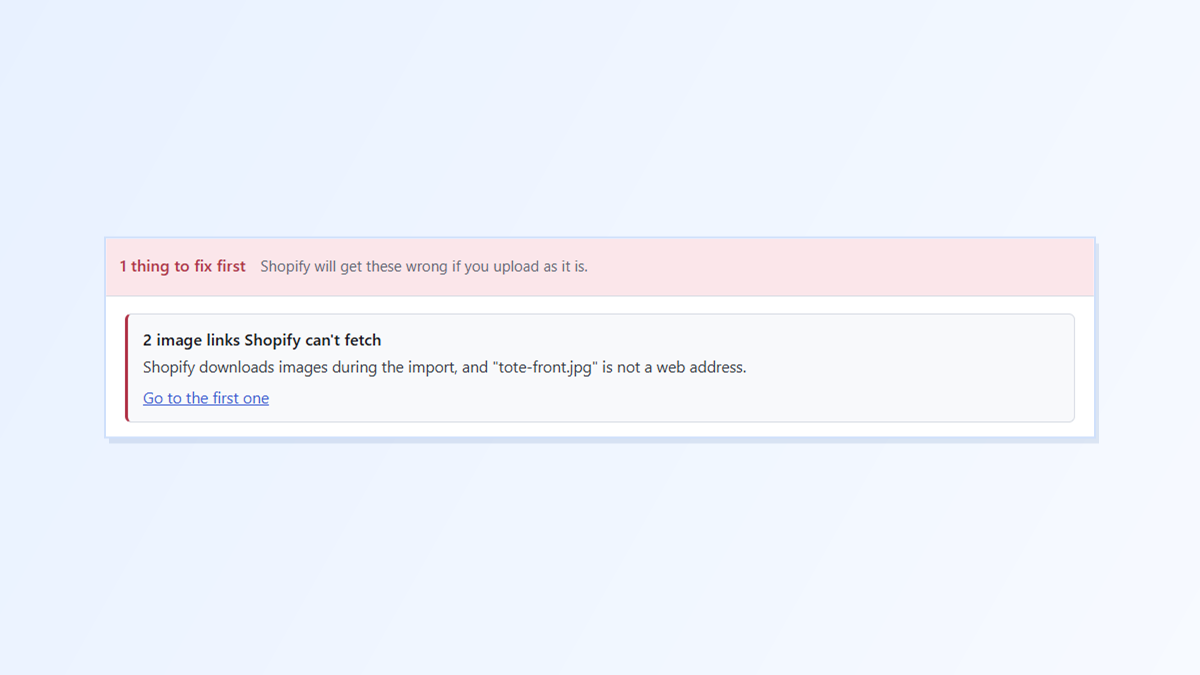
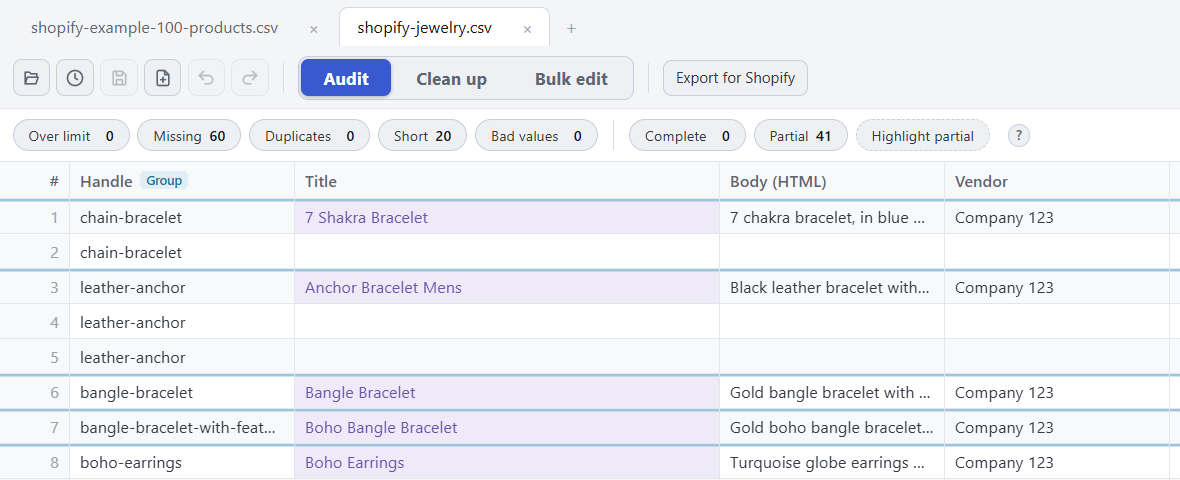
Speedy CSV is a Windows editor made for Shopify product files. Its Export for Shopify check reads every image link and flags any that isn’t a web address Shopify could fetch, as a “fix first” item:

Click Go to the first one to jump straight to the cell, paste in the full link, and run the check again.
One honest limit: Speedy CSV checks that each link is a proper web address. It doesn’t go online to test it, so it can’t tell you that a well-formed link is broken, private or points at an image that’s too big. For those, open a few links in a private browser window before you import.
FREE VERSION · FOR WINDOWS
Fix your Shopify CSV in minutes, not hours
- Save time. One-click fixes for common problems, like stray spaces and garbled text.
- No monthly fee. Pay once, manage unlimited products.
- Catch import errors first. 24 checks run before you export.
- Re-import only what changed. No more splitting big files.
- Easy to use. Built-in help, tooltips and a status bar that explains what it sees.
Free for up to 25 products or 500 rows, with no time limit. No credit card needed.