You upload a product CSV to Shopify, and instead of importing, it asks you to choose column headings. Or the import goes through, but the descriptions, prices or stock numbers never arrive.
Both come from the same thing: the names in your file’s first row aren’t names Shopify knows.
Why Shopify cares about the first row
The first row of a product CSV holds the column names. Shopify reads each name to decide what the column is: the description, the price, the SKU. A name it doesn’t recognise leaves it guessing. Shopify’s help says that when the headers are wrong or badly formatted, it shows a window where you pick the right heading for each column from a list.
If a column doesn’t get matched to a Shopify name, Shopify doesn’t import it.
The two sets of names Shopify accepts
Shopify has changed its product CSV layout over the years. Its help lists the current names and says it still accepts the older ones:
| What the column holds | Current name | Older name (still accepted) |
|---|---|---|
| The product’s web address name | URL handle | Handle |
| Description | Description | Body (HTML) |
| Price | Price | Variant Price |
| SKU | SKU | Variant SKU |
| Stock | Inventory quantity | Variant Inventory Qty |
| Main image | Product image URL | Image Src |
A file exported from Shopify always uses one of these sets. Trouble starts when the file has been through other hands.
The usual causes
- A column was renamed to something friendlier: Body instead of Body (HTML), Qty instead of Inventory quantity.
- A typo or an extra space, like “Price ” with a space at the end. Shopify’s help mentions trailing spaces as a cause of header problems.
- The file came from another system (a supplier, another platform or a spreadsheet template) with its own column names.
- Two layouts got mixed when rows were pasted from an old export into a new one.
How to fix it
- Open the file and look at the first row only.
- Compare each name with the table above, or with the column list in Shopify’s help (“Using CSV files to import and export products”).
- Rename any that don’t match exactly, including capital letters and brackets.
- If Shopify still shows Choose column headings, match each column to the right name in the list before you continue. Don’t skip one, or its data won’t be imported.
The easier way: Speedy CSV
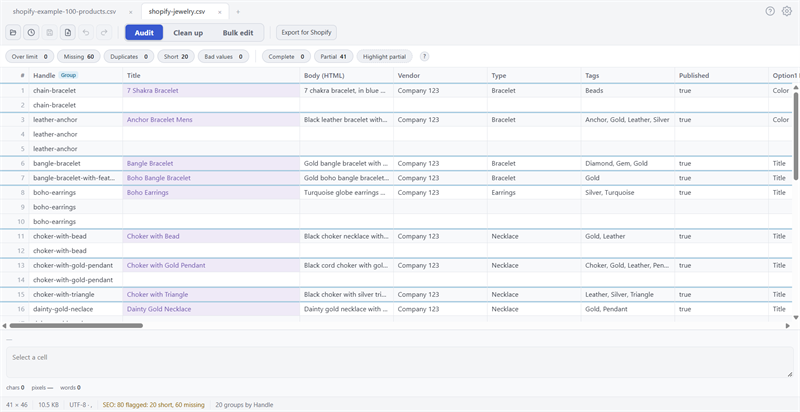
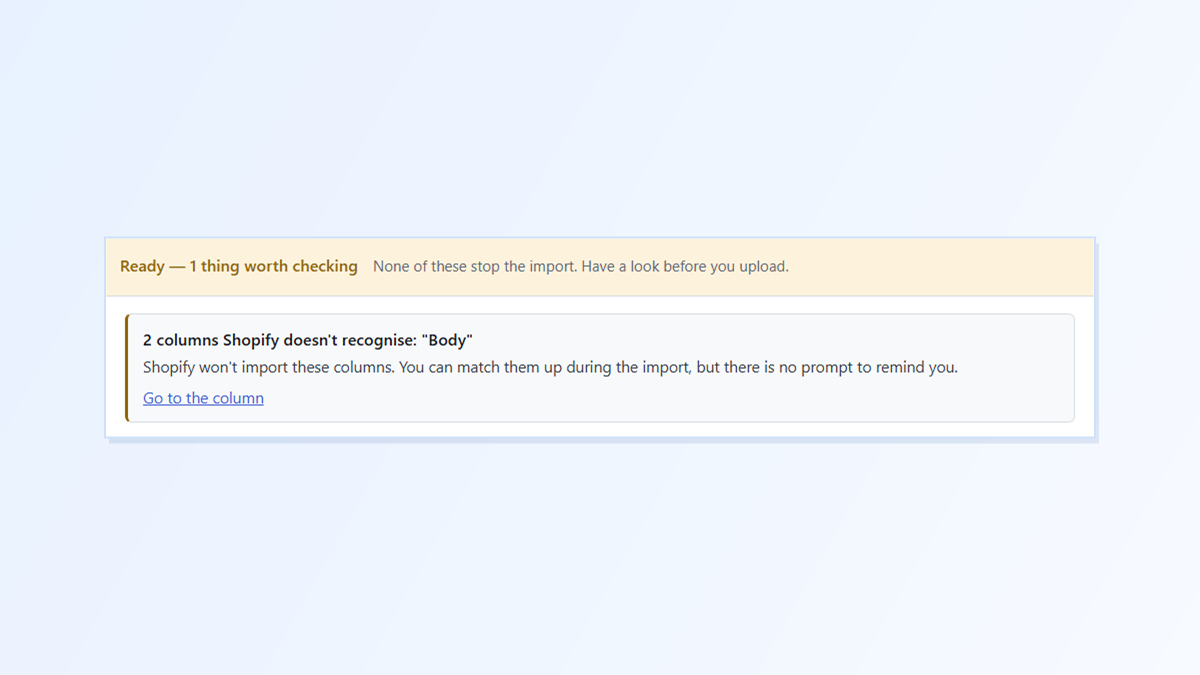
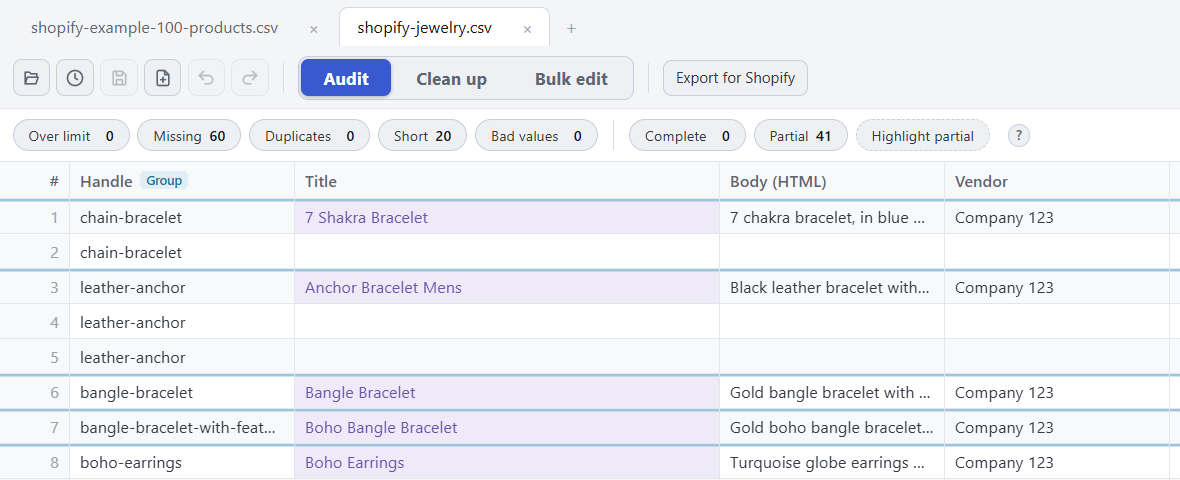
Speedy CSV is a Windows editor made for Shopify product files. Its Export for Shopify check compares every column name with the ones Shopify knows, from both the current and the older layout, and tells you which ones it doesn’t recognise before you upload.
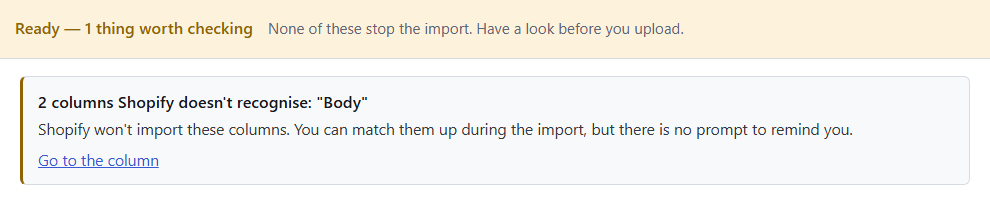
The link jumps straight to the column. Right-click its header, choose Rename header…, type the Shopify name, and run the check again. Your file only changes when you save or export.
FREE VERSION · FOR WINDOWS
Fix your Shopify CSV in minutes, not hours
- Save time. One-click fixes for common problems, like stray spaces and garbled text.
- No monthly fee. Pay once, manage unlimited products.
- Catch import errors first. 24 checks run before you export.
- Re-import only what changed. No more splitting big files.
- Easy to use. Built-in help, tooltips and a status bar that explains what it sees.
Free for up to 25 products or 500 rows, with no time limit. No credit card needed.