You import a product CSV to update your stock, and Shopify’s report comes back with errors like these:
Inventory quantity is not a number Inventory quantity can’t be blank Inventory policy is not included in the list
Each one points to a single cell in the stock columns. Here’s what Shopify wants in each.
The three stock columns
| Column | What it means | What Shopify accepts |
|---|---|---|
| Variant Inventory Tracker | Whether Shopify counts stock for this item | shopify to count it, or leave it blank not to |
| Variant Inventory Qty | How many you have in stock | A whole number, like 12 |
| Variant Inventory Policy | Whether people can keep buying once stock hits 0 | deny (stop selling) or continue (keep selling) |
Newer Shopify files may use different names for these columns, like Inventory quantity and Continue selling when out of stock. The rules are the same.
What each error means
- “Inventory quantity is not a number”: the quantity is a word, like ten, or a decimal, like 2.5. Shopify only counts whole items. Type a whole number.
- “Inventory quantity can’t be blank”: the quantity is empty, but the tracker says shopify, so Shopify expects a count. Type the number in stock. If you don’t want Shopify to count stock for that item, delete shopify from its Inventory Tracker cell instead.
- “Inventory policy is not included in the list”: the policy cell has something other than deny or continue, like yes or no. Change it to one of those two words.
These messages and fixes come from Shopify’s help page “Solutions to common product CSV import problems”.
Where these values come from
- Typed by hand while updating stock after a count.
- Copied from a supplier’s sheet that writes “ten” or “out of stock” instead of a number.
- A spreadsheet formula that divided or averaged, leaving decimals behind.
- A yes/no column from another system pasted into the policy column.
One thing the product CSV can’t do
The stock column in a product CSV only works for stores with one location. If your store has several locations, Shopify’s help says to update stock with its separate inventory CSV instead (in Shopify, go to Products → Inventory → Import). It’s also the lighter choice when stock is the only thing you’re changing.
The easier way: Speedy CSV
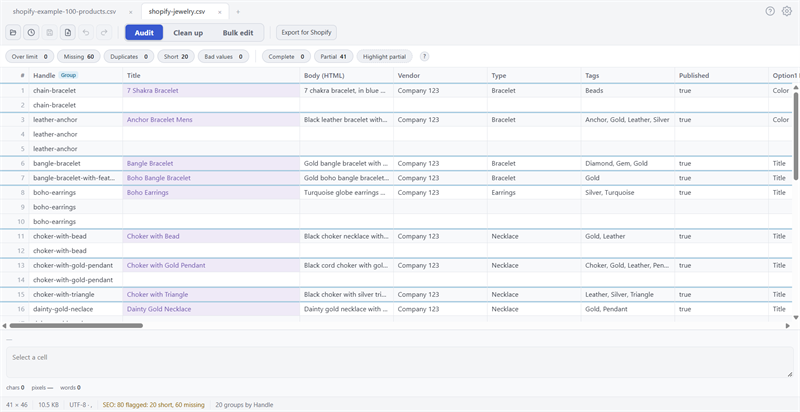
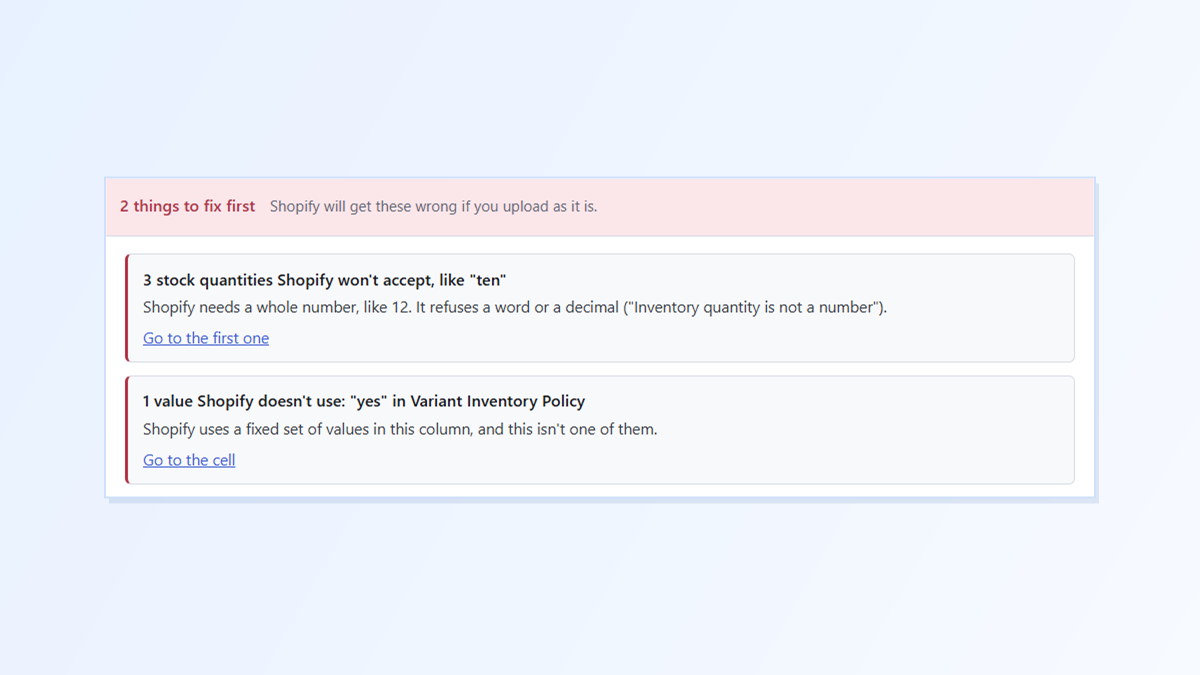
Speedy CSV is a Windows editor made for Shopify product files. Its Export for Shopify check reads every variant’s stock quantity and policy, and flags the ones Shopify would refuse:

Click Go to the first one or Go to the cell to jump to each problem, fix it, and run the check again. The check reads both the older column names and the newer ones.
What Speedy CSV doesn’t do: it doesn’t know your real stock, so it can’t tell you a number is wrong, only that Shopify won’t accept it. It also doesn’t handle multiple locations or build Shopify’s inventory CSV for you.
FREE VERSION · FOR WINDOWS
Fix your Shopify CSV in minutes, not hours
- Save time. One-click fixes for common problems, like stray spaces and garbled text.
- No monthly fee. Pay once, manage unlimited products.
- Catch import errors first. 24 checks run before you export.
- Re-import only what changed. No more splitting big files.
- Easy to use. Built-in help, tooltips and a status bar that explains what it sees.
Free for up to 25 products or 500 rows, with no time limit. No credit card needed.