You go to import your products into Shopify, and it stops with a message like this:
Illegal quoting in line 2
The line number changes from file to file, but the cause is almost always the same: a quotation mark (“) somewhere in your file is in a place where the CSV format doesn’t allow it.
What the message means
A CSV file is plain text. Commas separate the cells, and each line is one row. That raises a question: what if a cell itself contains a comma, like a product type of Bags, Wallets?
The answer is quotation marks. A cell that contains a comma, a quote mark or a line break has to be wrapped in double quotes, like this:
canvas-tote,Canvas Tote,"Bags, Wallets"And if a quote mark appears inside a wrapped cell, it has to be written twice, so the file knows it’s part of the text and not the end of the cell:
oak-frame,"Oak Picture Frame 12"" x 16"""“Illegal quoting” means Shopify found a quote mark that breaks these rules, so it can’t tell where a cell starts and ends.
The usual causes
- An inch mark. Titles like Picture Frame 12″ x 16″ or descriptions like fits a 12″ frame are the most common cause by far.
- A quote in the middle of a cell, such as a nickname in a product name: The “Classic” Tote.
- Curly “smart” quotes. Word and some spreadsheets turn a straight quote (“) into a curly one (“ or ”). Shopify’s own help lists these as a cause: the file needs straight quotes.
- A file that isn’t saved as UTF-8. Shopify’s help names this too. Special characters can turn into something the importer can’t read.
- A file edited by hand in a text editor, or pasted together from two files. Spreadsheet programs usually add the right quotes for you when they save. Hand edits don’t.
- A file exported from another system that doesn’t follow the CSV rules exactly.
How to find the line
- Right-click the file and choose Open with → Notepad.
- Turn off Format → Word Wrap (in newer Notepad: View → Word wrap), so each row sits on one line.
- Press Ctrl+G, type the line number from Shopify’s message, and press Enter. Line 1 is usually the row of column names, so line 2 is your first product. If nothing looks wrong there, check the lines just above and below.
- Look along that line for a quote mark (“) that isn’t part of a pair wrapped around a whole cell.
How to fix it
- The simplest fix is to avoid the character. Write 12 in or 12-inch instead of 12″. Your customers will understand it just as well.
- If you want to keep the quote mark, wrap the whole cell in quotes and double every quote mark inside it, as in the frame example above.
- Replace curly quotes with straight ones. In Notepad, use Edit → Replace to swap “ and ” for “.
- Save the file as CSV UTF-8 (Comma delimited) if you’re working in Excel. If your file uses semicolons instead of commas, see why Shopify says “Missing headers: Title”.
A close cousin: a comma that splits a cell
A comma inside a cell that isn’t wrapped in quotes doesn’t always cause an error. Instead, it quietly splits the cell in two. Everything after it shifts one column to the right: the type lands under Tags, the tag lands under Price, and the row ends with one cell too many.
This one is sneaky, because the import may not complain at all. The product just comes in with the wrong data, or gets skipped.
The easier way: Speedy CSV
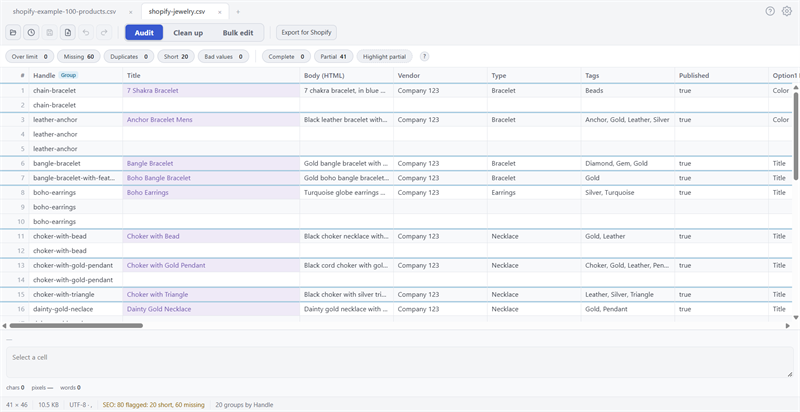
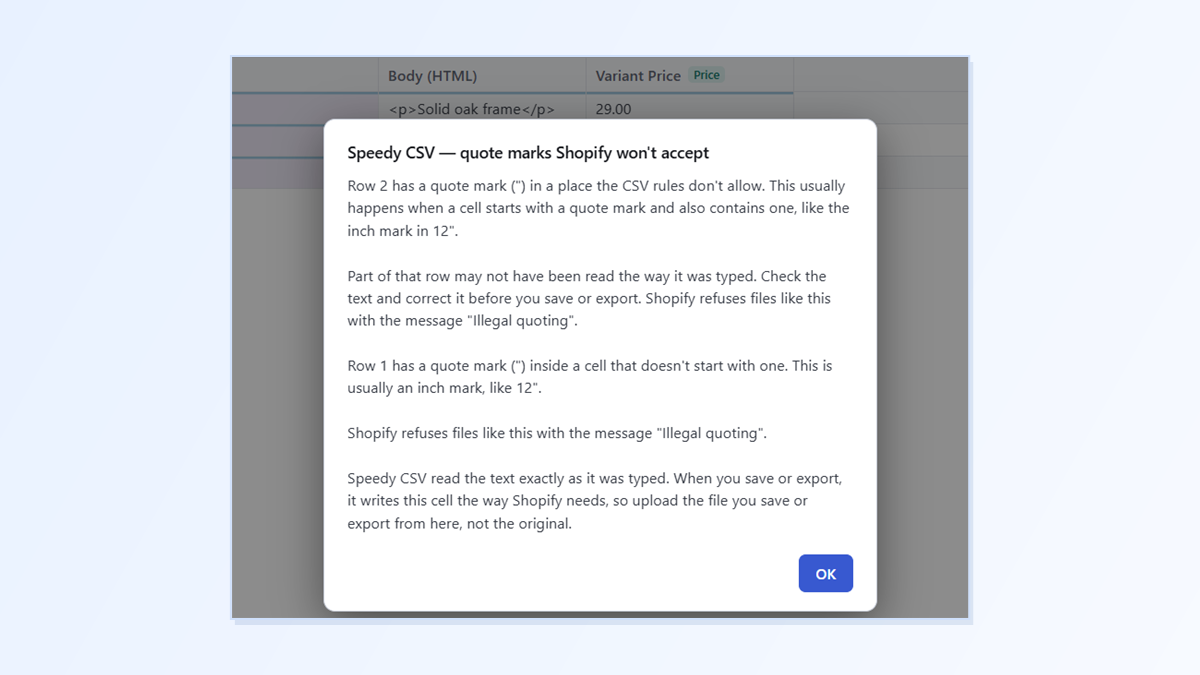
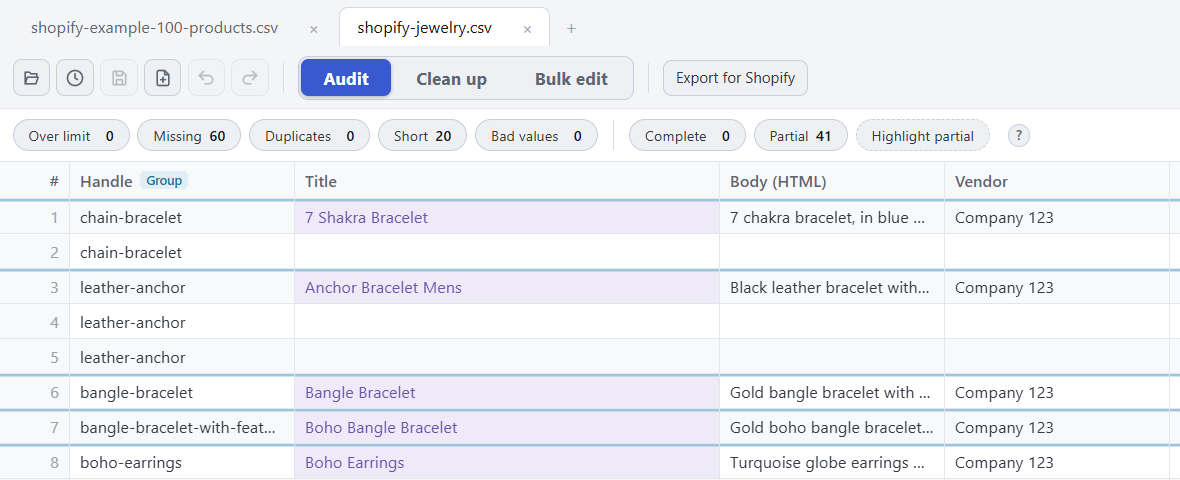
Speedy CSV is a Windows editor made for Shopify product files. It checks the quote marks the moment you open a file, and names every row with a quote mark in a place the CSV rules don’t allow. That’s the most common cause of “Illegal quoting”, and there’s no need to hunt through Notepad for the line. (Curly quotes and the file’s encoding are separate causes; use the fixes above for those.)

It tells the two kinds apart, because they need different things from you:
- An inch mark in an ordinary cell, like Frame 12″ x 16″. Speedy CSV reads it exactly as typed. When you save or export, it writes the cell the way Shopify needs, so just upload the file you save or export from Speedy CSV.
- A quote mark that breaks a cell, like the one in “Fits a 12″ frame”. Part of that row may not read the way it was typed, so Speedy CSV asks you to check it and correct the text first.
It catches the close cousin too. When a comma has split a cell, it tells you which row and which value spilled over. Nothing is changed or thrown away while you look.

FREE VERSION · FOR WINDOWS
Fix your Shopify CSV in minutes, not hours
- Save time. One-click fixes for common problems, like stray spaces and garbled text.
- No monthly fee. Pay once, manage unlimited products.
- Catch import errors first. 24 checks run before you export.
- Re-import only what changed. No more splitting big files.
- Easy to use. Built-in help, tooltips and a status bar that explains what it sees.
Free for up to 25 products or 500 rows, with no time limit. No credit card needed.