To add or change products in bulk, Shopify wants a CSV file laid out a certain way. There are two easy ways to get a correctly laid-out file, and they don’t use the same column names. This guide explains both, which columns you actually need, and the format rules that make an import fail.
Where to get a Shopify CSV template
You have two options:
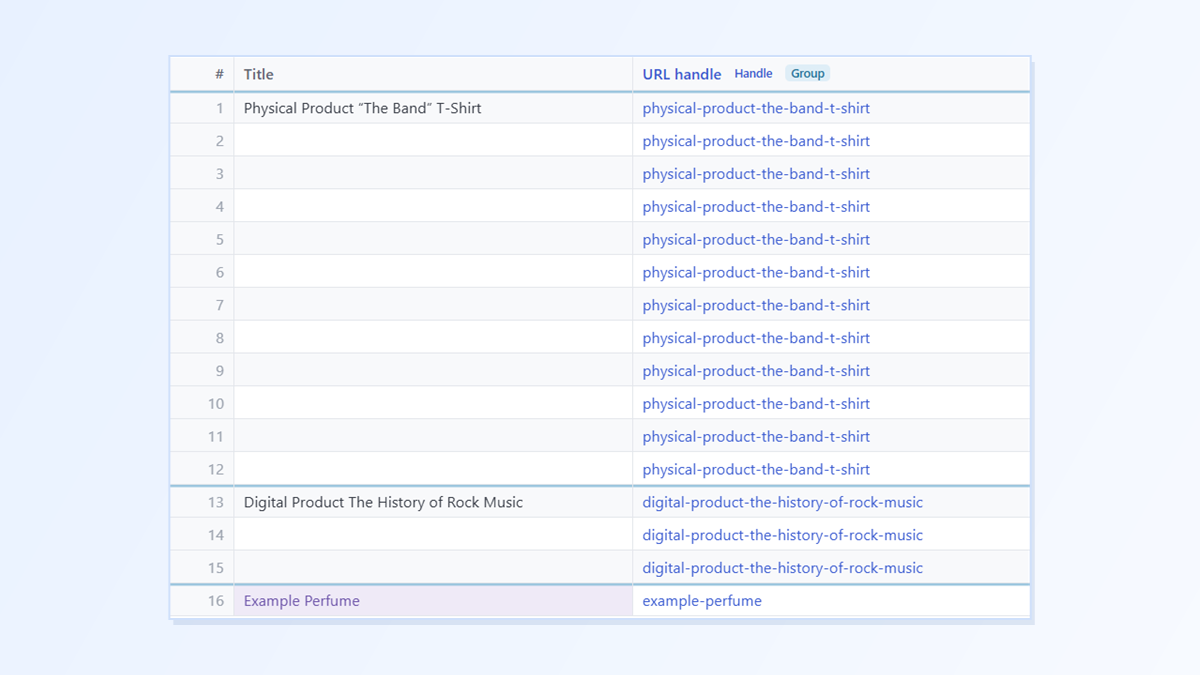
- Shopify’s sample file. Shopify’s help page offers a sample product CSV “to use as a template”. It holds three example products: a T-shirt with sizes and colours, an e-book in three formats and a perfume.
- Your own export. In Shopify, go to Products → Export. You get your real products in a file Shopify can import again. For updating products you already have, this is the better starting point.
Your export and the template use different column names
This catches a lot of people out. As of October 2026, Shopify’s sample template uses newer column names, while a product export from a store still uses the older ones. We checked both on 10/09/2026: a fresh export from a demo store, and the template from Shopify’s help page.
| What it holds | In a product export | In Shopify’s template |
|---|---|---|
| The product’s ID in the web address | Handle | URL handle |
| Product description | Body (HTML) | Description |
| Shown on your store | Published | Published on online store |
| Price | Variant Price | Price |
| “Was” price for a sale | Variant Compare At Price | Compare-at price |
| SKU | Variant SKU | SKU |
| Stock count | Variant Inventory Qty | Inventory quantity |
| Sell when out of stock | Variant Inventory Policy | Continue selling when out of stock |
| Weight | Variant Grams | Weight value (grams) |
| Product image | Image Src | Product image URL |
| Variant image | Variant Image | Variant image URL |
| Packed length | Variant Packed Length | Packed product length |
Many columns are named the same in both, such as Title, Vendor, Type, Tags, Option1 Name and Value, Image Alt Text, SEO Title, SEO Description, Status and Variant Barcodes. The pairs in the table are matched by what each column holds. Shopify doesn’t publish a list like this.
Shopify’s help says it “maintains backward compatibility with older column names”, so both versions import. Pick one set and stick to it in a file.
Which columns are required
According to Shopify’s help:
- For a new product, only Title is required. If the product has variants (sizes, colours), you also need the Handle (URL handle).
- To update products you already have, you need both the Handle and the Title.
Every other column is optional. When you import with Overwrite products with matching handles ticked:
- Leave a column out and Shopify leaves that detail as it is.
- Keep a column but leave a cell blank and Shopify makes that detail blank in your store.
- One exception: leave out the Option1 Name and Option1 Value columns and Shopify deletes the product’s existing variants and creates one default variant instead. Keep the Option columns in every update.
How products and variants sit in the file
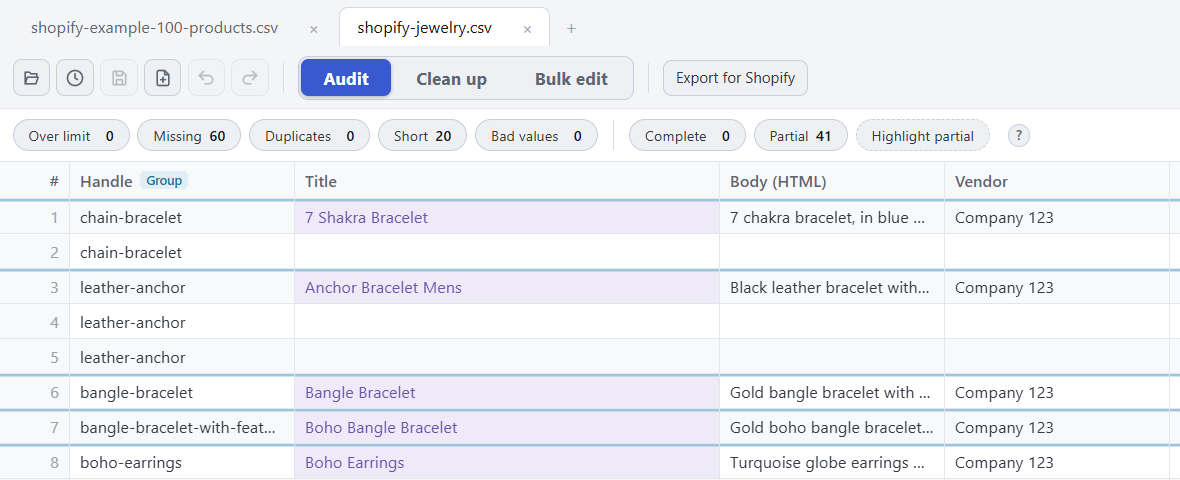
Each variant is its own row, and all the rows of one product share the same Handle. The first row carries the product details (Title, Description, Vendor, Tags). The rows below it carry only variant details, like the size, SKU and price. The product cells on those rows are blank on purpose.
For more, see how variant rows work and how to bulk edit products without breaking variants.
The format rules
- UTF-8. Shopify only accepts UTF-8 files. Saving in another encoding garbles accented letters.
- Commas between columns. Excel in some countries saves with semicolons instead, which Shopify can’t read.
- Quote marks. A cell that contains a comma or a quote mark has to be wrapped in quotes, or you get the “Illegal quoting” error.
- 15 MB or less. A larger file has to be split.
- Careful with Excel. Double-clicking the file can turn barcodes into 1.23E+11 and drop leading zeros from SKUs.
The easier way: Speedy CSV
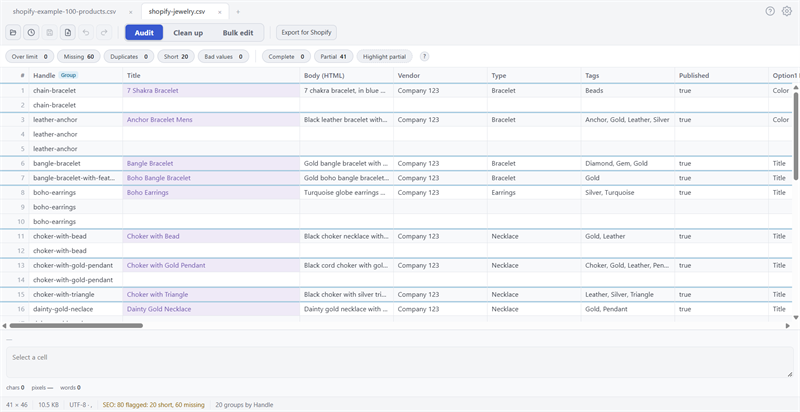
Speedy CSV is a Windows editor made for Shopify product files. It reads both sets of column names. Open Shopify’s template and it groups each product’s rows by URL handle; open your own export and it groups them by Handle.
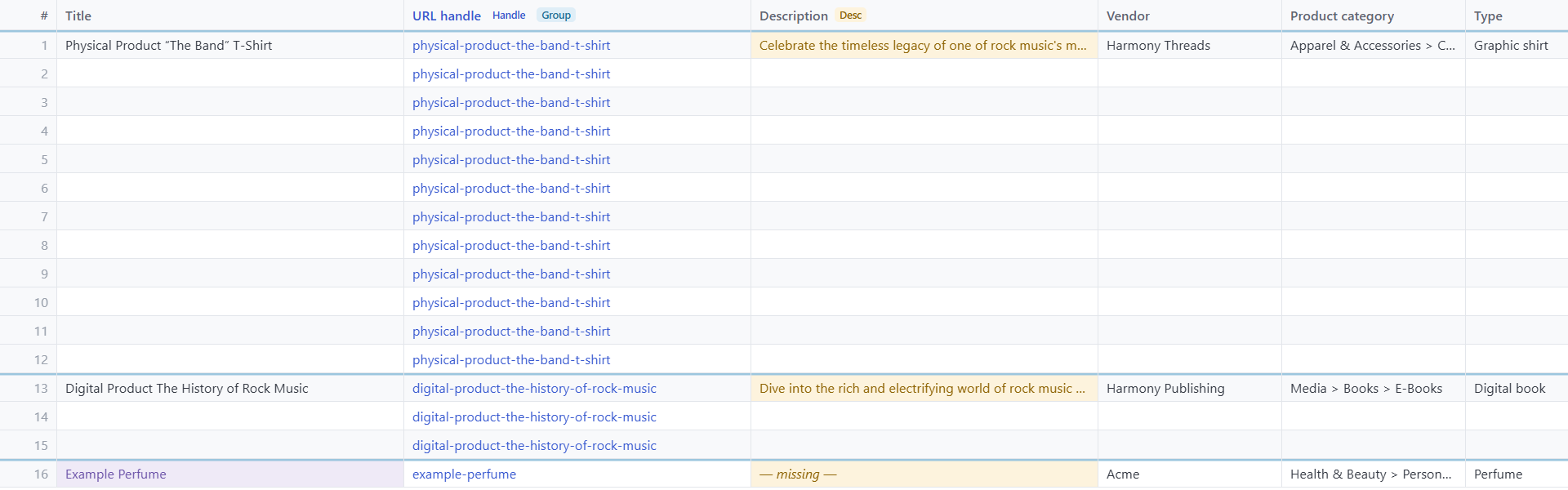
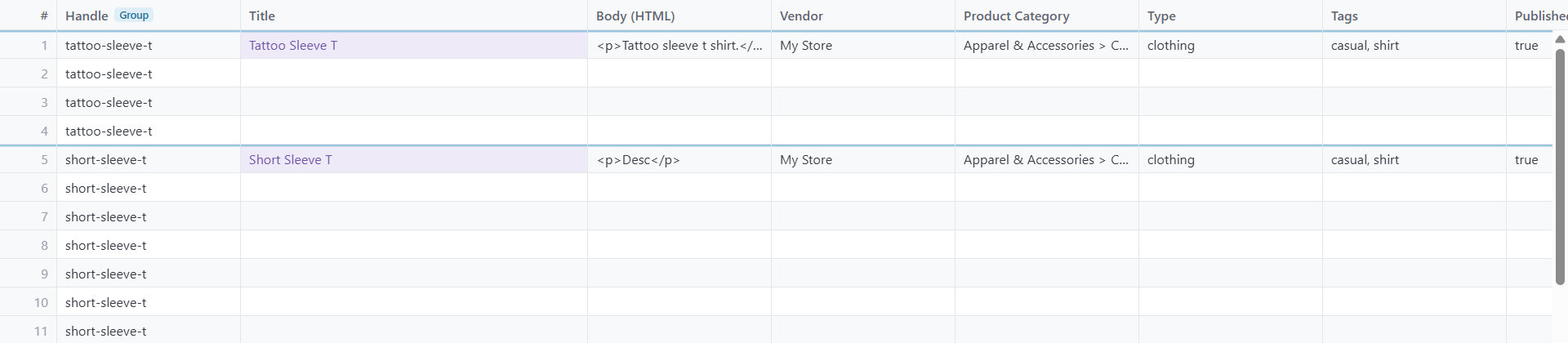
Before you upload, Export for Shopify runs 24 checks against what Shopify’s import needs. Both of these files pass.
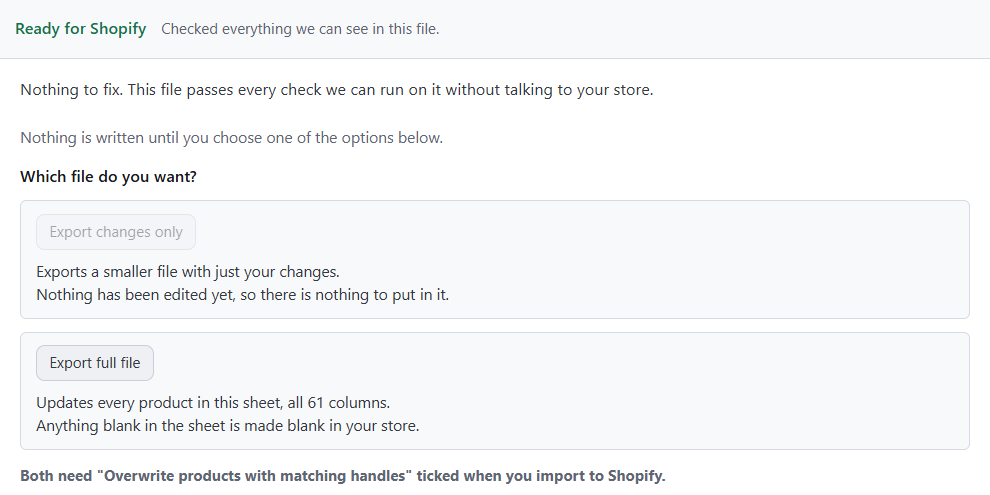
Speedy CSV works with product files. Shopify’s separate inventory export (stock by location) isn’t supported yet.
FREE VERSION · FOR WINDOWS
Fix your Shopify CSV in minutes, not hours
- Save time. One-click fixes for common problems, like stray spaces and garbled text.
- No monthly fee. Pay once, manage unlimited products.
- Catch import errors first. 24 checks run before you export.
- Re-import only what changed. No more splitting big files.
- Easy to use. Built-in help, tooltips and a status bar that explains what it sees.
Free for up to 25 products or 500 rows, with no time limit. No credit card needed.